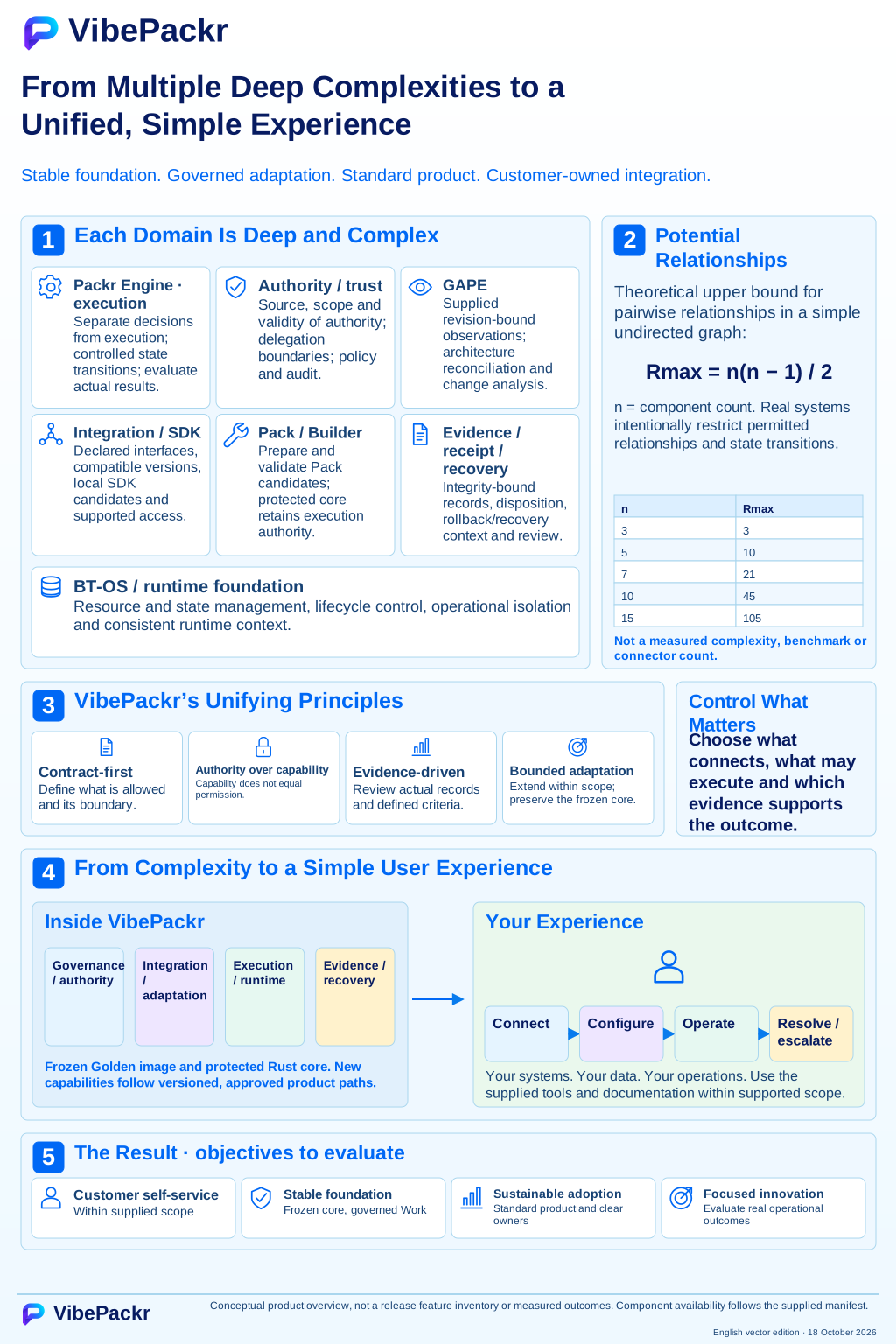
Run local examples
Choose OS and shell → verify archives → fresh workspace → complete example → inspect candidate files.
Start SDK examplesGuide connections, workflow and input/output map
Install. Configure. Connect. Verify.
Use this guide in a browser or from an offline delivery bundle. Your organization runs the appliance and chooses which supported components to connect.
Check the signed component list supplied with your installation. Use the image and installers listed for your platform and version; contact your supplier if a required file is missing.
Exercise and next steps
Open the relevant failure case
Part.1–8 identifies the current tool manuals. W1–W4 and codes such as GUI-01 identify exercises inside a Part. Use Case 1–5 is a separate retained procedure sequence, not the Part numbering. Case A–J and codes such as SDK-1 or IH-1 identify troubleshooting scenarios. Older filenames and pN section IDs remain valid bookmarks; read the page heading for the current Part number.
You can start local SDK synthetic examples without installing an appliance. Company users connect to an existing VM; only deployment owners create a new one. Follow one path, inspect its result, then continue.
Choose OS and shell → verify archives → fresh workspace → complete example → inspect candidate files.
Start SDK examplesObtain the compatible client and administrator's connection/enrollment material. Deployment and user setup are separate.
Connection preparationCheck OS/CPU, file types and shell usage.
Open this stepCheck current SDK archives → extract → fresh workspace → examples.
Open this stepUser installation → device enrollment → authenticated connection.
Open this stepSave source JSON → check syntax → insert into the full request.
Open this stepSelect executable/full request → inspect discovery → prepare stage by stage.
Open this stepRead a supplied viewer or create a snapshot from an approved manifest.
Open this stepSupplied exercise → new revision → validation → handover.
Open this stepLocate the first blockage in files, input, launch, connection or authority.
Open this stepView current SDK archives and digests
Read the required inputs and completion result before each exercise. Company connection, enrollment and approval need actual administrator-supplied material. The current SDK inventory covers the SDK and optional Rust set, rather than installers for every tool.
Expand the complete bilingual setup guide on this page. Select a component for its practical workflow and troubleshooting. Both online and closed-network environments are covered; illustrative scenarios are distinct from execution records. Check supplied release inventories for component availability and authority.
Verify image → first boot → unique identity → administrator setup
Per-platform install → per-route authentication → matching installation → actual result
Check supported Packs → prepare/validate candidate → approval/entitlement → execution record
Approved input → fixed revision → snapshot validation → observation limits/disclosure class
Full request → discovery/normalization → semantic validation → candidate preparation/handover
Declare operation/I-O → exact target references → syntax/semantics → request handover
All five use cases · All troubleshooting cases A–J · SDK Engine
Troubleshooting now includes 30 detailed A–J scenarios and 12 tool-specific scenarios. Follow situation, observations, checks/actions, resumption and handover criteria. Two actual retained-record cases are linked to evidence in a separate section.
Check current states in the order supplied by your release.
Choose preparation tools when needed. A candidate is not automatically registered or executed.
Choose a case from the last state actually confirmed.
Use the SDK package supplied for your operating system through your approved product delivery channel. This manual archive contains documentation and synthetic exercises; it does not include product binaries, license activation or Rust/native toolchains.
For online development, install or reuse a supported Rust compiler and native tools. For closed on-premises development, obtain the matching offline dependency set and toolchains before transfer. Offline is an available setup, not the default product mode.
Confirm the release image, target environment and scope.
Install the appliance and only the clients your team needs.
Set administrator scope and supported runtime binding.
Check service, identity, binding and recorded results.
The supplied component list identifies available installers and supported platforms. Choose only the components listed for your version.
Deploy the signed appliance image named in your component list into your own environment. Confirm the supported platform and complete the first-boot setup before connecting clients.
Workstation client for supported operating systems. Install only a platform package named by your release manifest and connect it to your organization's appliance.
Install the Builder package listed for your operating system to prepare and validate Pack candidates. Builder does not approve or execute a Pack by itself.
Use only Packs declared by your release and entitlement. Pack creation, validation, approval and governed execution are separate steps.
Prepare and compile a read-only Custom API or MCP transcript candidate on your development workstation. Choose the environment first; SDK Engine is not restricted to offline use.
Use an approved installed Rust toolchain with the compatibility run command, or choose the supplied dependency set for fixed build inputs. Installation and connection are separate steps.
Prepare the matching OS dependency set before transfer and verify its full file tree. run-offline uses those local assets for covered Rust/crates without additional downloads. This set is an optional provision for SDK build dependencies, not a product default.
The online installed-toolchain path and the separately verified dependency path have different evidence scopes. Choose deliberately; do not use another path to bypass a failed trust check. See the detailed SDK Engine guide for OS commands, input editing, reproducibility, troubleshooting and removal.
Use this tool on an integration workstation to prepare a candidate, before any live connection or Pack registration. It accepts a declared read-only Custom API operation or an MCP transcript, each with a synthetic response. The result is a locally compiled value-mapping library and its source. The tool does not call the source API or MCP server, read credentials, change the appliance, register a Pack, or execute Work.
For the supplied-set route, use the matching generation of the separate OS-native offline Rust dependency package. This set is optional when choosing the installed-toolchain online route. It supplies the compiler, standard library, Cargo and exact declared crate versions. Rust and crates need no additional download for that declared coverage. Other OSes, targets or new crates require their own verified inputs. macOS arm64 and Debian 13 amd64 bundles use Rust 1.96.0; Windows amd64 uses Rust 1.97.1.
Native prerequisites are separate: an existing Debian system C linker and libc development files; trusted Apple developer tools and SDK on macOS; or Visual Studio 2022 BuildTools MSVC 14.44.35207 and Windows SDK 10.0.26100.0. These native assets are not redistributed. Provisioning a fresh OS with all prerequisites has not been validated.
On macOS, run-offline uses the active Apple developer tools by default (SYSTEM_ACTIVE). To select an already installed Command Line Tools package for one run, append --macos-developer-selection COMMAND_LINE_TOOLS after the dependency root. This selects the registered /Library/Developer/CommandLineTools installation and retains all trust checks. It does not change the system developer selection or fall back to another installation. The option is rejected on other operating systems.
./bin/packr-sdk-engine run-offline examples/read-only-custom-api.json ./quality-candidate /absolute/path/dependencies --macos-developer-selection COMMAND_LINE_TOOLSCheck official signing/notarization and customer activation/delivery status in the package and separately trusted release inventory. Local example success does not authorize those states.
SDK Engine can be used in both online development and offline environments. The offline dependency set is optional provisioning for closed on-premises installations where compiling an SDK adapter may otherwise require unavailable Rust assets. It does not set an offline-only product default. Its purpose is to address dependencies that can arise while building a new integration candidate with SDK Engine.
| Environment | Preparation | Command and evidence scope |
|---|---|---|
| Online development | Obtain the SDK through your approved delivery route and install or reuse a supported Rust compiler and native tools. The shared dependency set is also an option. | Use run with an existing toolchain, or run-offline with the verified dependency set. The checks and receipts differ. |
| Closed on-premises | Prepare the SDK, matching OS dependency set, native prerequisites and trusted digest inventory before transfer. | Verify the complete dependency tree, then use run-offline. The declared Rust/crate coverage requires no additional download. |
| Connected environment requiring fixed build inputs | Choose the same dependency set while the machine remains connected. | The command name run-offline does not disable the computer's network or make the whole product offline-only. |
The compatibility path below uses an installed compiler in an online development environment. Run it from the extracted SDK directory after checking the actual compiler selected by rustc --version, its supported target and native prerequisites. Choose fresh output directories. This path uses the compiler on PATH and does not provide the separate dependency set's full-tree/native-trust receipts; validate that environment separately.
rustc --version
./bin/packr-sdk-engine analyze examples/read-only-custom-api.json unused
./bin/packr-sdk-engine run examples/read-only-custom-api.json ./online-custom-candidate-01
./bin/packr-sdk-engine run examples/read-only-mcp-transcript.json ./online-mcp-candidate-01rustc --version
if ($LASTEXITCODE -ne 0) { throw 'Rust compiler unavailable' }
.\bin\packr-sdk-engine.exe analyze .\examples\read-only-custom-api.json unused
if ($LASTEXITCODE -ne 0) { throw 'Analyze failed' }
.\bin\packr-sdk-engine.exe run .\examples\read-only-custom-api.json .\online-custom-candidate-01
if ($LASTEXITCODE -ne 0) { throw 'Custom candidate failed' }
.\bin\packr-sdk-engine.exe run .\examples\read-only-mcp-transcript.json .\online-mcp-candidate-01
if ($LASTEXITCODE -ne 0) { throw 'MCP candidate failed' }run is retained as a compatibility command for an installed compiler. It does not establish the same checks as the separately verified dependency route. Do not use it to avoid a failed run-offline trust or permission check. The dependency-set procedure below can also be chosen on a connected machine. Neither command's synthetic examples contact a live API or MCP server.
The SDK archive contains bin, docs, examples, licenses and notices. The optional Rust dependency set contains DEPENDENCIES.json, FILES.json, toolchain, cargo-home and notices. Extracting the SDK alone does not install the optional dependencies. Use a new generation-specific location to preserve earlier installations and results.
| Platform | SDK | Optional dependency set | Native coverage to check |
|---|---|---|---|
| macOS ARM64 | Matching .tar.gz | RUST_DEPENDENCIES_MACOS_ARM64.tar.gz | Apple Silicon, registered Apple tools and SDK |
| Debian 13 AMD64 | Matching .tar.gz | RUST_DEPENDENCIES_DEBIAN_13_AMD64.tar.gz | x86-64, system C linker and libc development files |
| Windows AMD64 | Matching .zip | RUST_DEPENDENCIES_WINDOWS_AMD64.zip | x64, registered MSVC and Windows SDK |
Check both archives with shasum -a 256 on macOS, sha256sum on Debian, or Get-FileHash -Algorithm SHA256 on Windows. Compare with a separately trusted component inventory. A digest obtained from the same untrusted location does not establish publisher identity. Stop on a mismatch even if the file name is unchanged.
On Linux or macOS, replace the archive paths below with the real files. The example stops if the install root already exists. Use an unshared directory under your private home; every ancestor must also exclude writes by other users.
sdk_archive="/absolute/path/sdk-package.tar.gz"
deps_archive="/absolute/path/RUST_DEPENDENCIES_OS.tar.gz"
install_root="$HOME/VibePackr-SDK-install-01"
test ! -e "$install_root" || exit 1
umask 077
mkdir -m 700 "$install_root" || exit 1
mkdir "$install_root/sdk" "$install_root/dependencies" "$install_root/runs" || exit 1
tar -xzf "$sdk_archive" -C "$install_root/sdk" || exit 1
tar -xzf "$deps_archive" -C "$install_root/dependencies" || exit 1
cd "$install_root/sdk" || exit 1
In Windows PowerShell 5.1, choose a fresh directory beneath an access-controlled user home. Check the organization's approved current-user directory and ACL first; avoid shared, synchronized or network locations. The example assumes that the parent permissions have already been verified. It neither overwrites an old directory nor changes system-wide ACLs.
$sdkArchive = 'C:\absolute\path\sdk-package.zip'
$depsArchive = 'C:\absolute\path\RUST_DEPENDENCIES_WINDOWS_AMD64.zip'
$installRoot = Join-Path $env:USERPROFILE 'VibePackr-SDK-install-01'
if (Test-Path -LiteralPath $installRoot) { throw 'Choose a fresh install root' }
New-Item -ItemType Directory -Path $installRoot -ErrorAction Stop | Out-Null
$sdkRoot = Join-Path $installRoot 'sdk'
$depsRoot = Join-Path $installRoot 'dependencies'
$runsRoot = Join-Path $installRoot 'runs'
New-Item -ItemType Directory -Path $sdkRoot,$depsRoot,$runsRoot -ErrorAction Stop | Out-Null
Expand-Archive -LiteralPath $sdkArchive -DestinationPath $sdkRoot -ErrorAction Stop
Expand-Archive -LiteralPath $depsArchive -DestinationPath $depsRoot -ErrorAction Stop
Set-Location -LiteralPath $sdkRoot
If full dependency verification rejects the permissions, do not use that installation; resolve it through the approved installation procedure. Do not disable checks, elevate the product, bypass execution policy or change the system trust store. Extraction of a dependency set is optional when using only an existing toolchain in an online environment.
bin, docs, and examples together. Use the signed release's platform-specific installation instructions for any system-wide placement.cargo-home as verified input: do not use it as a mutable cache or merge it into a global cache. No activation script or shell session mutation is needed. Replace the absolute dependency paths below with your actual paths, verify the full tree, then check the examples.Linux or macOS terminal:
./bin/packr-sdk-engine verify-offline-dependencies DEBIAN_13_AMD64 /absolute/path/dependencies
# On macOS arm64 replace DEBIAN_13_AMD64 with MACOS_ARM64.
test -f examples/read-only-custom-api.json
test -f examples/read-only-mcp-transcript.json
./bin/packr-sdk-engine analyze examples/read-only-custom-api.json unused
Windows PowerShell:
.\bin\packr-sdk-engine.exe verify-offline-dependencies WINDOWS_AMD64 C:\absolute\path\dependencies
Test-Path .\examples\read-only-custom-api.json
Test-Path .\examples\read-only-mcp-transcript.json
.\bin\packr-sdk-engine.exe analyze .\examples\read-only-custom-api.json unused
analyze reads the declaration without creating an output directory. A successful result reports authority_granted: false. If your release inventory lacks this component, stop and obtain the correct package through your support channel.
The commands below assume the preceding path variables remain in the same shell. Set actual absolute paths again in a new shell. The final unused argument to analyze is required by the CLI shape; it does not name a created output directory.
On macOS ARM64, this example explicitly chooses already installed Command Line Tools. The default selection is SYSTEM_ACTIVE; the option below applies only to that run.
./bin/packr-sdk-engine verify-offline-dependencies MACOS_ARM64 "$install_root/dependencies" || exit 1
./bin/packr-sdk-engine analyze examples/read-only-custom-api.json unused || exit 1
./bin/packr-sdk-engine run-offline examples/read-only-custom-api.json "$install_root/runs/custom-01" "$install_root/dependencies" --macos-developer-selection COMMAND_LINE_TOOLS || exit 1
./bin/packr-sdk-engine run-offline examples/read-only-mcp-transcript.json "$install_root/runs/mcp-01" "$install_root/dependencies" --macos-developer-selection COMMAND_LINE_TOOLS || exit 1
On Debian 13 AMD64:
./bin/packr-sdk-engine verify-offline-dependencies DEBIAN_13_AMD64 "$install_root/dependencies" || exit 1
./bin/packr-sdk-engine analyze examples/read-only-custom-api.json unused || exit 1
./bin/packr-sdk-engine run-offline examples/read-only-custom-api.json "$install_root/runs/custom-01" "$install_root/dependencies" || exit 1
./bin/packr-sdk-engine run-offline examples/read-only-mcp-transcript.json "$install_root/runs/mcp-01" "$install_root/dependencies" || exit 1
On Windows AMD64:
.\bin\packr-sdk-engine.exe verify-offline-dependencies WINDOWS_AMD64 $depsRoot
if ($LASTEXITCODE -ne 0) { throw 'Dependency verification failed' }
.\bin\packr-sdk-engine.exe analyze .\examples\read-only-custom-api.json unused
if ($LASTEXITCODE -ne 0) { throw 'Analyze failed' }
.\bin\packr-sdk-engine.exe run-offline .\examples\read-only-custom-api.json (Join-Path $runsRoot 'custom-01') $depsRoot
if ($LASTEXITCODE -ne 0) { throw 'Custom candidate failed' }
.\bin\packr-sdk-engine.exe run-offline .\examples\read-only-mcp-transcript.json (Join-Path $runsRoot 'mcp-01') $depsRoot
if ($LASTEXITCODE -ne 0) { throw 'MCP candidate failed' }After the OS-specific installation/run blocks create separate Custom and MCP candidates, inspect them below. SDK is not an installer that creates a desktop app icon: locate the extracted bin executable and result paths. Run commands from that SDK directory. The installed-toolchain online route does not require optional dependency variables.
If you used the installed-toolchain online run examples unchanged, results are online-custom-candidate-01 and online-mcp-candidate-01 under the SDK directory. Substitute those actual paths in the inspection commands below. runs/custom-01 and runs/mcp-01 belong to the earlier supplied-set run blocks.
ls -la "$install_root/runs/custom-01"
cat "$install_root/runs/custom-01/README.md"
cat "$install_root/runs/custom-01/adapter.rs"
cat "$install_root/runs/custom-01/manifest.json"$candidate01 = Join-Path $runsRoot 'custom-01'
Get-ChildItem -LiteralPath $candidate01
Get-Content -LiteralPath (Join-Path $candidate01 'README.md') -Raw -Encoding UTF8
Get-Content -LiteralPath (Join-Path $candidate01 'adapter.rs') -Raw -Encoding UTF8
Get-Content -LiteralPath (Join-Path $candidate01 'manifest.json') -Raw -Encoding UTF8| Item | First check | Meaning |
|---|---|---|
| Output directory | adapter.rs, libadapter.rlib, README.md, manifest.json | Distinct from failed temporary stages |
| adapter.rs | Component mapping and score → quality_score conversion | Synthetic value mapping, not an API client |
| manifest.json | compiler_version, 3 file digests, five stages, authority_granted=false | This execution's candidate and validation records |
| offline_execution | Dependency/native observations when using the supplied-set route | Do not assume the same receipt for online run |
| MCP output | Separate mcp-01 directory and repository mapping | Custom success is not MCP success |
libadapter.rlib is a Rust library; do not double-click or execute it as an OS program. Mapping 97 to an integer quality_score is part of synthetic validation, not a response from a live server. Read the original input values and compare mapping/stage records.
These commands copy the complete example into a fresh inputs-02 directory. Edit/analyze it here, then rerun in the later Edit input.json section. Choose a new number if that directory already exists.
test ! -e "$install_root/inputs-02" || exit 1
mkdir "$install_root/inputs-02" || exit 1
cp ./examples/read-only-custom-api.json "$install_root/inputs-02/input.json" || exit 1$inputs02 = Join-Path $installRoot 'inputs-02'
if (Test-Path -LiteralPath $inputs02) { throw 'Choose a fresh input folder' }
New-Item -ItemType Directory -Path $inputs02 -ErrorAction Stop | Out-Null
Copy-Item -LiteralPath .\examples\read-only-custom-api.json -Destination (Join-Path $inputs02 'input.json') -ErrorAction StopOpen this copy in an editor, keeping score a string "88" and setting component to "my-test-component". Changing fixture values while retaining mapping may leave adapter.rs unchanged. Preserve both the first and modified results.
These commands restore the existing installation paths. Do not extract again or delete old results. Replace the root name if you used a different one, and select a fresh result directory for the next run.
install_root="$HOME/VibePackr-SDK-install-01"
test -f "$install_root/sdk/bin/packr-sdk-engine" || exit 1
cd "$install_root/sdk" || exit 1$installRoot = Join-Path $env:USERPROFILE 'VibePackr-SDK-install-01'
$sdkRoot = Join-Path $installRoot 'sdk'
$depsRoot = Join-Path $installRoot 'dependencies'
$runsRoot = Join-Path $installRoot 'runs'
Set-Location -LiteralPath $sdkRoot -ErrorAction Stop
if (!(Test-Path -LiteralPath '.\bin\packr-sdk-engine.exe' -PathType Leaf)) { throw 'SDK path does not match the prior installation' }Return path: executable missing → install root/nested extraction directory; analyze refusal → complete input/encoding; build refusal → selected dependencies/native prerequisites; output refusal → fresh name. Never open a failed temporary stage as a successful candidate.
The included file declares one synthetic read_quality operation. The source returns component and a string score; the target contract expects component and integer quality_score. This mapping is local preparation only.
{
  "definition": {
    "integration_id": "acme-quality-hub",
    "operation_id": "read_quality",
    "credential_requirements": [],
    "execution_boundary": "READ_ONLY_SYNTHETIC_SANDBOX"
  },
  "mapping": {
    "field_mappings": [
      {"source": "component", "target": "component", "transform": "IDENTITY"},
      {"source": "score", "target": "quality_score", "transform": "STRING_TO_INTEGER"}
    ]
  },
  "fixture": {
    "scope": "LOCAL_SYNTHETIC_SANDBOX",
    "response": {"component": "fixture-component", "score": "97"}
  }
}
This excerpt explains the fields; run the complete supplied JSON file, which also binds the exact registered Contract, adapter, schema digest, permissions, and evidence capabilities. Do not place a password, token, private key, or real customer response in a fixture.
If your organization exposes a legacy repository through a supported MCP interface, start with examples/read-only-mcp-transcript.json. Its synthetic transcript declares tools/list and a read-only read_repository tool. The mapping copies name to repository_id and sha to revision. The Engine parses the supplied transcript; it does not establish an MCP session.
./bin/packr-sdk-engine analyze examples/read-only-mcp-transcript.json unused
./bin/packr-sdk-engine run-offline examples/read-only-mcp-transcript.json ./repository-candidate /absolute/path/dependencies
Windows PowerShell:
.\bin\packr-sdk-engine.exe analyze .\examples\read-only-mcp-transcript.json unused
.\bin\packr-sdk-engine.exe run-offline .\examples\read-only-mcp-transcript.json .\repository-candidate C:\absolute\path\dependencies
Before substituting a real declaration, confirm the exact operation, field types, read-only permission, contract revision, and synthetic response with the integration owner. A live MCP tool call and any credential use require their own approved connection workflow.
From the extracted package directory, choose an output directory that does not already exist:
./bin/packr-sdk-engine run-offline examples/read-only-custom-api.json ./quality-candidate /absolute/path/dependenciesWindows:
.\bin\packr-sdk-engine.exe run-offline .\examples\read-only-custom-api.json .\quality-candidate C:\absolute\path\dependenciesOne command performs the stages in order:
adapter.rs, a local mapping function. It contains no API transport, credential handling, or Work execution path.rustc after full tree verification to compile libadapter.rlib from that generated source.README.md and manifest.json. The manifest records the input digest, compiler version, SHA-256 for the three candidate files, and the input and output digest of each stage.The expected output directory contains exactly adapter.rs, libadapter.rlib, README.md, and manifest.json. The v2 manifest includes offline_execution: minimal public digests for the pre/post tree, compiler, native prerequisites, environment and argv. It is an unsigned observation record, not independent runtime attestation or a release signature. Check the manifest. The result is CUSTOMER_REVIEW_CANDIDATE; it is not a live integration or an authorization decision.
Copy the complete supplied examples/read-only-custom-api.json into input.json in a fresh input workspace. Preserve the original example and first output. Edit only these two values in a text editor and save as UTF-8. Do not replace the whole file with this excerpt.
draft.fixture.response.component = "my-test-component"
draft.fixture.response.score = "88"
Keep score quoted: the source field is a string and STRING_TO_INTEGER converts it to integer quality_score. Do not guess replacements for Contract IDs, adapter revisions, schema digests, permissions or evidence capabilities. PowerShell 5.1's default Out-File can write UTF-16; choose UTF-8 in your JSON editor.
For example, create a fresh inputs-02 directory under the install root and save input.json there before running the following. On macOS retain the Apple tools selection used earlier. Never merge the two candidate directories.
./bin/packr-sdk-engine analyze "$install_root/inputs-02/input.json" unused
./bin/packr-sdk-engine run-offline "$install_root/inputs-02/input.json" "$install_root/runs/custom-api-candidate-02" "$install_root/dependencies"
# For an explicit macOS CLT selection append: --macos-developer-selection COMMAND_LINE_TOOLS$input02 = Join-Path $installRoot 'inputs-02\input.json'
.\bin\packr-sdk-engine.exe analyze $input02 unused
if ($LASTEXITCODE -ne 0) { throw 'Analyze failed' }
.\bin\packr-sdk-engine.exe run-offline $input02 (Join-Path $runsRoot 'custom-api-candidate-02') $depsRoot
if ($LASTEXITCODE -ne 0) { throw 'Candidate failed' }If you selected the installed-toolchain online path, use run with the same input and a fresh output; omit the dependency path and macOS selection option. Keep records for the two execution paths separate.
adapter.rs contains field-mapping code. Changing only synthetic response values while retaining mapping rules may leave that source unchanged. manifest.json records the individual input, artifacts and stages, so input digests, paths and observations can differ. Do not expect .rlib hashes from different OSes or compiler versions to match.
cat "$install_root/runs/custom-api-candidate-02/adapter.rs"
cat "$install_root/runs/custom-api-candidate-02/manifest.json"Get-Content -LiteralPath (Join-Path $runsRoot 'custom-api-candidate-02\adapter.rs')
Get-Content -LiteralPath (Join-Path $runsRoot 'custom-api-candidate-02\manifest.json') -Raw
Get-FileHash -LiteralPath (Join-Path $runsRoot 'custom-api-candidate-02\libadapter.rlib') -Algorithm SHA256Editing generated source invalidates the recorded manifest hashes. For a reproducible Engine candidate, edit supported declarations/mappings in the input JSON and rerun into a new directory. Do not edit the manifest to represent altered artifacts as previously validated. Arbitrary Rust code, additional crates and live networking are outside this synthetic example's validation coverage.
Check reproducibility by rerunning the same complete input on the same OS with the exact SDK, compiler and dependencies into another fresh directory, then comparing SHA-256 for adapter.rs and libadapter.rlib. Comparing two different inputs answers a different question. Entire manifest hashes need not match; inspect all five stages, artifact/input digests and before/after dependency-tree digests as well.
| What you see | Likely cause | Action |
|---|---|---|
TARGET_MISMATCH, FIXTURE_REJECTED, CREDENTIAL_REQUIREMENT, or INVALID_INPUT | The operation, Contract/adapter revision, input shape, or fixture is unsupported; a credential requirement may be present. | Compare the complete declaration with the release's supported target list. Remove secrets from fixtures. Do not change the target ID to a guessed value. |
TOOLCHAIN_UNAVAILABLE before a library appears | Dependency files, platform, permissions, compiler or native tool trust verification failed. | Check full dependency verification and native prerequisites. Preserve the error and failed stage. Do not bypass trust/permission checks or fall back to PATH/Rustup downloads. |
OUTPUT_EXISTS_OR_UNAVAILABLE | The selected directory exists from an earlier attempt or cannot be created. | Inspect its contents and choose a writable new directory. Do not merge outputs from two attempts. |
| Fixture test fails | The declared mapping and response do not agree or a generated value cannot be converted. | Correct the source declaration or synthetic fixture, then run again into a new directory. Do not use a fixture PASS as proof of a live API. |
| Archive hash or signature differs | Wrong or modified download. | Stop; get the package listed in the release inventory. |
| Candidate compiles but does not appear on the appliance | This tool only prepares local code. | Use the separate reviewed registration, binding, and Work workflow supplied with your release. Require authenticated decisions and a matching Work receipt. |
run-offline builds in a private sibling stage, performs post-use verification, then publishes with an atomic no-replace move. On failure the final path remains absent, while a private stage and failure record may remain. Never consume a stage as a candidate. A later run does not automatically reuse earlier failed stages or results. Retain its error output when contacting support; remove any customer data before sharing it.
Extract each SDK generation into a separate directory and compare its dependency set and digest inventory. Preserve earlier inputs, packages and outputs while validating the new location, then change the working path. To roll back, select the recorded previous SDK with its matching dependencies and input. Do not overwrite or reuse an old candidate directory automatically.
Before removal retain the input JSON, edits, candidate artifacts/manifests and support record. Manage the portable installation separately from results. This procedure installs no system service and changes no global Rustup/Cargo configuration; it does not require removing those settings or a pre-existing organizational toolchain.
For security review retain package/dependency digests, exact versions and OS, file inventory, LICENSE/NOTICE, any supplied SBOM and advisory-query date, and actual checks with their limits. Distinguish unsigned candidates from signed releases. Matching digests establish byte identity; the manifest is not independent execution attestation. Known-marker checks do not guarantee universal secret absence or certify every supply-chain, privilege, network-isolation or current vulnerability property.
Use the separately supplied procedures and authority for appliance registration, live connections, customer activation/delivery and Work. Return to the post-install tool index or prepare the next integration declaration using the source Document guide.
Record both package digests and whether a signature was supplied, workstation OS, verified compiler version, input JSON digest, target Contract and adapter revisions, stage result, candidate manifest, and your integration owner. For a later live run, record the separate appliance registration decision and Work receipt. Keep secrets and raw customer responses out of the support record.
These teaching examples use documented input, command and authority boundaries. Read them alongside actual product states/reasons; do not treat illustrative outcomes as execution history. Distinguish checks shared by online/offline environments from checks specific to the optional dependency route.
Situation: The SDK executable opens, but an optional-dependency build does not start. Check SDK extraction, Rust-set verification and native OS tooling as separate stages.
Read these observations separately.
Check and action sequence:
Condition for resuming: Record preparation complete only after selected-route prerequisites and all five stages pass into fresh output.
If still unresolved: Hand over exact missing assets/unsupported combinations; do not fill gaps with arbitrary downloads or mixed global caches.
Situation: A Mac has multiple Apple tool installations. A run using the active system selection is refused while registered Command Line Tools are also installed. Presence alone does not establish trust validation.
Read these observations separately.
Check and action sequence:
Condition for resuming: Record success only for the selected tools and candidate validation actually observed for that run.
If still unresolved: Hand over absent/refused CLT prerequisites; do not use the option on another OS.
Situation: A user changes score to 88 without quotes or saves only an explanatory excerpt as input.json. Valid JSON syntax does not establish the declared type or complete request structure.
Read these observations separately.
Check and action sequence:
Condition for resuming: Close only that candidate when the edited supported input and its five stages/artifact digests are confirmed.
If still unresolved: Do not represent a remaining target/authority/data-boundary refusal as resolved by editing fixture values.
Situation: Two outputs have identical adapter.rs but different libadapter.rlib digests. Before comparing paths alone, establish whether input, OS, compiler, SDK, dependencies and command are identical.
Read these observations separately.
Check and action sequence:
Condition for resuming: Record matching repeats as reproducibility for that OS/version/input combination only.
If still unresolved: If conditions match but bytes differ, hand over package/input/artifact digests and minimal run records; do not turn failed protection checks into success.
Verify the SHA-256 digest against the manifest supplied with your exact package. Record the package version, operating system, input digest and verbatim error for support. Internal development records and historical attempts are retained by the maintainer and are excluded from this user manual. This page does not provide customer activation, delivery or Apple signing.
These user procedures summarize two maintainer-observed failure patterns. Internal execution records remain with the maintainer; no product execution is performed by opening this manual.
Symptom: the compiler returns exit code 0, but the package check reports candidate private path disclosure libadapter.rlib.
Expected result: both the command and all required postchecks complete successfully. A missing next-stage candidate is an incomplete result.
Symptom: adapter.rs is identical while libadapter.rlib differs.
If unresolved: provide the two artifact digests and minimal version/error details. Additional crates, targets and native tools require their own checks.
Navigate: Installation and first use · Post-install tools · Use cases · Troubleshooting cases
You do not need to install every tool in sequence. Choose one goal below. Only a browser is needed to read this page. SDK synthetic exercises do not require an appliance account, customer activation or a live API connection.
| Today's goal | What you need | Follow this sequence | Exercise completion |
|---|---|---|---|
| Run SDK examples on my PC | Supported OS SDK, selected Rust route, native prerequisites | SDK extraction → analysis → Custom/MCP examples → inspect results | Four files in each fresh candidate and five stage records |
| Connect to an existing company VM | Compatible GUI, administrator's connection and device enrollment instructions | General-user route in the GUI/headless use case | Authenticated matching customer/installation; Work is separate |
| Install the first company VM | Deployment authority, exact image, compatibility and initial admin procedure | Sections 1–6 of this guide → first Work use case | Ready service through authorized Work and receipt |
| Prepare integration declarations/candidates | Synthetic inputs, supplied target references, required tools | Document → Helper, or SDK Engine | Separate syntax, semantic and preparation results |
| Review architecture | Approved snapshot/viewer, or GAPE executable and manifest | GAPE first-observation exercise | Validated observation at the same revision, with limits |
| Prepare a Pack candidate | Supplied Builder, connection/role, supported Pack/Contract | Builder first-candidate exercise | Candidate, validation and handover record |
Find each tool in the post-install tool index. Install a tool when its step needs it. Live connection, registration and Work require the release's separately authorized route.
arm64/aarch64 and x86_64/AMD64 require different packages. Current recorded SDK combinations are macOS ARM64, Debian 13 AMD64 and Windows AMD64; another Linux distribution or Windows ARM is not the same combination.# macOS Terminal only
sw_vers
uname -m
# Linux terminal only
cat /etc/os-release
uname -m# Windows PowerShell
$PSVersionTable.PSVersion
(Get-CimInstance Win32_OperatingSystem).Caption
(Get-CimInstance Win32_ComputerSystem).SystemType| Supplied file | Action | Confirmation |
|---|---|---|
Portable SDK .tar.gz or .zip | Extract into the fresh private SDK directory; dependencies are separate | Main bin/docs/examples; set's DEPENDENCIES.json/FILES.json |
Client .app, .dmg, .pkg, .msi, .exe, .deb, etc. | Follow the actual inventory's format and install instructions | Exact application version and launch path; connection follows |
| VM image or image reference | Use the supported virtualization/cloud release procedure | Image ID, fresh instance and product readiness |
| JSON Document/request/manifest | Read as UTF-8; confirm kind and version | Distinguish a source excerpt, complete request and GAPE manifest |
Generic .pkg/.exe/.deb names later in this guide only illustrate hashing. Do not look for the SDK under those names. In this local operator edition the current SDK packages table links the actual archives and digests. Other components need their own release inventory. Do not assume a portal, download URL or signature status exists.
bash examples in macOS Terminal/Linux shells and powershell examples in Windows PowerShell. Prompts such as $ or PS C:\> are not part of commands./absolute/path/..., C:\absolute\path\... and bracketed fields with your actual supplied values first. Keep the quotes, especially for spaces. Do not interchange Unix ./bin/... and Windows .\bin\... paths.install_root and $installRoot exist only in the shell where you initialized them. A new terminal requires the resume instructions below. Check folder spelling, case and accidental .json.txt extensions.> or Out-File may write UTF-16. Use a UTF-8 editor for input JSON and check its save encoding.VibePackr-SDK-install-01/
sdk/ extracted program; bin, docs, examples
dependencies/ optional set; retain as verification input
inputs-02/ editable complete input.json copy
runs/
custom-01/ created after the first successful run
mcp-01/ separate MCP result
custom-api-candidate-02/ new result for modified inputThis is a layout illustration; SDK sections contain creation commands. Prepare the runs parent, then let the SDK create final candidate directories such as custom-01. GAPE also uses a fresh output path. Helper log directories and product-managed Builder candidates are separate.
Record installation, connection, candidate generation and real Work separately. At the end of each exercise save the date, tool version/path, input digest, actual command or UI action, result location, last successful step and next owner. Troubleshooting starts with this record.
| Result | Inspect directly | Next action |
|---|---|---|
| SDK candidate | adapter.rs, libadapter.rlib, README.md, manifest.json and stage records | Edit an input copy or use separately authorized integration |
| Helper preparation | Per-stage status/reason/next_required_actions and candidate digest | Resolve the refusal or hand over for registration |
| GAPE observation | Snapshot ID, revision, validate result, disclosure class | Review relationships inside the approved scope |
| Document | Complete JSON, syntax result, target/mapping references | Helper semantic validation |
| Builder candidate | Candidate ID/revision, validation, approval and entitlement status | Approval handover; Work only when authorized |
| GUI connection/Work | Matching customer/installation, authentication, and any Work's result/receipt | Permitted work or administrator support |
On resuming, preserve archives and results. The SDK guide shows how to restore path variables; select absolute input/output paths again for other tools too. If execution is uncertain, query the existing Work/request ID before acting; a new submission is not a way to resolve a possibly duplicated operation. Use the troubleshooting index for the blocked step.
This guide helps customer operators proceed from receiving files to checking the first Work result. Product status and the signed manifest for the exact release are authoritative. Examples and generic operating-system commands do not override product refusals or release instructions.
setup.vibepackr.com. For offline setup, open the delivered Start_Setup.html. Confirm that the portal and offline page name the same release and component inventory. Distinguish a portal outage from an appliance problem.shasum -a 256 filename on macOS, sha256sum filename on Linux, and Get-FileHash -Algorithm SHA256 filename in Windows PowerShell. Follow your shell's quoting rules for filenames with spaces.Continue when: the exact delivered files have matching signatures and digests and the target environment is supported.
Use the filename and expected SHA-256 from this release's signed inventory. These are read-only operating-system commands. Replace the example filename with the received file and complete the release's signature verification separately. Do not use a digest copied from an older guide.
# macOS Terminal
shasum -a 256 "VibePackr-installer-for-this-platform.pkg"
# Linux shell
sha256sum "VibePackr-installer-for-this-platform.deb"# Windows PowerShell
Get-FileHash -Algorithm SHA256 "VibePackr-installer-for-this-platform.exe"Example decision: the manifest says A1... while the local command prints B2.... Stop before installation, retain the exact filename and two digests, and ask the delivery owner for a corrected signed file. Renaming the file does not change its digest.
Running in a cloud console means the VM is powered on. Confirm product service readiness separately in product status or the release diagnostic. During initialization, follow the official wait and status procedure instead of repeatedly attempting connections.Continue when: first boot has finished, the product service reports ready, and the unique installation identity and authenticated access route are confirmed.
Permission denied occurs, do not repair ownership, permissions, or lock files by hand. Send the exact error through the release support route.Continue when: the product confirms the administrator role, allowed scope, and validity period for this installation.
Continue when: the product shows a validated binding for the supported runtime and model on this installation.
For the next tasks after connection, use the post-install tools guide. It explains where to install and how to use Builder, GAPE, Integration Helper, SDK Engine, and Contract & Document. It also includes the Non-SI architecture diagram.
Continue when: the product confirms authentication, installation identity, and permitted functions for each client route you plan to use.
bound runtime or responsive model can exist without a Work call.not checked separately from failure, but do not mark it complete.| Item | Evidence to inspect |
|---|---|
| Delivered files | Signatures, digests, and release ID |
| Appliance | New installation identity and service readiness |
| Administrator | Role, scope, and validity period for this installation |
| Client | Authenticated connection and matching customer and installation identities |
| Runtime | Validated binding for the current model |
| Work | Authorized execution, final status, validated result, and receipt |
After installation, start at the use-case index to follow the work in order. New installation, runtime change and rebinding, separate PackrGUI and headless routes, Builder candidates, and first Work each describe owners, prerequisites, evidence, and failure branches. Cases A–J below are symptom-driven troubleshooting guides.
The following situations may arise during installation and use. Exact product messages can vary by version and platform. Perform only the safe action shown here; pass identity, authority, and state-integrity failures to the support route. Open each linked case for a worked example, ordered checks, outcome branches, sample support request, and completion and stop conditions. If you are unsure which case fits, start with the troubleshooting index.
Permission denied or a storage access error.detected or refused.BOUND.Prepared in Builder is not execution permission.The installer should record the release and image IDs, the exact files and digests installed on each platform, supported-environment checks, initial administrator scope, authenticated connections, and current runtime binding. For any Work that was run, keep its final state, result validation, and receipt location with the same installation and Work ID.
Check macOS, Windows and Linux clients and the headless route separately. A connection on one platform does not verify installation, authentication or permissions on another. If a screen or command differs from the example here, follow the instructions supplied with your release and include the product's actual message and your steps in a support request. Exclude customer data and secrets.
Online operation uses approved network/provider routes; closed on-premises operation provisions required installation assets, models and documentation before transfer. This guide fixes neither as the product default. The optional SDK Rust dependency set prepares SDK adapter-build Rust coverage; it does not replace appliance images, model weights, provider credentials or all native OS development tools.
| Symptom or situation | Facts to check separately | Action and result to recheck |
|---|---|---|
| Appliance | Matching release image, service readiness and unique installation identity | Use Case 1 for first install, Case A for readiness, Case J for earlier-state residue. |
| PackrGUI/headless | Per-route platform file, authentication and matching installation ID | Validate each route with Use Case 3; classify connection issues with Case C. |
| Builder/additional Packs | Exact candidate, validation, approval, entitlement and preconditions | Check supported Packs first; use Case 4 for a candidate, Case H for refusal and Use Case 5 for execution. |
| GAPE | Approved manifest, source revision and disclosure class | Review the selected revision; unobserved dynamic behavior requires separate evidence. |
| Integration Helper/source Document | Full request, published targets, mappings and typed stage decisions | Separate parsing, discovery, normalization and preparation; hand over only through a supplied registration route. |
| SDK Engine | OS, compiler, optional dependencies and input/output digests | Choose an installed-toolchain or optional-dependency route and record its distinct validation scope. |
After a client update recheck that client’s connection, authentication and installation identity. After a runtime change recheck fresh observation, validation and binding. After a Pack change recheck exact version, trust, current entitlement and preconditions. Retain the previous records and recovery target. If something changes unexpectedly, record the first differing observation and return to that component’s procedure.
Additional Packs use files and registration procedures appropriate to the supplied release, customer and installation scope. Copying a folder or renaming a candidate does not replace registration/approval. First application requires the approved plan, postcondition validation and receipt. Removal/rollback follows that Pack’s declared recovery procedure and current authority.
The same symptom can require different actions at different stages. Choose the last step you directly confirmed below. A failed step does not require repeating the entire installation or deleting earlier results.
| Current situation | Check first | Continue at |
|---|---|---|
| A linked file is missing | Whether only the HTML was moved; retained relative folders and supplied inventory | Request the exact missing path from delivery support; do not guess URLs |
| command not found | Working directory, absolute executable path, OS ./ or .\ form | Tool's first-exercise path binding; confirm file before changing PATH |
| No such file/path not found | Nested extraction folder, quoted spaces, .json.txt, restored variables | Install root/input-copy preparation; distinguish from product validation |
| App will not open/DLL or library warning | OS/CPU, bundled runtime/resources, exact warning/security status | GUI launch or release package guide; do not begin with network changes |
| JSON parsing error | UTF-8, complete object, quotes/commas, excerpt versus full request | Document DOC-1/2 or SDK-3 |
| SDK native/dependency refusal | Selected route, main/set OS and digests, native prerequisites | SDK-1/2 and actual failed stage |
| Output directory exists | Previous result, failed stage and selected path | Fresh output name; preserve originals |
| VM powered on/service not ready | Image ID, first boot and product readiness | Case A |
| Endpoint/identity warning or another organization | Expected endpoint/installation versus actual display | B/J; verify before changing trust |
| Timeout/login/enrollment/permission refusal | Readiness → network → authentication → role/scope | C/D/E |
| Model missing or not running | Discovery, validation, binding, resources and real invocation | F/G |
| Candidate/result exists but no execution/receipt | Candidate validation, approval, entitlement, Work/receipt separately | H/I and tool preparation results |
This is a worksheet. Replace brackets with actual observations; write unconfirmed for unknown values. Do not invent product error codes or success timestamps.
Goal: [e.g. first SDK Custom synthetic candidate]
OS/CPU and tool version: [actual observations]
Selected route: [installed-toolchain run / supplied-set run-offline / GUI, etc.]
Last success: [e.g. analyze actually confirmed]
Failed step/time: [actual stage, local timestamp and timezone]
Observation: [actual status/reason or OS error; redact secrets]
Input/package reference: [version and SHA-256; no customer contents]
Earlier results: [present/absent; distinguish this attempt]
Next check requested: [e.g. approved native prerequisites]
Do not send raw full logs, customer responses, keys, tokens or profile contents in bulk. Share only redacted minimal messages/identifiers through the organization's support route. After resolution, recheck the first failed step and affected outputs, then continue.
Do not collapse every problem into “installation failed.” Record the last state you actually confirmed. This reduces unnecessary reinstalls and permission changes.
| Last confirmed state | Check next | Case |
|---|---|---|
| Files received but unverified | Signatures, digests, compatibility in main Section 1 | Installation and first-use guide |
| VM running; product readiness unknown | First boot and service readiness | A: Service readiness |
| Host identity warning | Stop before independent identity proof | B: Host identity |
| Connection or login failure | Separate reachability and authentication | C: Connection and auth |
| Administrator enrollment refused | Interactive enrollment and result | D: Administrator enrollment |
| Access refused after enrollment | Separate role, scope, and storage access | E: Administrator store |
| Runtime found; no binding | Fresh observation, validation, and scope | F: Binding |
| Local model startup or offline failure | Supported resources, local model, network | G: Local model |
| Builder candidate cannot run | Separate validation, approval, entitlement | H: Pack candidate |
| Binding exists; no Work result | Separate submission, execution, result, receipt | I: Work receipt |
| New VM shows prior-user residue | Stop use and check image origin | J: Image residue |
“I deployed a new VM for release [ID]. The VM runs, but the product is not ready. I have not enrolled an administrator or started Work. The first message was [verbatim] at [time with zone].” Start with A. Even if a client connection error appears at the same time, do not change authentication settings under C before product readiness is proven.
Conversely, if product readiness and network reachability are confirmed but login alone is refused, use C for authentication. If only a binding screen exists and there is no Work receipt, use I. This order does not prove a root cause. It prevents declaring an unproven later stage successful.
Stop self-service for a signature or file-digest mismatch, unexpected host identity, different customer or installation ID, suspected privilege expansion, earlier-user data, or state-integrity warning. Collect only the minimum case-specific support evidence. Do not put passwords, tokens, private keys, passkey responses, customer data, or full logs in an ordinary support request.
Online operation uses approved network/provider routes; closed on-premises operation provisions required installation assets, models and documentation before transfer. This guide fixes neither as the product default. The optional SDK Rust dependency set prepares SDK adapter-build Rust coverage; it does not replace appliance images, model weights, provider credentials or all native OS development tools.
| Symptom or situation | Facts to check separately | Action and result to recheck |
|---|---|---|
| Appliance | Matching release image, service readiness and unique installation identity | Use Case 1 for first install, Case A for readiness, Case J for earlier-state residue. |
| PackrGUI/headless | Per-route platform file, authentication and matching installation ID | Validate each route with Use Case 3; classify connection issues with Case C. |
| Builder/additional Packs | Exact candidate, validation, approval, entitlement and preconditions | Check supported Packs first; use Case 4 for a candidate, Case H for refusal and Use Case 5 for execution. |
Example support handover: release/component/OS, time and timezone, last confirmed stage, first refusal, performed change, current result and next owner. Keep unconfirmed, refused, waiting, failed and completed states distinct. Exclude secrets and customer content.
A broad issue category can contain different symptoms and remedies. Follow the example IDs below through situation, observation, action and resumption criteria. They are teaching scenarios; actual incident histories require separate evidence.
| Case | First example | Second example | Third example |
|---|---|---|---|
| A | A-1 The VM is running while first boot is still in progress | A-2 A process exists but required initialization fails | A-3 Yesterday’s readiness screenshot is healthy but today’s connection fails |
| B | B-1 Host-key warning after a replacement VM reuses an address | B-2 Distinguish a stale saved endpoint from the intended server | B-3 The host is said to be unchanged but its key changes again |
| C | C-1 Separate a connection timeout from product unreadiness | C-2 The server responds but the session has expired | C-3 GUI works while the automation service cannot connect |
| D | D-1 Administrator confirmation is refused through a remote pipe | D-2 An OS administrator logs in without a product administrator role | D-3 Enrollment completes with an unexpected customer/runtime scope |
| E | E-1 The first status read fails after successful enrollment | E-2 Reads work but out-of-scope operations are refused | E-3 Store access first fails after an update |
| F | F-1 Model files exist without an observed runtime | F-2 An alias changes while the old binding remains visible | F-3 Several models are discovered and the intended target is ambiguous |
| G | G-1 The model exits during loading but memory shortage is unconfirmed | G-2 A closed network waits for model files that were not provisioned | G-3 Separate an online metadata failure from local operation |
| H | H-1 Candidate structure validates while approval is pending | H-2 Approval exists but entitlement belongs to another installation | H-3 The candidate changes after approval |
| I | I-1 A model test responds but no Work ID exists | I-2 The submitted Work result is delayed | I-3 A report exists but its receipt refers to another installation or Work |
| J | J-1 A new VM’s first setup shows an earlier organization | J-2 Two different VMs show the same installation identity | J-3 Earlier state reappears in a replacement VM |
For SDK, Builder, GAPE, Integration Helper and source Document issues, also use the detailed examples in the post-install tool guides. Do not transfer preparation success between tools or to actual Work.
| Goal | Owner and prerequisite | Use case | Final evidence to check |
|---|---|---|---|
| Install a new VM and enroll its first administrator | Installer, exact signed image | 1. New installation | New installation identity, service readiness, administrator scope |
| Continue after changing a local model or runtime | Runtime administrator, existing approved scope | 2. Automatic rebinding | New Core binding after the change |
| Use GUI and automation clients | Authentication owner for each route | 3. GUI and headless | Per-route authentication, installation identity, and authority |
| Prepare a Pack candidate in Builder | Builder operator and separate approval owner | 4. Pack candidate | Candidate validation separated from approval |
| Execute and close the first Work | Approved Pack and Work authority | 5. First Work | Final state, validated result, matching receipt |
Each use case follows situation → prerequisites → steps → failure branches → completion evidence. If several symptoms appear, start at the last proven state. For symptom-specific resolution, use the case index. Include only minimal release, installation, and verbatim error details in support requests; omit customer content and secrets.
Online operation uses approved network/provider routes; closed on-premises operation provisions required installation assets, models and documentation before transfer. This guide fixes neither as the product default. The optional SDK Rust dependency set prepares SDK adapter-build Rust coverage; it does not replace appliance images, model weights, provider credentials or all native OS development tools.
| Symptom or situation | Facts to check separately | Action and result to recheck |
|---|---|---|
| Appliance | Matching release image, service readiness and unique installation identity | Use Case 1 for first install, Case A for readiness, Case J for earlier-state residue. |
| PackrGUI/headless | Per-route platform file, authentication and matching installation ID | Validate each route with Use Case 3; classify connection issues with Case C. |
| Builder/additional Packs | Exact candidate, validation, approval, entitlement and preconditions | Check supported Packs first; use Case 4 for a candidate, Case H for refusal and Use Case 5 for execution. |
Example support handover: release/component/OS, time and timezone, last confirmed stage, first refusal, performed change, current result and next owner. Keep unconfirmed, refused, waiting, failed and completed states distinct. Exclude secrets and customer content.
Start with each guide's first exercise. CLI examples select an absolute executable path, so a global PATH change is unnecessary. Launch GUI apps using the supplied installation procedure and release-specific screen names; do not invent menus or download URLs.
| Tool | Required exercise files/state | First result | What remains possible without them |
|---|---|---|---|
| SDK | Complete supplied example + selected toolchain/native prerequisites | Analyze result → Custom/MCP candidates | Read the Document and prepare a synthetic input copy |
| Document | Complete source JSON in this guide, UTF-8 editor/syntax checker | Valid syntax and matching required fields | Edit/review; Helper semantics are separate |
| Helper | Release executable + complete request.json + published target | Discovery, then per-stage typed results | Review declarations; no target means preparation is incomplete |
| GAPE | Approved snapshot/viewer or executable + approved manifest | Snapshot and validation at the selected revision | Review a supplied safe viewer projection |
| Builder | Supplied app + connection/role + supported candidate input | Saved candidate ID/revision and validation result | Describe goals, I/O and rollback; do not assume validation PASS |
| GUI/headless | Compatible client + administrator's per-route connection material | Authenticated matching installation | Prepare client files; do not record server connection complete |
The optional SDK Rust set is not an installer for other applications. Rust installation is not required for every tool. Users checking an existing installation do not create another VM or repeat initial administrator enrollment.
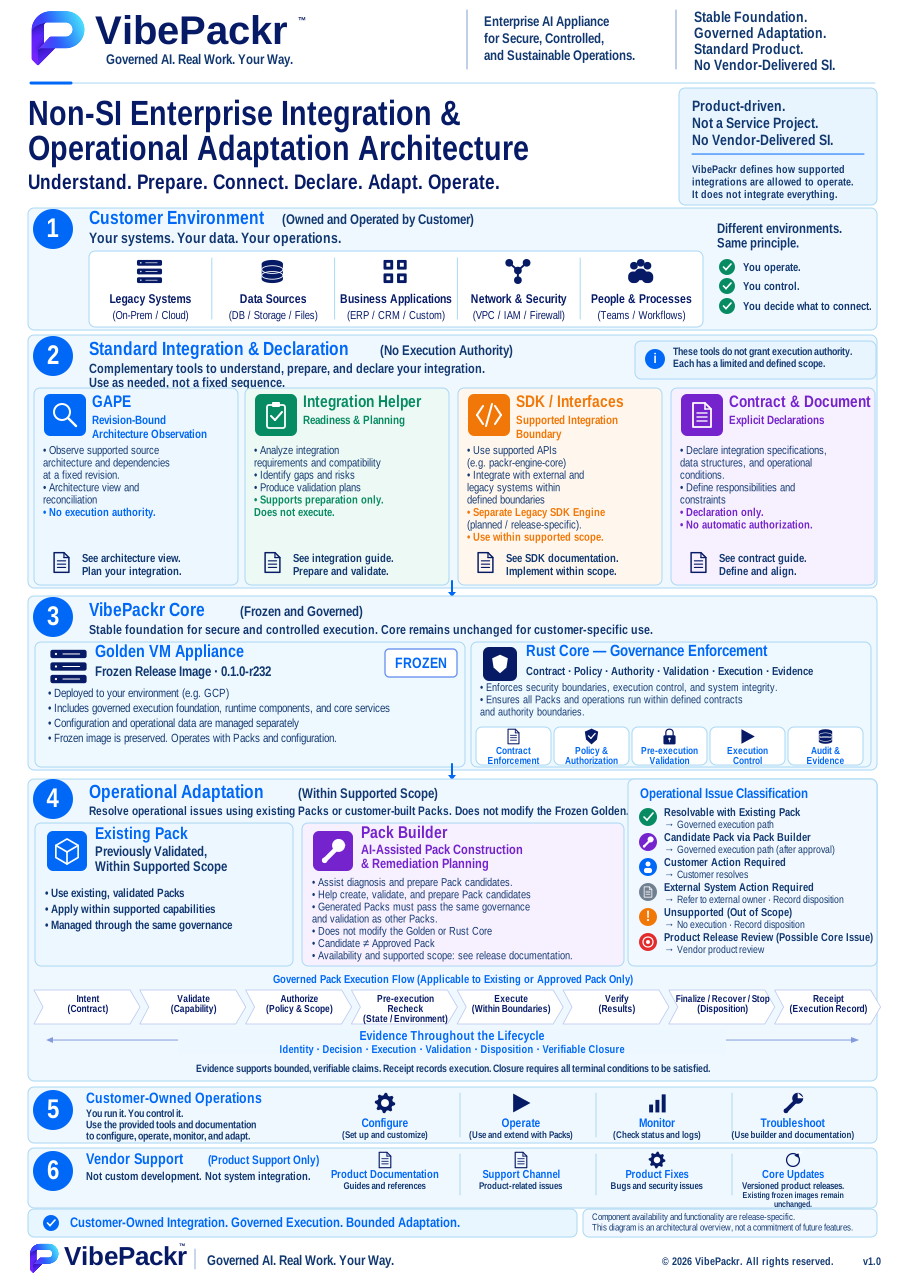
This diagram shows how your organization owns its environment and operations, while integration tools help you understand, prepare and declare work and the product controls execution. Open the image in a separate tab to zoom. Check the supplied component list for tools and versions available to install.
Choose the tools you need below. Local SDK exercises and Document preparation do not require appliance installation first. Confirm each component's availability, platform, version and installer in the supplied component list. Do not substitute a file from another release for a missing tool.
| Component | Where it is used | Check before installation |
|---|---|---|
| Appliance and headless client | VM in your environment and supported command line | Image, supported environment and installation steps |
| PackrGUI and Builder | Customer workstation | Platform installer, connection address and permissions |
| GAPE and Integration Helper | Approved integration workspace | Installer, supported input and target versions |
| SDK Engine and interfaces | Customer integration workstation | Platform installer and compatible appliance version |
| Contract & Document and this guide | Integration design and offline setup | Supplied templates and document version |
| Need | Guide | Output to check | What it does not prove |
|---|---|---|---|
| Prepare a Pack candidate | Builder | Candidate identity and validation result | Approval, entitlement, or execution |
| Understand source architecture | GAPE | Revision-bound observation and limitations | Running behavior or permission |
| Plan an external integration | Integration Helper | Typed preparation status and next action | Connected provider or registered capability |
| Check a supported SDK extension path | SDK Engine and interfaces | Local candidate, five stage records and package identity from the supplied SDK | Live API connection, registration or Work authority |
| Describe an operation and its target | Contract & Document | Source document and supplier-published target reference | A new product Contract or live request |
The Non-SI installation set must let a customer reach these guides online or offline from Start_Setup.html and identify the exact installable components for the appliance, the customer's workstation platform, Builder, GAPE, Integration Helper, SDK interfaces or Engine, and Contract & Document templates. Components can be delivered in separate platform installers inside one versioned set; they must be listed with hashes, compatibility, prerequisites, and the responsible installer. The set must also explain when a component is unavailable for the specific release. A documentation link or a historical implementation is not a substitute for an installable, validated component.
Install the SDK Engine separately on your integration workstation. Check the SDK Engine guide and supplied component list for the platform installer, supported appliance version, and installation and removal steps.
If a received file does not match the supplied list or signature verification fails, stop installation and contact your supplier's support route. Install only the verified file listed for your platform.
Record the release and component versions, customer and installation identity, the exact input revision or candidate ID, the typed status and reason, the last proven step, and the expected next action. Omit private keys, credentials, customer payloads, raw prompts, and internal engineering exports. Stop when identity, signature, authority, or state integrity differs.
Online operation uses approved network/provider routes; closed on-premises operation provisions required installation assets, models and documentation before transfer. This guide fixes neither as the product default. The optional SDK Rust dependency set prepares SDK adapter-build Rust coverage; it does not replace appliance images, model weights, provider credentials or all native OS development tools.
| Symptom or situation | Facts to check separately | Action and result to recheck |
|---|---|---|
| Appliance | Matching release image, service readiness and unique installation identity | Use Case 1 for first install, Case A for readiness, Case J for earlier-state residue. |
| PackrGUI/headless | Per-route platform file, authentication and matching installation ID | Validate each route with Use Case 3; classify connection issues with Case C. |
| Builder/additional Packs | Exact candidate, validation, approval, entitlement and preconditions | Check supported Packs first; use Case 4 for a candidate, Case H for refusal and Use Case 5 for execution. |
| GAPE | Approved manifest, source revision and disclosure class | Review the selected revision; unobserved dynamic behavior requires separate evidence. |
| Integration Helper/source Document | Full request, published targets, mappings and typed stage decisions | Separate parsing, discovery, normalization and preparation; hand over only through a supplied registration route. |
| SDK Engine | OS, compiler, optional dependencies and input/output digests | Choose an installed-toolchain or optional-dependency route and record its distinct validation scope. |
After a client update recheck that client’s connection, authentication and installation identity. After a runtime change recheck fresh observation, validation and binding. After a Pack change recheck exact version, trust, current entitlement and preconditions. Retain the previous records and recovery target. If something changes unexpectedly, record the first differing observation and return to that component’s procedure.
Additional Packs use files and registration procedures appropriate to the supplied release, customer and installation scope. Copying a folder or renaming a candidate does not replace registration/approval. First application requires the approved plan, postcondition validation and receipt. Removal/rollback follows that Pack’s declared recovery procedure and current authority.
A cloud console can report Running while the appliance is still initializing. Confirm product readiness in the setup interface before connecting clients or starting Work.
You created a new appliance and the cloud console says Running. PackrGUI cannot connect, while product status says initializing or service not ready. Record the cloud and product states separately.
If this release supplies packrctl and the authorized local operating route, these read-only commands show why VM power and product readiness need separate checks. Read the returned readiness and reason fields; a nonzero health exit can represent UNKNOWN or NOT_READY and is not a reason to restart the VM blindly.
packrctl status --json
packrctl health --json| Observed result | Next action |
|---|---|
| Official first boot is still in progress | Follow the release wait and status procedure; do not start Work. |
| First boot ended but the product is not ready | Preserve the first refusal and image ID; contact support. |
| A required initialization component is reported missing | Do not add arbitrary packages to the customer VM; ask for the exact release remedy. |
| Product readiness and installation identity are confirmed | Continue to administrator enrollment. |
Assume an operator creates a VM at 10:00 and sees running in the console at 10:02, while product status remains initializing. The evidence establishes VM power only. Service readiness, administrator enrollment, and client access remain unverified. Record image ID and boot time, perform the release-defined wait and status check once, then escalate a persistent refusal. Do not repair guest packages or initialization files directly on the customer VM.
| Observation | Supported conclusion | Next action |
|---|---|---|
| VM running, no product status | Product readiness unverified | Check official readiness state |
| Product initializing | In progress, not ready for connection | Apply release wait criterion |
| Product ready | Service gate passed | Check new installation identity |
“Release ID [value], instance creation time [with zone], VM state [Running], product status [exact displayed text], first-boot stage [value], and first error [verbatim]. No customer Work was started.”
Send the minimum status output named by the release, not customer data or a full system log.
Complete: the product reports service readiness for this installation identity. Stop: an initialization gap, integrity warning, release mismatch, or repeated readiness failure appears. Do not delete recovery files, reinstall, or force-start services.
| Symptom or situation | Facts to check separately | Action and result to recheck |
|---|---|---|
| VM power is the only confirmed state | Latest first-boot completion and product-readiness observation | Use the release wait/status procedure; do not proceed to enrollment or clients before readiness. |
| A service responds but product readiness is absent | Product readiness reason and image/release match | Retain missing-component or initialization refusal details and use release support. |
| Readiness disappears after earlier success | Last change time and the earlier readiness record | Record the transition and check current readiness; an old screenshot is not current proof. |
Record the first refused stage and the corrected item, then check its current result. Recheck earlier proven stages when the change affects them. Proceed only with the required current evidence. Include exact version, time with timezone, failed stage/reason, last confirmed state, change and recheck result in support handover. The illustrative table is not an established cause or execution history.
The three cases below are worked teaching scenarios for realistic field conditions. Their illustrative states are not invented product error codes or customer incident histories. Distinguish causes using values observed in your own installation. Cite supplied execution records only within their recorded scope.
Each example supplies context, observations, discriminating checks/actions, resumption criteria and unresolved handover. One symptom can have several causes; do not blindly continue after the first refusal.
Situation: An installer opens the GUI as soon as a new VM powers on. The GUI times out while the first-boot view still shows initialization. Product readiness must be checked before attributing the symptom to credentials.
Read these observations separately.
Check and action sequence:
Condition for resuming: Proceed to administrator setup only when that new installation is ready and identity matches; verify GUI connection separately.
If still unresolved: If the supplied wait limit is exceeded or progress stops, retain the first error and last update time and hand over to the image/deployment owner.
Situation: The management view shows a running service process while product health remains not ready. The first error describes an unavailable required initialization component or configuration. Compare the image and product readiness before treating a restart as a fix.
Read these observations separately.
Check and action sequence:
Condition for resuming: After supported correction, recheck current image/installation identity and readiness. A restarted process alone does not close the case.
If still unresolved: With an unconfirmed cause or different image, hold enrollment/Work and hand over minimal errors and image identity.
Situation: A user assumes the server is healthy because an earlier readiness screenshot exists. Maintenance or a reboot occurred later, and today’s product status has not been read. Separate prior success from current observation.
Read these observations separately.
Check and action sequence:
Condition for resuming: Record recovery only for the current readiness, identity and client authentication actually reconfirmed.
If still unresolved: If current status cannot be read, retain that unconfirmed stage and management-path issue instead of filling it with an old screenshot.
Image/instance provenance, creation time, current status/health, initialization stage, first refusal and last update time.
Keep original status separate from interpretation and include a timezone. This is a record worksheet, not a product API request or execution receipt.
case: A-[1/2/3]
release / component / OS: [actual values]
observed_at: [actual time and timezone]
last_confirmed_stage: [actual observation]
first_refusal: [minimal original message, no secrets]
changed_item: [actual change or none]
recheck_result: [observed / refused / not run]
next_owner: [authorized role]
Exclude full logs, customer data, keys, tokens and passkey responses from ordinary tickets. Retain originals after handover. Changes to authority, identity or deployment scope follow the appropriate owner’s supported procedure.
A host key may change when an instance is replaced or reconfigured. A warning means the identity of the destination is not yet confirmed; do not disable the check to reconnect.
You reconnect to yesterday's address and SSH or the app warns that the server identity changed. You may believe it is the same VM, but it could be a new instance, a regenerated key, a wrong address, or an unverified host.
| Observed result | Next action |
|---|---|
| New instance; independent identity matches | Follow the release's new-host registration procedure. |
| Apparently same instance but key changed | Stop until the change and current key are independently verified. |
| Fingerprint, installation ID, or destination differs | Do not update trust; report it immediately. |
| No independent verification route is available | Stop rather than guessing. |
Suppose a connection tool reports a different host key at the same address. A new instance might reuse the address, or the original instance might have regenerated its key. The warning alone cannot decide which. Keep the connection stopped while comparing instance and disk identity in the management console with the current key from a release-approved independent authenticated route. If either side is unavailable, do not delete or replace saved trust.
| Established fact | Still unproven |
|---|---|
| Address is unchanged | Server is the same instance |
| Key warning appeared | Key rotation is legitimate |
| Console instance ID matches | Connection key belongs to that instance |
“Release ID [value], expected installation ID [value], target [official alias], warning time [with zone], warning type [verbatim], and instance-replacement check [result]. I did not proceed after the warning.”
Complete: current host identity, installation identity, and official destination match independent evidence. Stop: if any identity mismatch remains, do not disable host checks, ignore the warning, or arbitrarily delete or replace saved keys.
| Symptom or situation | Facts to check separately | Action and result to recheck |
|---|---|---|
| Same address, different key | Instance replacement and independently obtained current host fingerprint | Stop connecting; have the trust owner verify current identity before approved trust updates. |
| Host matches but installation ID differs | Separate host and product installation identity records | Reconfirm the intended installation; do not use another customer/installation state. |
| Two clones share identity | Image provenance and both instance creation records | Retain clone state and use Case J; do not edit keys or IDs manually. |
Record the first refused stage and the corrected item, then check its current result. Recheck earlier proven stages when the change affects them. Proceed only with the required current evidence. Include exact version, time with timezone, failed stage/reason, last confirmed state, change and recheck result in support handover. The illustrative table is not an established cause or execution history.
The three cases below are worked teaching scenarios for realistic field conditions. Their illustrative states are not invented product error codes or customer incident histories. Distinguish causes using values observed in your own installation. Cite supplied execution records only within their recorded scope.
Each example supplies context, observations, discriminating checks/actions, resumption criteria and unresolved handover. One symptom can have several causes; do not blindly continue after the first refusal.
Situation: An operator replaces a VM and the client connects to yesterday’s address. The client warns that the server key changed. Address reuse is a possible explanation, not verified identity for the current channel.
Read these observations separately.
Check and action sequence:
Condition for resuming: Return to connection only after both current host and product installation identity match expectations.
If still unresolved: Without an independent match, hold and hand over to the identity owner; do not delete trust records or disable checking.
Situation: A bookmark or client-profile alias looks familiar, but the connected product is not the expected installation. Even a valid server key does not establish that the intended work target was selected.
Read these observations separately.
Check and action sequence:
Condition for resuming: Continue only with current evidence of authentication to the intended target.
If still unresolved: If the official endpoint cannot be bound to the intended installation, stop access and involve address/identity owners.
Situation: A legitimate key update was verified once, but another warning occurs for the same claimed instance. A reboot or configuration-change explanation alone does not authorize repeated trust updates.
Read these observations separately.
Check and action sequence:
Condition for resuming: Recheck the specified connection only after the owner verifies current host/installation and change history.
If still unresolved: Escalate unexplained repeated key changes as an identity issue, not routine profile cleanup.
Expected target alias, warning time, replacement history, independent fingerprint verification and product installation identity match.
Keep original status separate from interpretation and include a timezone. This is a record worksheet, not a product API request or execution receipt.
case: B-[1/2/3]
release / component / OS: [actual values]
observed_at: [actual time and timezone]
last_confirmed_stage: [actual observation]
first_refusal: [minimal original message, no secrets]
changed_item: [actual change or none]
recheck_result: [observed / refused / not run]
next_owner: [authorized role]
Exclude full logs, customer data, keys, tokens and passkey responses from ordinary tickets. Retain originals after handover. Changes to authority, identity or deployment scope follow the appropriate owner’s supported procedure.
A timeout and a login refusal require different checks. A timeout can indicate reachability or service readiness; a refusal after reaching the server points to authentication or access scope.
PackrGUI cannot connect. One attempt reports connection timed out; the next reports login refused. The first may concern reachability or readiness, while the second may concern authentication or scope. Record them as separate events.
| Screen or behavior | Check first | Safe next step |
|---|---|---|
| Timeout just after boot | Service readiness and official network route | Release wait and status procedure |
| Destination responds; login refused | Username, authentication method, allowed scope | Current account administrator or support route |
| Login succeeds; product remains unauthenticated | App customer and installation identity and session state | Preserve product refusal |
| Another customer or installation appears after login | Identity mismatch | Stop use immediately |
After a remedy, recheck service readiness → reachability → authentication → product installation identity in order. Include both the first and later errors with their exact text and times in support requests. Identify the destination only by an official shareable alias. Never send a password, token, or private key.
Complete: an authenticated client displays the expected customer and installation identity. Stop: do not work around identity mismatch or an unverified auth route by borrowing an account or key or disabling host checks.
| Symptom or situation | Facts to check separately | Action and result to recheck |
|---|---|---|
| Connection timeout | Service readiness, target address and approved route | Record the last reachable segment and involve its address/policy owner. |
| Identity or TLS warning | Requested target and independently verified server identity | Verify identity before authentication retries; do not disable verification. |
| Authentication refuses after reachability | Account, authentication method, session validity and installation scope | Use the current account’s supported authentication flow and retain its exact refusal. |
Record the first refused stage and the corrected item, then check its current result. Recheck earlier proven stages when the change affects them. Proceed only with the required current evidence. Include exact version, time with timezone, failed stage/reason, last confirmed state, change and recheck result in support handover. The illustrative table is not an established cause or execution history.
The three cases below are worked teaching scenarios for realistic field conditions. Their illustrative states are not invented product error codes or customer incident histories. Distinguish causes using values observed in your own installation. Cite supplied execution records only within their recorded scope.
Each example supplies context, observations, discriminating checks/actions, resumption criteria and unresolved handover. One symptom can have several causes; do not blindly continue after the first refusal.
Situation: The same account worked yesterday, but today there is no response and no login prompt. Check server readiness and the approved route before assuming a password problem.
Read these observations separately.
Check and action sequence:
Condition for resuming: Record connection recovery only when response, authentication and identity are confirmed on the approved route.
If still unresolved: If the failing segment is unknown, hand over the last reachable point and timeout to the network owner.
Situation: The GUI verifies server identity but login is refused; headless queries are also refused for the current account. Separate a responding network from a valid session.
Read these observations separately.
Check and action sequence:
Condition for resuming: The connection stage closes for the route whose current authenticated session shows the correct installation.
If still unresolved: If authorization still refuses after reauthentication, hand exact scope/reason to the account owner without passwords or tokens.
Situation: The workstation GUI works, but a scheduled server task is refused. Query from the service’s execution location and identity instead of reusing the GUI screenshot as success evidence.
Read these observations separately.
Check and action sequence:
Condition for resuming: Record automation readiness only after its own authentication, identity and permitted functions are confirmed.
If still unresolved: If service authentication or scope authority is unavailable, hand over that state instead of copying user credentials.
Access route, current readiness, timeout/identity/authentication failure stage, session state and customer/installation scope.
Keep original status separate from interpretation and include a timezone. This is a record worksheet, not a product API request or execution receipt.
case: C-[1/2/3]
release / component / OS: [actual values]
observed_at: [actual time and timezone]
last_confirmed_stage: [actual observation]
first_refusal: [minimal original message, no secrets]
changed_item: [actual change or none]
recheck_result: [observed / refused / not run]
next_owner: [authorized role]
Exclude full logs, customer data, keys, tokens and passkey responses from ordinary tickets. Retain originals after handover. Changes to authority, identity or deployment scope follow the appropriate owner’s supported procedure.
Administrator enrollment may require a live, interactive confirmation. A value sent through a script or pipe can be refused. Confirm the product's success record before using administrator functions.
An installation operator ran administrator enrollment from an automation script. The output refuses it because user confirmation is required. The binding wizard then cannot find administrator scope. Treating the command as successful would create a second failure.
| State | Action |
|---|---|
| Non-interactive input refused; no enrollment | Use the official interactive procedure. |
| Enrollment exists for another installation ID | Do not use it; contact support. |
| Enrollment exists with narrower scope | Ask the administrator for the defined scope-change procedure. |
| Enrollment result cannot be read | Move to the storage-access checks in Case E. |
“Release [value], enrollment stage [value], input method [interactive/non-interactive], product refusal [verbatim], enrollment status [none/present/unavailable]. No secret input is attached.”
Complete: the real administrator's product role and scope for this installation are recorded and readable. Stop: do not fake confirmation with automation or substitute OS administrator rights for product authority.
| Symptom or situation | Facts to check separately | Action and result to recheck |
|---|---|---|
| Piped input is refused | Interactive requirement and actual session type | Have the administrator confirm through the specified real terminal or setup UI. |
| OS login works without a product role | OS account versus product administrator enrollment | Read back enrollment; OS elevation does not substitute for the product role. |
| Enrolled scope differs from the intended scope | Customer, installation, runtime scope and expiry | Retain current scope and use the approved product change procedure. |
Record the first refused stage and the corrected item, then check its current result. Recheck earlier proven stages when the change affects them. Proceed only with the required current evidence. Include exact version, time with timezone, failed stage/reason, last confirmed state, change and recheck result in support handover. The illustrative table is not an established cause or execution history.
The three cases below are worked teaching scenarios for realistic field conditions. Their illustrative states are not invented product error codes or customer incident histories. Distinguish causes using values observed in your own installation. Cite supplied execution records only within their recorded scope.
Each example supplies context, observations, discriminating checks/actions, resumption criteria and unresolved handover. One symptom can have several causes; do not blindly continue after the first refusal.
Situation: A setup script runs enrollment and receives a refusal requiring a real terminal or user confirmation. Check the supplied interactive requirement before treating it as an enrollment defect.
Read these observations separately.
Check and action sequence:
Condition for resuming: Record administrator setup complete only with human confirmation and product enrollment results.
If still unresolved: If the interactive route is unavailable, hand over that constraint without automated confirmation or token manipulation.
Situation: An OS administrator expects the same authority inside the product. The product indicates no administrator role for the current installation.
Read these observations separately.
Check and action sequence:
Condition for resuming: Perform observations within scope only after confirming product administrator enrollment for the current installation.
If still unresolved: Without enrollment authority, hand over to its owner rather than expanding scope through attempts.
Situation: After enrollment appears complete, runtime binding is refused. The recorded scope refers to another customer/installation or a narrower runtime scope than intended.
Read these observations separately.
Check and action sequence:
Condition for resuming: Proceed only when the request is within recorded scope and the product has revalidated it.
If still unresolved: Hold when original authority cannot be established; do not edit stored enrollment records.
Enrollment route/interactivity, current installation identity, actual human confirmation and product role/scope/expiry.
Keep original status separate from interpretation and include a timezone. This is a record worksheet, not a product API request or execution receipt.
case: D-[1/2/3]
release / component / OS: [actual values]
observed_at: [actual time and timezone]
last_confirmed_stage: [actual observation]
first_refusal: [minimal original message, no secrets]
changed_item: [actual change or none]
recheck_result: [observed / refused / not run]
next_owner: [authorized role]
Exclude full logs, customer data, keys, tokens and passkey responses from ordinary tickets. Retain originals after handover. Changes to authority, identity or deployment scope follow the appropriate owner’s supported procedure.
An administrator may complete enrollment and still see an access refusal when the product reads the policy. Verify enrollment success and subsequent access success separately; the refusal reason determines the next step.
Enrollment appeared successful. The first runtime observation then returns Permission denied or a storage-access error. Preserve the first error instead of enrolling the administrator repeatedly.
| Observation | Safe action |
|---|---|
| Administrator role is absent | Confirm the enrollment result in Case D. |
| Role exists but scope is insufficient | Request the administrator's scope-change procedure. |
| Role exists; storage access is denied | Stop use; send release version and first error to support. |
| Service is also not ready | Check readiness in Case A first. |
Provide release and installation IDs, first refusal message, whether enrollment succeeded, service readiness, and time. Do not attach lock files, the internal database, raw administrator policy, private keys, or full logs.
Complete: the product can read the administrator status and process an allowed observation. Stop: do not repeat enrollment, widen file permissions, delete a lock file, or change the service account.
| Symptom or situation | Facts to check separately | Action and result to recheck |
|---|---|---|
| Reading the role fails | Enrollment completion versus first store-access error | Retain and escalate the first error and installation ID before reenrolling. |
| Role exists but the request is refused | Requested customer, installation and capability scope | Separate role existence from scope; the owner authorizes any needed change. |
| Access fails after an update | Before/after versions, service state and installation identity | Use supplied recovery guidance; do not alter the database, locks or permissions directly. |
Record the first refused stage and the corrected item, then check its current result. Recheck earlier proven stages when the change affects them. Proceed only with the required current evidence. Include exact version, time with timezone, failed stage/reason, last confirmed state, change and recheck result in support handover. The illustrative table is not an established cause or execution history.
The three cases below are worked teaching scenarios for realistic field conditions. Their illustrative states are not invented product error codes or customer incident histories. Distinguish causes using values observed in your own installation. Cite supplied execution records only within their recorded scope.
Each example supplies context, observations, discriminating checks/actions, resumption criteria and unresolved handover. One symptom can have several causes; do not blindly continue after the first refusal.
Situation: Enrollment completes, but a later policy/status read shows Permission denied. Preserve enrollment and the first access error separately before repeating enrollment.
Read these observations separately.
Check and action sequence:
Condition for resuming: After supported correction, read the administrator state and confirm permitted observation for the same installation.
If still unresolved: If store access remains refused, hand over the first error/version without attaching the database to an ordinary ticket.
Situation: Administrator status reads normally while one runtime/capability request is refused. Treating every refusal as filesystem permissions can hide an actual scope boundary.
Read these observations separately.
Check and action sequence:
Condition for resuming: Record recovery only for the permitted capability successfully rechecked.
If still unresolved: Without scope authority, do not broaden permissions or replace service accounts.
Situation: An existing installation fails its administrator status read after an update. Earlier successful reads exist, but none after the update. Bind changed version, current identity and failed stage together.
Read these observations separately.
Check and action sequence:
Condition for resuming: Close this access issue only with a confirmed recovery version, current installation and successful read.
If still unresolved: Hold without a supported recovery procedure or on an integrity warning; hand over minimal errors and change history.
Enrollment result, first access failure stage/time, service state, current role/scope and before/after versions.
Keep original status separate from interpretation and include a timezone. This is a record worksheet, not a product API request or execution receipt.
case: E-[1/2/3]
release / component / OS: [actual values]
observed_at: [actual time and timezone]
last_confirmed_stage: [actual observation]
first_refusal: [minimal original message, no secrets]
changed_item: [actual change or none]
recheck_result: [observed / refused / not run]
next_owner: [authorized role]
Exclude full logs, customer data, keys, tokens and passkey responses from ordinary tickets. Retain originals after handover. Changes to authority, identity or deployment scope follow the appropriate owner’s supported procedure.
Finding a local model and binding it to this installation are separate steps. After a model alias or runtime address changes, check the current binding result before using the model for Work.
The administrator confirms the local model is installed. PackrGUI says the runtime is detected but not bound. If a model alias or runtime address changed yesterday, distinguish the old state from the current observation.
| State | Meaning and action |
|---|---|
| Not detected | Check runtime process, supported scope, and official connection route. |
| Detected but validation refused | Preserve the refusal; resolve scope or identity. |
| Validated but target model ambiguous | Ask the administrator to select the exact model. |
| Bound after a new observation | Confirm installation ID and model reference, then prepare Work. |
Assume a runtime alias changes at 11:00 while the product still shows a bound record from 10:30. That record belongs to the prior state. A new discovery time, Core validation, and binding time and model reference after 11:00 are needed to establish rebinding. New detection alone is insufficient; use the branch table above to locate the first refused gate.
| Gate | Example observation | Conclusion |
|---|---|---|
| Detection | New model reference after change | Candidate found |
| Validation | Matches current installation and scope | Eligible for application |
| Binding | New record and time after change | New runtime selected |
Times are illustrative. Record actual product state and refusal codes; do not edit internal storage.
“Release [value], installation ID [value], runtime type [shareable name], expected model [name], change time [value], detection/validation/binding states [separately], refusal [verbatim]. No Work was run.”
Complete: the product displays a fresh binding linked to the current observation and approved scope. Stop: do not edit the database or copy an earlier refused binding.
| Symptom or situation | Facts to check separately | Action and result to recheck |
|---|---|---|
| Only model files are present | Process, observation, validation and binding states separately | Prepare a supported runtime and check that the product validates a fresh observation. |
| Old binding remains after an alias change | Observation time and current model/runtime reference | Check post-change observation and validation; do not copy an old binding. |
| The current scope is refused | Exact refusal and approved scope | Have the administrator determine a supported target/scope, then revalidate through the product. |
Record the first refused stage and the corrected item, then check its current result. Recheck earlier proven stages when the change affects them. Proceed only with the required current evidence. Include exact version, time with timezone, failed stage/reason, last confirmed state, change and recheck result in support handover. The illustrative table is not an established cause or execution history.
The three cases below are worked teaching scenarios for realistic field conditions. Their illustrative states are not invented product error codes or customer incident histories. Distinguish causes using values observed in your own installation. Cite supplied execution records only within their recorded scope.
Each example supplies context, observations, discriminating checks/actions, resumption criteria and unresolved handover. One symptom can have several causes; do not blindly continue after the first refusal.
Situation: An operator expects binding because model files were provisioned. The product has no current runtime observation or only discovery status. Check file provisioning, process state and product observation separately.
Read these observations separately.
Check and action sequence:
Condition for resuming: Record binding complete only for validated/bound current installation runtime/model references.
If still unresolved: Without a supported target/observation route, hand over instead of creating binding-state files.
Situation: After a model alias change, the screen still shows the old binding. Distinguish an old display, absent fresh observation and a refused new target before deciding what changed.
Read these observations separately.
Check and action sequence:
Condition for resuming: Record application of the new environment only when the fresh observation’s target and binding match.
If still unresolved: Do not start new Work for the changed target on an old binding when fresh observation/reasons are unconfirmed.
Situation: Several models exist and the product discovers a runtime without applying binding. Selecting the first available model arbitrarily would not establish the intended supported target.
Read these observations separately.
Check and action sequence:
Condition for resuming: Continue within scope only after the intended target and validated binding are recorded.
If still unresolved: Do not invent a default target without selection authority or a supported combination.
Current runtime/model references, before/after values, observation time, validation/refusal and permitted administrator scope.
Keep original status separate from interpretation and include a timezone. This is a record worksheet, not a product API request or execution receipt.
case: F-[1/2/3]
release / component / OS: [actual values]
observed_at: [actual time and timezone]
last_confirmed_stage: [actual observation]
first_refusal: [minimal original message, no secrets]
changed_item: [actual change or none]
recheck_result: [observed / refused / not run]
next_owner: [authorized role]
Exclude full logs, customer data, keys, tokens and passkey responses from ordinary tickets. Retain originals after handover. Changes to authority, identity or deployment scope follow the appropriate owner’s supported procedure.
Local model startup can fail because a model is unavailable, resources are insufficient, or a network check cannot complete. Check the exact message and the supplied offline setup procedure before changing network policy.
A customer plans to use a local model in an offline environment. The runtime waits for a model download or a metadata check times out. Alternatively, model startup fails, but the screen alone does not distinguish insufficient memory from a missing model.
| Result | Next step |
|---|---|
| Model file absent | Use the release-authorized offline model preparation route. |
| Product reports insufficient supported resources | Prepare resources under compatibility and customer change approval. |
| Only external metadata timed out | Check local model, binding, and Work separately; apply policy-compliant settings. |
| Runtime runs but binding is refused | Move to Case F. |
“Release [value], OS/architecture [value], model [value], local model presence [value], failing stage [startup/discovery/validation/Work], first error [verbatim], external-network policy [allowed/blocked]. No prompts or customer data attached.”
Complete: the supported local model is prepared and the current runtime is validated and bound. Actual inference and Work still require separate checks. Stop: unknown requirements, unapproved Internet access, or an unsupported claim that no external inference occurred.
| Symptom or situation | Facts to check separately | Action and result to recheck |
|---|---|---|
| The model exits during startup | Supported model/architecture, memory/disk and actual error | Use the organizational environment-change procedure for resources, then observe again. |
| A closed network waits for download | Local model availability and pre-import inventory | Use the allowed model provisioning route; the SDK Rust dependency set does not supply model weights. |
| Only an online check fails while local state is healthy | Metadata request, local inference, binding and Work results separately | Record failed checks and successful local stages separately while preserving policy. |
Record the first refused stage and the corrected item, then check its current result. Recheck earlier proven stages when the change affects them. Proceed only with the required current evidence. Include exact version, time with timezone, failed stage/reason, last confirmed state, change and recheck result in support handover. The illustrative table is not an established cause or execution history.
The three cases below are worked teaching scenarios for realistic field conditions. Their illustrative states are not invented product error codes or customer incident histories. Distinguish causes using values observed in your own installation. Cite supplied execution records only within their recorded scope.
Each example supplies context, observations, discriminating checks/actions, resumption criteria and unresolved handover. One symptom can have several causes; do not blindly continue after the first refusal.
Situation: The model exits shortly after startup. A user wants to add memory before checking the error. Resource, architecture and model provisioning facts need to be reviewed together.
Read these observations separately.
Check and action sequence:
Condition for resuming: Record preparation complete when the model starts under supported conditions and current observation/validation/binding are confirmed.
If still unresolved: Without an exact failure reason, hand over exit observations/support requirements instead of repeatedly resizing or replacing models.
Situation: A closed on-premises environment has client packages and SDK dependencies but no model files. The runtime waits for a model download. Provisioned Rust dependencies do not establish model-weight availability.
Read these observations separately.
Check and action sequence:
Condition for resuming: Close preparation only with verified local model assets and confirmed runtime binding.
If still unresolved: With an unconfirmed import route or rights, involve provisioning/licensing owners instead of fetching arbitrary model files.
Situation: A local model is provisioned while an external metadata request times out. That result alone establishes neither failure of all local inference nor absence of external communication.
Read these observations separately.
Check and action sequence:
Condition for resuming: Record success only for confirmed local stages and retain external lookup failure separately.
If still unresolved: Without confirmed communication scope/model selection, hand over without claiming no external traffic or completed local Work.
OS/architecture, model/runtime versions, required/current resources, local provisioning, first exit and external lookup status.
Keep original status separate from interpretation and include a timezone. This is a record worksheet, not a product API request or execution receipt.
case: G-[1/2/3]
release / component / OS: [actual values]
observed_at: [actual time and timezone]
last_confirmed_stage: [actual observation]
first_refusal: [minimal original message, no secrets]
changed_item: [actual change or none]
recheck_result: [observed / refused / not run]
next_owner: [authorized role]
Exclude full logs, customer data, keys, tokens and passkey responses from ordinary tickets. Retain originals after handover. Changes to authority, identity or deployment scope follow the appropriate owner’s supported procedure.
Pack Builder helps prepare and validate Packs. Candidate creation, saving a file, a prepared screen state, and passkey enrollment are separate states. None automatically grants customer Pack approval, entitlement, or execution authority.
An operator creates a Pack candidate in Builder. Preview and structural validation pass, yet it does not appear in PackrGUI's execution list or a Work request is refused. “Builder made it, so it can run” is not a valid conclusion.
| State | Next step |
|---|---|
| Candidate validation failed | Fix displayed defects and revalidate the same candidate. |
| Validated but not approved | Hand it to the release-defined Pack approval owner. |
| Approved but no customer entitlement | Ask the entitlement owner to check exact installation and Pack scope. |
| Approval and entitlement exist but a precondition fails | Review the product condition and environment, then resolve through a safe procedure. |
“Release [value], Builder version [value], candidate ID/version [shareable value], validation [state], approval [state], customer entitlement [state], first Work refusal [verbatim].” Do not attach Pack source, internal contract text, or a passkey response.
Complete: the exact Pack is validated, approved, and entitled for this customer installation, with preconditions met. Stop: do not relabel a candidate as an approved Pack or bypass refused execution.
| Symptom or situation | Facts to check separately | Action and result to recheck |
|---|---|---|
| Candidate validates; approval is pending | Approval for the same revision/digest | Hand validation to its approver; do not mark execution complete. |
| Approved but not entitled | Entitlement for the current customer, installation and Pack version | Have its owner resolve the exact refusal, then recheck preconditions. |
| Preconditions differ before execution | Current target state and plan preconditions | Retain state and use supported changes; copying a candidate does not register it. |
Record the first refused stage and the corrected item, then check its current result. Recheck earlier proven stages when the change affects them. Proceed only with the required current evidence. Include exact version, time with timezone, failed stage/reason, last confirmed state, change and recheck result in support handover. The illustrative table is not an established cause or execution history.
The three cases below are worked teaching scenarios for realistic field conditions. Their illustrative states are not invented product error codes or customer incident histories. Distinguish causes using values observed in your own installation. Cite supplied execution records only within their recorded scope.
Each example supplies context, observations, discriminating checks/actions, resumption criteria and unresolved handover. One symptom can have several causes; do not blindly continue after the first refusal.
Situation: Builder shows candidate validation PASS and the user looks for it in the execution list. No approval exists for that exact revision yet; a stage remains between preparation and approved use.
Read these observations separately.
Check and action sequence:
Condition for resuming: Move only to execution preparation after exact-candidate approval, entitlement and preconditions are confirmed.
If still unresolved: Without approval, do not copy the candidate into Pack folders or execute through another account.
Situation: A Pack approved for one installation is expected to work in another. The product refuses current-installation entitlement. Separate approval existence from its applicable scope.
Read these observations separately.
Check and action sequence:
Condition for resuming: Proceed with that Pack only when authority and plan are confirmed for the current installation.
If still unresolved: Without the authority owner’s confirmation, do not rename approval files or edit installation IDs for reuse.
Situation: A declaration or candidate file changes after review. The earlier approval screen remains, but the candidate digest differs. Determine whether the new bytes are actually covered.
Read these observations separately.
Check and action sequence:
Condition for resuming: Proceed with the changed candidate only when current bytes are covered by the required results.
If still unresolved: Do not copy an old approval or edit only manifest digests to make references appear aligned.
Candidate ID/revision/digest, validation subject, approval purpose/scope, current entitlement, preconditions and actual Work presence.
Keep original status separate from interpretation and include a timezone. This is a record worksheet, not a product API request or execution receipt.
case: H-[1/2/3]
release / component / OS: [actual values]
observed_at: [actual time and timezone]
last_confirmed_stage: [actual observation]
first_refusal: [minimal original message, no secrets]
changed_item: [actual change or none]
recheck_result: [observed / refused / not run]
next_owner: [authorized role]
Exclude full logs, customer data, keys, tokens and passkey responses from ordinary tickets. Retain originals after handover. Changes to authority, identity or deployment scope follow the appropriate owner’s supported procedure.
A local runtime can be bound without any Work being submitted. Runtime readiness and completed Work have different records.
PackrGUI shows the runtime as bound. An operator believes the first task is complete, but the Work list has no result or receipt. Alternatively, a Work was submitted but remains pending/stopped/rolled back.
If your installation includes packrctl and you are authenticated, inspect rather than rerun an uncertain Work. Replace the placeholder with the returned Work ID.
packrctl work list --limit 10 --json
packrctl work show "PASTE_RETURNED_WORK_ID" --json
An empty list for the permitted principal does not prove that another principal never submitted Work. A report file or model response does not replace the product's typed Work and receipt record.
| Last proven state | What you can say | Check next |
|---|---|---|
| Runtime bound | Part of execution readiness | Work submission |
| Work submitted | Request received | Approval and preconditions |
| Work execution started | Execution began | Model call and result |
| Result validated | Output was checked | Final state and receipt |
| Success receipt confirmed | Completion evidence for this Work | Matching installation and release identities |
Suppose a local model alias changes and the appliance shows a new BOUND state, while Work readiness shows UNKNOWN. Record the installation and release, binding time, separate authority and runtime states, exact reason shown, and whether a Work ID exists. If readiness remains UNKNOWN, stop before submission and send these values through the supplied support route. Repeating a command, editing state files, or treating a binding record as a receipt cannot establish Work completion.
Suppose an operator gets an answer to a model test prompt and sees bound in the GUI, then reports first Work complete. With no Work ID, even submission is unproven. With an ID, separately check approval, execution start, model call, result validation, closure, and receipt. Use this table for the Work on your own installation.
| Last confirmed record | Still cannot claim |
|---|---|
| General model response | Model call for this Work |
| Work ID and submission | Approval and execution |
| Execution started | Successful result and receipt |
| Result validated | Final success and same-Work receipt |
Report the first missing gate. Do not use another Work's receipt or a manually created file to fill the gap.
“Release [value], installation ID [value], Work ID [if any], Pack/operation [shareable name], last confirmed state [value], first refusal/missing stage [verbatim], model call [yes/no/unknown], receipt [absent/present].” Do not send raw prompts or results.
Complete: the same authorized Work has a successful final state, validated result, and matching receipt. Stop: never fill a missing record with a binding screen, inferred model call, or another Work's receipt.
| Symptom or situation | Facts to check separately | Action and result to recheck |
|---|---|---|
| Only a model response exists | Product Work ID, request and authority state | Record the model response as such; separately establish whether product Work started. |
| A Work ID exists without a terminal state | Current state and update time for that same ID | Use the release query/wait procedure; do not submit duplicate Work. |
| Receipt refers to another Work or installation | Work/customer/installation IDs and result digest alignment | Withhold completion and escalate the minimal mismatching records. |
Record the first refused stage and the corrected item, then check its current result. Recheck earlier proven stages when the change affects them. Proceed only with the required current evidence. Include exact version, time with timezone, failed stage/reason, last confirmed state, change and recheck result in support handover. The illustrative table is not an established cause or execution history.
The three cases below are worked teaching scenarios for realistic field conditions. Their illustrative states are not invented product error codes or customer incident histories. Distinguish causes using values observed in your own installation. Cite supplied execution records only within their recorded scope.
Each example supplies context, observations, discriminating checks/actions, resumption criteria and unresolved handover. One symptom can have several causes; do not blindly continue after the first refusal.
Situation: An operator sees a model test response and a bound-runtime screen and assumes the first Work completed. No matching request exists in the product Work list. Distinguish model testing from product execution.
Read these observations separately.
Check and action sequence:
Condition for resuming: Do not mark first Work complete before its actual authority/execution/validation/terminal state/receipt are confirmed.
If still unresolved: Without submission authority or a supported Pack, hand over preparation state instead of manufacturing a receipt from the model response.
Situation: A Work submission returns an actual ID, then the client disconnects. Before resubmitting the request, query that returned ID to avoid duplicate execution.
Read these observations separately.
Check and action sequence:
Condition for resuming: Handle the result only after confirming that same Work’s termination, result and receipt.
If still unresolved: If querying is unavailable or status is unconfirmed, hand over ID, first connection error and last state without resubmitting.
Situation: A shared folder contains reports and receipts from several runs. Similar file names do not bind them to the current Work.
Read these observations separately.
Check and action sequence:
Condition for resuming: Record completion only when the same execution’s record, result and verified receipt align.
If still unresolved: Keep the current Work unconfirmed instead of editing receipt IDs or hashes to make them match.
Returned Work ID, current customer/installation, last state/update time, result digest and receipt references/verification.
Keep original status separate from interpretation and include a timezone. This is a record worksheet, not a product API request or execution receipt.
case: I-[1/2/3]
release / component / OS: [actual values]
observed_at: [actual time and timezone]
last_confirmed_stage: [actual observation]
first_refusal: [minimal original message, no secrets]
changed_item: [actual change or none]
recheck_result: [observed / refused / not run]
next_owner: [authorized role]
Exclude full logs, customer data, keys, tokens and passkey responses from ordinary tickets. Retain originals after handover. Changes to authority, identity or deployment scope follow the appropriate owner’s supported procedure.
A newly deployed VM should have its own installation and host identity. An existing organization name, administrator, or access key on first setup needs investigation before the VM is used.
You create a new customer VM from an official image, but setup displays an earlier organization name or an apparently pre-enrolled administrator. Or you notice an unexpected user home, access key, or already-used installation ID. Do not assume it is harmless sample data and continue Work.
| Result | Action |
|---|---|
| Earlier customer or user trace or duplicate installation ID confirmed | Stop using the instance and report immediately. |
| Image ID differs from the official delivery inventory | Stop installation; verify the official image. |
| It is unclear whether the display is example data | Do not access the data; ask support to classify it. |
| Independent verification confirms a new installation identity | Record it and proceed with fresh administrator setup. |
If a new VM shows an unexpected user home or prior installation ID, do not browse it to decide whether it contains customer data. The finding itself requires review of image identity and access state. Stop Work and new user enrollment. Record only image ID, new instance ID, observation time, and product-displayed installation identity.
| Do | Avoid |
|---|---|
| Check official image and new instance provenance | Opening or copying prior user files |
| Report identity mismatch to deployment owner | Deleting files on the customer VM and resuming use |
| Wait for a validated replacement image | Resealing the source image locally |
“Release [value], official image ID [value], new instance creation time [with zone], expected installation ID [value], displayed identity type [customer/user/installation], minimal description of first screen [value]. No Work or additional enrollment was performed.”
Do not attach another customer's name, file contents, key, or full disk image to an ordinary support ticket.
Complete: the authorized owner independently verifies the image and fresh installation identity and explicitly releases it for use. Stop: a customer must not delete earlier files or replace keys to make an unverified image appear clean.
| Symptom or situation | Facts to check separately | Action and result to recheck |
|---|---|---|
| Earlier user or installation identity appears | Signed image provenance, current instance and installation identity | Stop use and customer data entry; hand evidence to the image owner. |
| An earlier provider binding appears | Displayed state and the release initialization requirements | Retain only minimal status; do not open credentials or private stores. |
| The same symptom appears in another new VM | Each image ID, creation time and unique identity | Have the owner verify image and procedure instead of creating more VMs to hide the symptom. |
Record the first refused stage and the corrected item, then check its current result. Recheck earlier proven stages when the change affects them. Proceed only with the required current evidence. Include exact version, time with timezone, failed stage/reason, last confirmed state, change and recheck result in support handover. The illustrative table is not an established cause or execution history.
The three cases below are worked teaching scenarios for realistic field conditions. Their illustrative states are not invented product error codes or customer incident histories. Distinguish causes using values observed in your own installation. Cite supplied execution records only within their recorded scope.
Each example supplies context, observations, discriminating checks/actions, resumption criteria and unresolved handover. One symptom can have several causes; do not blindly continue after the first refusal.
Situation: A supposedly new installation shows an unexpected organization or administrator during first setup. Verify provenance before assuming sample data and entering customer information.
Read these observations separately.
Check and action sequence:
Condition for resuming: Return to setup only after the owner independently verifies image/new identity and explicitly resumes use.
If still unresolved: Do not erase displays or user directories to make it appear to be a fresh installation.
Situation: A team creates two VMs with the same product installation ID but different addresses and instance names. Even before establishing a cloning/provenance cause, independent installation identity needs verification.
Read these observations separately.
Check and action sequence:
Condition for resuming: Use them as independent environments only after unique identities and approved resumption are confirmed.
If still unresolved: Do not alternate environments to hide the issue or distribute copied approval/entitlement files.
Situation: A replacement instance shows the same earlier state. Creating more instances from the same input does not establish that the source problem is resolved.
Read these observations separately.
Check and action sequence:
Condition for resuming: Close only with verified replacement provenance distinguished from the problematic input, unique identity and a resumption decision.
If still unresolved: Preserve original evidence; do not modify or reseal the original/Golden image yourself.
Official image/instance provenance, creation time, displayed identity type, expected-identity match and hold/handover state.
Keep original status separate from interpretation and include a timezone. This is a record worksheet, not a product API request or execution receipt.
case: J-[1/2/3]
release / component / OS: [actual values]
observed_at: [actual time and timezone]
last_confirmed_stage: [actual observation]
first_refusal: [minimal original message, no secrets]
changed_item: [actual change or none]
recheck_result: [observed / refused / not run]
next_owner: [authorized role]
Exclude full logs, customer data, keys, tokens and passkey responses from ordinary tickets. Retain originals after handover. Changes to authority, identity or deployment scope follow the appropriate owner’s supported procedure.
A customer deploys the supplied appliance image as a new VM, then enrolls a local Appliance Administrator for its newly generated installation identity. Before deployment, have the component list, signature verification procedure, supported-environment list, and your organization's deployment approval ready.
The installer asks, “The VM says Running. Can I connect the GUI now?” The administrator responds, “First boot and product service readiness are separate checks. We also need to confirm a fresh installation identity.” That distinction is the first gate.
| Step | Operator action | Evidence before proceeding |
|---|---|---|
| Delivery check | Compare release ID, image, digest, signature | Exact files for this release |
| New VM | Create a new instance using the release-defined target and method | Instance and image IDs, creation time |
| First boot | Check the release's initialization completion condition | Product service readiness |
| Identity | Compare customer, installation, and host identity separately | Matching identities for the new installation |
| Enrollment | Actual local administrator reviews and approves customer, installation, runtime scope | Product role, scope, validity period |
This use case proves only exact signed files, fresh installation identity, ready service, and recorded scope from the real administrator. Runtime binding and Work receipt require later checks. For another customer's identity, earlier-user residue, or an integrity warning, stop use and follow the image-residue case.
Suppose the installer creates a VM at 09:00. The cloud console shows running at 09:02, but the product wizard has no ready result. Record VM creation time, image ID, and last product-status time separately. GUI authentication errors while initialization continues do not necessarily prove a failed first boot. Perform the release-defined wait and status check once; if readiness remains unproven, follow Case A.
The deployment operator and authority owner may be different people. The operator hands over installation ID and image provenance; the owner reviews the customer, installation, and runtime scope in the product. Close this stage only when the read-only result shows the scope and expiry.
| Field | Example placeholder | Purpose |
|---|---|---|
| Image and release | [release ID], [image ID] | Compare exact inputs |
| Product readiness | ready at [time] or unconfirmed | Separate from VM power |
| Installation identity | [installation ID] | Compare with later client and Work records |
| Administrator scope | [customer/installation/runtime scope], [expiry] | Limit of automatic binding |
Bracketed values are placeholders, not invented release data. A different customer or previous installation value stops handover.
The VM creator and product administrator may be different owners. Online installation obtains files through an approved portal or delivery route. Closed-network installation prepares the matching image, clients, needed models, digests and documentation before transfer. Both environments confirm actual identity and administrator scope in the installed product.
Before handover retain readiness, administrator role/scope/expiry tied to one installation ID and the next client owner. Hand over incomplete enrollment explicitly; do not mark runtime or Work complete.
Keep the planned procedure, performed actions, observed results and remaining stages separate. This scenario explains the procedure; the documentation update does not execute it in a customer environment.
Within the already approved installation and runtime scope, a local model alias or observed runtime value changes. Core validates the fresh observation and updates the binding. First capture the current installation identity, administrator scope, supported model, and prior binding state.
An operator changes a local model alias. The model server runs, but PackrGUI still shows the prior binding time. “The model responds” does not prove that the new model is bound.
| Observation | Before change | What must be rechecked afterward |
|---|---|---|
| Customer and installation IDs | Earlier approved scope | Current identity for the same installation |
| Runtime and model reference | Prior binding | New alias or model reference |
| Observation time | Earlier state time | Fresh observation after the change |
| Validation and binding | Prior status | New Core validation and binding |
| Work | Separate record | Only Work executed after the new binding |
If nothing is detected, inspect runtime startup and the official connection route. If validation is refused, use the binding case to separate scope, identity, and ambiguity. In support requests, send before/after state and time, installation ID, and product refusal; omit internal storage and customer prompts.
A fresh observation and new Core binding for this change must be recorded under the same installation identity. This does not establish a Work result or macOS and Windows auto-binding validation.
Assume a local alias changes from model-A to model-B at 10:00. A bound record at 09:40 belongs to the earlier state. Compare the change time with a later discovery time, then confirm Core validated the new model reference under the same installation ID and approved scope. If multiple candidates become visible, do not silently choose one.
If no new binding appears, classify the stage: no detection suggests runtime readiness or connection checks; an out-of-scope observation goes to the approval owner; an ambiguous target needs an explicit model choice. A screen that merely repeats an earlier timestamp does not establish a new binding.
| Time | Observation | Supported conclusion |
|---|---|---|
| 09:40 | model-A binding | Earlier state |
| 10:00 | Alias changed | Environment changed |
| 10:03 | model-B detected | Validation and binding still separate |
| 10:05 | New validation and binding for same installation | Post-change binding confirmed |
Times and model names illustrate the procedure, not actual release evidence. Verify subsequent Work through its own record.
During a maintenance window, change one supported model alias or runtime address at a time. Retain supported versions, the binding reference and last state before the change; then compare the fresh observation with the intended value. A successful online check or process restart alone does not establish a new binding.
Separate before/after runtime/model references, observation times, validation reason, effective binding and any separately authorized Work. A rollback also requires a newly observed/validated result.
Keep the planned procedure, performed actions, observed results and remaining stages separate. This scenario explains the procedure; the documentation update does not execute it in a customer environment.
Goal: connect your client to an already prepared company VM and confirm matching customer/installation identity. This exercise does not automatically execute Work. If no company VM exists, the deployment owner follows installation sections 1–4; general users receive the installation identity, readiness and connection material.
Obtain the actual compatible client file, digest/signature status, customer/installation/release references, endpoint and TLS server name, account/device enrollment method, allowed role and enrollment expiry/renewal support route. Receive any per-device profile through the organization's secure channel. Do not paste private keys into documentation or place them in a common installer ZIP. Use automatic enrollment portals only when the release actually provides one.
| OS | Prepare and launch | Confirm before connecting |
|---|---|---|
| macOS | Keep a supplied app in the documented user Applications/Applications location; follow included instructions for an installer | The app opened in Finder matches the received release |
| Windows | Distinguish installed and portable formats; retain the executable with bundled runtime/resource directories | Launch from the package location, without copying only the EXE |
| Linux | Follow the supplied distribution/CPU package instructions; retain its launcher/libraries | Do not substitute arbitrary libraries for another distribution |
If the app cannot open, record an application launch problem, before server connection. Check the exact OS warning, app path/version/CPU and included files. Disabling OS protections or running as administrator is not a general remedy.
Expected result: record the launched client's version/path, matching customer/installation reference and actual authentication state. If user enrollment or operational connection is not yet validated for that candidate, retain it as unconfirmed; do not fill in an assumed successful screen.
If blocked: launch problem → package/OS preparation; timeout/authentication → case C; changed identity → case B; admin enrollment → D/E. Follow the separate first Work use case for actual execution.
A customer connects from a workstation GUI and, if operational automation is required, checks the release-provided headless route separately. Even against the same appliance, the routes can differ in installer, authentication, session, allowed functions, and result evidence.
An operator sees the status screen in PackrGUI on a Mac. The team says, “Then headless Work on our Linux server is ready too.” That conclusion is unverified. Each client must directly prove authentication, installation identity, and permitted function.
| Item | PackrGUI | Headless |
|---|---|---|
| Installer | Verify signature and digest for that OS | Verify the release-named CLI or service files |
| Network | Official appliance destination and route | Official destination and policy for this route |
| Authentication | Current session shown in GUI | Current account or service authentication |
| Product identity | Matching customer and installation IDs | Separate check of the same IDs |
| Capability | Functions permitted on screen | Commands and Work scope allowed by release |
| Result | GUI status and record | Direct headless record and receipt |
packrctlAfter the installation operator supplies the approved local access route, use these commands if packrctl is included with your installation. Run them on the authorized appliance or managed client. They read status and health; they do not authenticate a GUI session or authorize Work.
packrctl status --json > headless-status.json
packrctl health --json > headless-health.json
Read the JSON readiness and reason fields as well as the exit status. UNKNOWN is not READY. If packrctl is absent from the exact delivery inventory, record the headless route as not supplied rather than reusing a development binary.
If one route fails, use the connection and auth case before copying settings from the successful one. A host-identity warning requires an immediate stop under the identity case.
Record each route as verified only after its installer, connection, authentication, installation ID, and intended function have been checked directly.
For each platform, confirm the installer name, signature, supported version, and connection method in the supplied component list. After installation, record the server identity, authenticated session, and matching customer and installation IDs. If a platform installer or headless client is absent from the list, ask your supplier for the supported option before using another package.
Suppose PackrGUI on a Mac displays the expected installation ID, while a server automation client cannot connect. The GUI account, token lifetime, and network route may differ from those of the service. A GUI screenshot is not headless authentication proof. First verify that the release includes a headless client; if so, record that route's account, endpoint, and refusal separately.
Conversely, a successful headless status query does not prove that a GUI session exists or has the same authority. Record the last proven stage for each route, such as GUI: authenticated, installation matched and headless: network reachable only.
| Platform and route | Installer and signature | Connection | Authentication and installation ID | Binding | Actual Work and receipt |
|---|---|---|---|---|---|
| macOS GUI | [evidence] | [state] | [state] | [state] | [state] |
| Windows GUI | [evidence] | [state] | [state] | [state] | [state] |
| Linux GUI | [evidence] | [state] | [state] | [state] | [state] |
| Headless | [evidence] | [state] | [state] | [state] | [state] |
Write unverified until a route is exercised. Do not copy success between operating systems or clients.
Suppose the desktop GUI works while scheduled automation is refused. Compare the GUI session and automation service execution location, account, network route and installation scope separately. Use the release service-authentication procedure instead of copying GUI tokens or keys into automation.
Retain separate rows for GUI/headless package, version, authentication, installation ID, permitted features and status result. Record an unavailable route as unavailable; bind actual Work receipts to the route used.
Keep the planned procedure, performed actions, observed results and remaining stages separate. This scenario explains the procedure; the documentation update does not execute it in a customer environment.
A customer prepares and validates a needed function as a Pack candidate, then hands it to the authorized approval and entitlement owners. Check first whether an existing Pack solves the need. Creating a new candidate does not open an execution path.
A Builder user says, “Validation shows passed, so I will run it now.” The administrator replies, “That is candidate validation. We still need Pack approval, entitlement for this installation, contract scope, and preconditions separately.”
| State | Meaning | Checking owner |
|---|---|---|
| Candidate authored | Pack draft exists | Builder user |
| Candidate validated | Declarations and structure checked | Product validation path |
| Approved | Pack accepted for official use | Approval authority |
| Entitled | This customer and installation may use it | Entitlement owner |
| Pre-execution check | Contract, scope, and preconditions met | Product and Work approver |
| Work and receipt | Actual result of authorized operation | Product execution record |
Use the validation, approval, entitlement, and precondition branches in the Builder candidate case. Do not copy the candidate into a deployment directory or run a refused command under another account.
Preparation is complete only when candidate validation and formal approval and entitlement are each confirmed. This does not mean Work succeeded.
Suppose Builder reports that a candidate passed structural validation, but Work submission is refused. This is not automatically a product defect. Structure and contract validation, approval owner decision, installation entitlement, and execution-time preconditions are distinct gates. Classify the first stopped gate from the product's actual state.
For example, candidate validation PASS with approval pending means candidate prepared, no execution authority. Even an approved Pack cannot run for a mismatched customer or installation scope or failed precondition. Do not edit candidate files or policy storage to force a permitted state.
| Field | Value to transfer |
|---|---|
| Candidate identity | [candidate ID], [created time], [validation state] |
| Contract scope | [allowed capability], [target environment], [preconditions] |
| Approval state | [decision owner], [decision], [decision time] |
| Execution qualification | [customer and installation ID], [entitlement state] |
Brackets are fields for actual product records. Do not copy validation PASS into the approval field.
For example, adapt an inspection Pack input to a new target. Check existing Pack coverage first, then create only the needed candidate as a new revision. If the candidate changes after review, do not treat the previous approval as covering the new bytes.
Record candidate generation/validation, approval, installation entitlement, preconditions and Work receipt as separate states. Include unexecuted stages and the next authority owner.
Keep the planned procedure, performed actions, observed results and remaining stages separate. This scenario explains the procedure; the documentation update does not execute it in a customer environment.
A customer runs one supported Pack or release-named test operation through the governed product path and confirms final result and receipt for the same installation and Work ID. Service readiness, authenticated connection, administrator scope, and current runtime binding must be checked first.
An operator reports, “Qwen is bound, so the first Work is complete.” The reviewer asks, “Are the Work ID, execution approval, model call, result validation, and receipt tied to the same operation?” If no Work was submitted, the supported state is only runtime readiness.
| Stage | Question | State to record if absent |
|---|---|---|
| Operation selected | Is the supported Pack or operation, contract, and scope correct? | Target undecided |
| Preconditions | Are environment, authority, and entitlement met? | Pre-execution refusal |
| Approval | Was the exact plan and target approved? | Pending or refused |
| Submit and start | Is there a Work ID and start record for this installation? | Not submitted or not started |
| Model call | If a local model is used, is its call linked to this Work? | Call unproven |
| Result validation | Are result state and validation recorded? | Pending or failed validation |
| Receipt | Is there a final receipt for the same Work ID? | Completion unproven |
If your release supplies packrctl and lists CREATE_AUDIT_ARTIFACT as a supported operation, use this example only after that one Work is approved and the appliance reports the required authority and preconditions. Replace the key with an approved unused value. This operation creates a local audit artifact; it does not inspect an attached customer document or demonstrate a Qwen model call.
packrctl work run CREATE_AUDIT_ARTIFACT "create audit artifact" \
  "REPLACE_WITH_ONE_UNUSED_APPROVED_KEY" --json > work-run.json
# Copy the returned result.work.work_id; do not invent a Work ID.
packrctl work show "PASTE_RETURNED_WORK_ID" --json > work-show.json
Inspect the typed result, final state, validation, receipt reference and human-acceptance state in the returned records. A command exit code or a generated JSON file alone is not a success receipt. Do not reissue work run after an uncertain result; reconcile the original request through the product's supported route.
For support, provide release, installation and Work IDs, shareable Pack or operation name, last confirmed stage, first error, and receipt status. Do not attach prompts, customer data, or raw results to an ordinary ticket. Complete: successful final state, validated result, and receipt for the same authorized Work are confirmed together.
Suppose an operator sees a local model respond and reports first Work complete. First check for a Work ID. Without it, even product receipt of a Work request is unproven. With an ID, read approval, start, model call, result validation, and final state separately. A general model response cannot substitute for a call bound to this Work.
For example, after changing a local model alias, the GUI may show a new BOUND state while Work readiness remains UNKNOWN. Record the authority, runtime, and Work readiness shown by your installation and any exact reason code. Do not submit Work until the required state is ready; send those values through the release support route if readiness remains unknown. Use the worksheet below for your own first Work.
| Gate | Value to record | If absent |
|---|---|---|
| Submission and identity | [Work ID], [submitted time] | Request receipt unproven |
| Approval and preconditions | [decision], [scope] | Execution authority unproven |
| Execution and model call | [execution state], [bound call] | Inference unproven |
| Result validation | [validation state] | Result unverified |
| Closure and receipt | [final state], [receipt ID] | Completion unproven |
Do not treat a failed, stopped, or rolled-back result as successful merely because a record file exists. Report the first missing gate; exclude raw prompts and output from ordinary support requests.
Plan one approved read operation. Immediately before execution check installation, Pack, input, current authority and plan; retain the actual returned Work ID. If a connection issue delays the result, query that same ID instead of starting duplicate Work to obtain a response.
Check that terminal state, postcondition validation, result digest, Work record and receipt refer to one execution. Record failure, rollback, waiting and unconfirmed states separately; a standalone model response does not replace the product receipt.
Keep the planned procedure, performed actions, observed results and remaining stages separate. This scenario explains the procedure; the documentation update does not execute it in a customer environment.
Goal: prepare the release's supplied read-only exercise Pack/candidate as a new revision and inspect validation. Do not modify an operational Pack or choose a service-changing Work for the first exercise. If no exercise input is supplied, write the goal below and request a compatible example from support.
Purpose: one synthetic inspection result / Input: supplied synthetic data / Output: review result / Changes: no customer service changes / Failure: inspect declared recovery state. Populate supported product fields in the provided template's format.Expected output: the product's candidate reference and validation record. Do not expect SDK adapter.rs or a GAPE snapshot. For product-managed candidates use the release's export procedure rather than finding and copying arbitrary state files.
Next exercise: follow first Work only after approval, current entitlement and preconditions are established. If validation passed while approval is pending, record candidate preparation/handover complete, Work not executed. Continue with BLD cases and case H below.
Here is an illustrative operator record, not a Builder API payload or an observed receipt. Enter actual values from the installed release and keep the refusal separate from validation:
Release: [signed release ID]
Installation: [customer-approved reference]
Candidate: [Builder candidate ID and revision]
Validation: PASS (structure only)
Approval: PENDING
Entitlement: NOT_CHECKED
Work: NOT_STARTED
Next owner: Pack approval owner
The candidate declares an audit artifact and structural validation returns PASS. Work submission returns “approval pending.” Record candidate validated / execution not authorized. The next action belongs to the approval owner; repeating submission, using a different account, or copying the candidate into a Pack directory cannot change that state. If approval exists but entitlement is missing, the entitlement owner must resolve the exact customer and installation scope.
The passkey page opens and returns to Builder, but Core does not show a verified approval for the same session, plan, and candidate. Keep the Work in a denied or pending state. Check the displayed correlation ID and the release-defined credential enrollment status; do not paste passkey responses into a support ticket.
Candidate preparation ends with a validated candidate and a recorded handover. Approved Pack use requires separate approval, entitlement, current preconditions, actual Work, validated result, and matching receipt. See the candidate refusal case and first Work guide.
Suppose a team needs a weekly inspection artifact with a different input shape. First check whether the supported input of an existing approved Pack already covers it. If a new candidate is needed, retain the original Pack reference, changed declaration, candidate revision and validation result. The approver reviews that exact candidate digest; the operator separately checks the current installation entitlement and preconditions.
| Symptom or situation | Facts to check separately | Action and result to recheck |
|---|---|---|
| An old validation result remains after editing | Compare current candidate revision/digest with the validation subject | Validate the edited candidate and bind the new result to the approval request. |
| Approval exists but execution is refused | Approval purpose, candidate, installation scope and current entitlement | Retain the current refusal; have its scope owner resolve it, then recheck the plan. |
| Files remain after a failed mutation | Recorded mutation/rollback state and validation result | Preserve the state and follow the release recovery procedure; deleting outputs does not establish success. |
Handover: original Pack reference, candidate ID/revision/digest, intended change, supported platform, validation, approval, entitlement, preconditions, rollback disposition and next owner. If no Work ran, record candidate preparation only.
These teaching examples use documented input, command and authority boundaries. Read them alongside actual product states/reasons; do not treat illustrative outcomes as execution history. Distinguish checks shared by online/offline environments from checks specific to the optional dependency route.
Situation: A user returns from a passkey page and assumes approval. The product has no verified approval for the same candidate, plan and session.
Read these observations separately.
Check and action sequence:
Condition for resuming: After product confirmation of exact-subject approval, separately check entitlement/preconditions.
If still unresolved: Do not fill missing approval with raw passkey responses or another account’s credentials.
Situation: A candidate/approved Pack operation fails but leaves some files. Before treating presence as success or deleting files and retrying, inspect product failure/rollback state.
Read these observations separately.
Check and action sequence:
Condition for resuming: Record validated recovery separately from any later authorized execution.
If still unresolved: Do not hide failure by deleting original results, marking manual success or using another execution route.
Inspect what you received first. If you received only an approved snapshot and viewer, open the supplied HTML viewer in a browser, read snapshot ID/source revision/disclosure class and select one node. You do not need new source or a new manifest. An owner with an executable and approved manifest can run the local exercise below. A source Document or SDK input.json is not a GAPE manifest.
Replace gape_exe/$gapeExe and gape_manifest/$gapeManifest with the actual executable and approved manifest's absolute paths. The manifest's source paths and revision must exist too. Prepare only the output parent, leaving gape-observation-01 absent. Do not expand the source scope by guessing paths.
gape_exe="/absolute/path/packr-gape"
gape_manifest="/absolute/path/approved-manifest.json"
gape_output="$HOME/gape-observation-01"
test -f "$gape_exe" && test -f "$gape_manifest" || exit 1
test ! -e "$gape_output" || exit 1
"$gape_exe" snapshot "$gape_manifest" "$gape_output" || exit 1
"$gape_exe" validate-snapshot "$gape_output/gape-architecture-snapshot.json" || exit 1
ls -la "$gape_output"$gapeExe = 'C:\absolute\path\packr-gape.exe'
$gapeManifest = 'C:\absolute\path\approved-manifest.json'
$gapeOutput = Join-Path $env:USERPROFILE 'gape-observation-01'
if (!(Test-Path -LiteralPath $gapeExe -PathType Leaf) -or !(Test-Path -LiteralPath $gapeManifest -PathType Leaf)) { throw 'Executable or approved manifest missing' }
if (Test-Path -LiteralPath $gapeOutput) { throw 'Choose a fresh output path' }
& $gapeExe snapshot $gapeManifest $gapeOutput
if ($LASTEXITCODE -ne 0) { throw 'Snapshot failed' }
& $gapeExe validate-snapshot (Join-Path $gapeOutput 'gape-architecture-snapshot.json')
if ($LASTEXITCODE -ne 0) { throw 'Snapshot validation failed' }
Get-ChildItem -LiteralPath $gapeOutputWhat to read: snapshot stdout contains snapshot ID, node/edge/finding counts and execution_authority: NONE. Do not assume zero findings. Preserve validation and actual generated files. Open the included viewer if supplied; otherwise read snapshot JSON in an editor. Do not guess an HTML filename.
Short exercise: record one node's name, source revision, relationship and observation limits. To compare snapshots preserve both originals and check whether the release supports compare before.json after.json. Do not infer behavior outside observation. Keep engineering snapshots internal and use an approved PUBLIC_SAFE projection for external sharing.
If blocked: missing executable → installation preparation; missing source path/revision → approved-input preparation; failed snapshot validation → observation validation. Continue with GAPE-1/2 below; do not invent a manifest to expand scope.
Use GAPE when an integration owner needs to understand which component and interface a proposed operation depends on. Check that the exact release provides the GAPE tool and an approved input manifest. A general source folder, screenshot, or architecture infographic is not a manifest.
packr-gape and an approved manifest, run packr-gape snapshot manifest.json new-output-folder with a new output folder. Otherwise ask for the supported observation procedure.packr-gape validate-snapshot gape-architecture-snapshot.json when that command is supplied. Validation checks the snapshot's structure and provenance, not actual runtime behavior.UNRESOLVED or STALE as findings; do not promote them to consistent by editing the viewer.Use the commands below only when your installation includes packr-gape and an approved manifest for a source tree you are allowed to inspect. The output directory must be new. validate-snapshot checks the snapshot, not the running appliance.
packr-gape snapshot approved-manifest.json new-observation-folder
packr-gape validate-snapshot new-observation-folder/gape-architecture-snapshot.json
Use the filename actually emitted by your release if it differs from this example; record the manifest digest, source revisions, snapshot ID, validation result, and execution_authority: NONE. If the binary or approved manifest is absent, stop this path and record not supplied for this release.
An operator sees a relationship between PackrGUI and an integration adapter in a GAPE snapshot. The relationship is STATIC_SOURCE; the current customer runtime may use another feature configuration, and a dynamic call may be outside the saved source observation. Record the exact source version shown in the snapshot and ask the integration owner for the supplied Contract and connection evidence. Do not write “connected” or “authorized” in a deployment record.
The snapshot contains an interface association but the expected owner rule is missing or bound to a different revision. GAPE reports UNRESOLVED or STALE. Preserve the manifest identity, snapshot digest, finding, and exact revision. The responsible owner reconciles the Contract and source separately; refreshing a graphic is not a repair.
The observation is complete when the manifest, snapshot validation result, selected projection, revision, disclosure class, limitations, and any unresolved findings are recorded. Integration registration or Work remains a separate path. Continue with Integration Helper or the Contract & Document guide.
Before a new integration, an owner may need to understand which components handle data. Pin the stored revision in the approved manifest and trace one node and its relations. Record provenance and unobserved dynamic paths; when comparing another document, retain both revisions. The diagram alone does not establish a runtime incident cause.
| Symptom or situation | Facts to check separately | Action and result to recheck |
|---|---|---|
| The source changed but the old snapshot is open | Snapshot time, source revision and manifest digest | Observe approved new inputs into a fresh location and distinguish the earlier snapshot. |
| A node is not visible | Manifest scope, exclusions, supported language and viewer filters | Check scope and record out-of-scope or unconfirmed; do not infer capability absence. |
| A proposed share contains private paths | Projection classification and approved export | Stop sharing and check for an approved PUBLIC_SAFE projection; retain detailed engineering output internally. |
Handover: source revision, manifest and snapshot digests, observation scope, disclosure class, selected nodes/relations, unresolved items and next owner. Keep snapshot validation separate from runtime evidence.
These teaching examples use documented input, command and authority boundaries. Read them alongside actual product states/reasons; do not treat illustrative outcomes as execution history. Distinguish checks shared by online/offline environments from checks specific to the optional dependency route.
Situation: A diagram reported as inconsistent belongs to an earlier stored revision. First distinguish current source, approved manifest and observation revisions.
Read these observations separately.
Check and action sequence:
Condition for resuming: Continue scoped observation review when the intended revision matches a validated snapshot.
If still unresolved: With an unconfirmed manifest/revision, retain unconfirmed observation rather than editing the diagram to match.
Situation: A search finds no component and a user assumes absence. Filters, manifest exclusions and supported language can limit visibility/observation.
Read these observations separately.
Check and action sequence:
Condition for resuming: Cite only relations confirmed for that revision/scope.
If still unresolved: Do not label it unimplemented/absent without source support.
Required: a compatible Helper executable, complete request.json and supplier-published target references. SDK and Helper are separate executables. An SDK JSON excerpt is not a complete request. Before reusing a full SDK example, verify that the Helper release supports the same target and envelope.
request_id, correlation_id, draft and its definition/source/mapping/fixture. Do not add real API tokens.helper-first-01 is a fresh log directory. Run only the first command, then inspect its result.status, reason, lifecycle_stage, next_required_actions and candidate digest. Do not expect a singular next_action field. This CLI can return exit code 0 while printing a typed refusal, so exit code/`$LASTEXITCODE` alone is not permission to proceed.DENIED, implementation-needed, authority-needed or unknown states and read the next actions. r2-submit is unnecessary for the first exercise. Use a new request copy and log folder when modifying inputs.helper_exe="/absolute/path/packr-integration-helper"
helper_request="/absolute/path/request.json"
helper_logs="$HOME/helper-first-01"
test -f "$helper_exe" && test -f "$helper_request" || exit 1
test ! -e "$helper_logs" || exit 1
mkdir "$helper_logs" || exit 1
"$helper_exe" r2-discover "$helper_request" > "$helper_logs/01-discover.json" 2> "$helper_logs/01-discover.stderr.txt"
helper_exit=$?
cat "$helper_logs/01-discover.json"
cat "$helper_logs/01-discover.stderr.txt"
# Record helper_exit separately from JSON status/reason.$helperExe = 'C:\absolute\path\packr-integration-helper.exe'
$helperRequest = 'C:\absolute\path\request.json'
$helperLogs = Join-Path $env:USERPROFILE 'helper-first-01'
if (Test-Path -LiteralPath $helperLogs) { throw 'Choose a fresh log folder' }
New-Item -ItemType Directory -Path $helperLogs -ErrorAction Stop | Out-Null
& $helperExe r2-discover $helperRequest 2> (Join-Path $helperLogs '01-discover.stderr.txt') | Out-File -LiteralPath (Join-Path $helperLogs '01-discover.json') -Encoding utf8
$helperExit = $LASTEXITCODE
Get-Content -LiteralPath (Join-Path $helperLogs '01-discover.json') -Raw -Encoding UTF8
Get-Content -LiteralPath (Join-Path $helperLogs '01-discover.stderr.txt')These are logs, not replacement input requests. Save subsequent outputs separately as 02-normalize, 03-validate, 04-prepare and 05-status. Expected exercise outputs are stage decisions and candidate preparation records, not live API connection, registration or Work. When a published target is missing, use TARGET_NOT_PROVIDED as your progress note and keep it separate from the product's actual reason. See IH-1/2 for refusals and handover.
| Input | Owner | Check before use |
|---|---|---|
| Source Document or bounded MCP transcript | Customer integration owner | Supported revision and data minimization |
| Target Contract, capability, adapter revisions | Supplier-published release package | Exact identifiers and compatibility |
| Request envelope | Release procedure | Request and correlation identities, complete draft |
| Registration approval | Authorized product owner | Exact candidate digest, purpose, customer and installation scope |
status.read with a service string input and service/healthy output. Do not paste a live token or customer response into the document.TARGET_NOT_PROVIDED; a display name that looks similar is not a valid match.r2-discover, r2-normalize, r2-validate, r2-prepare, and r2-status, run those stages in that order with request.json. Preserve each status, reason, stage, and next action.REQUIRES_IMPLEMENTATION still needs an adapter implementation.r2-submit only in the release's authorized submission route. The CLI returns REQUIRES_AUTHORITY without trusted registration transport. Canonical registration requires a separate sealed active approval for the exact candidate and purpose. Registration still does not bind or authorize Work.If your component list includes the Helper executable and a matching complete request.json, run one stage at a time. Preserve each JSON result and read status, reason, stage, and next action before continuing; a shell exit alone is insufficient. The request needs a supported target reference from your release, not the illustrative status.read description above.
packr-integration-helper r2-discover request.json > 01-discover.json
packr-integration-helper r2-normalize request.json > 02-normalize.json
packr-integration-helper r2-validate request.json > 03-validate.json
packr-integration-helper r2-prepare request.json > 04-prepare.json
packr-integration-helper r2-status request.json > 05-status.json
Decision example: discovery can report status=PASSED, reason=NONE, lifecycle_stage=DISCOVERED while normalization reports DENIED / CONTRACT_INCOMPATIBLE. Keep both files; stop before prepare and obtain the correct published target. Do not run all five commands blindly when an earlier typed result refuses progression.
r2-discover reports status=PASSED, reason=NONE, lifecycle_stage=DISCOVERED for a synthetic status.read document. r2-normalize then reports DENIED / CONTRACT_INCOMPATIBLE because no published target was bound. The source document is structurally accepted; the integration is not ready. Ask the supplier or integration owner for the exact target reference. Do not invent a Contract ID or change the display name until it matches by coincidence.
The validated candidate produces REQUIRES_AUTHORITY at submission. Record the candidate digest and approval purpose requested. The authorized owner must evaluate that exact candidate through the native registration path. Repeating the CLI call or adding a flag cannot turn a preparation status into registration.
Preparation requires the input and target revisions, request identity, each typed result, candidate digest, unresolved gap, and next owner. A live provider connection, registration, binding, authorized Work, and receipt require separate evidence. For the source declaration, continue with Contract & Document.
For example, connect a service-status source Document to published target references. Prepare with synthetic data and inspect status, reason and next action at each stage. A normalization refusal stops progression to prepare/submit. If inputs change, record the new request revision/digest and distinguish the old refusal from the new result.
| Symptom or situation | Facts to check separately | Action and result to recheck |
|---|---|---|
| Discovery passes but normalization refuses | Source parsing versus exact target Contract/adapter revision | Obtain a published compatible target and validate the changed request from the first affected stage. |
| Only part of the mapping is populated | Required fields, types, supported transforms and omissions | Retain unsupported transforms as requiring implementation; edit only supported declarations. |
| Preparation exists without registration | Candidate digest, submission transport and exact authority purpose | Distinguish preparation from pending registration and hand over to the approved registration owner. |
Handover: full request digest, source/target revisions, request/correlation IDs, typed stage results, candidate digest, scaffold implementation needs, submission/registration state and next owner. Keep live API connection tests separate from preparation results.
These teaching examples use documented input, command and authority boundaries. Read them alongside actual product states/reasons; do not treat illustrative outcomes as execution history. Distinguish checks shared by online/offline environments from checks specific to the optional dependency route.
Situation: Synthetic source read_quality is discovered, but the full request references another Contract/adapter revision. Running straight through preparation would hide the first refusal.
Read these observations separately.
Check and action sequence:
Condition for resuming: Check preparation only after that request passes normalization/semantic validation.
If still unresolved: Without a published target, hand over unavailable-target state instead of inventing IDs/digests.
Situation: Preparation artifacts exist, but CLI submission returns REQUIRES_AUTHORITY. Copying local candidate files into server registration locations is not a remedy.
Read these observations separately.
Check and action sequence:
Condition for resuming: Record registration only from the actual registration result; confirm Work separately.
If still unresolved: Do not turn preparation into registration through repeated CLI submission or copied credentials.
Goal: save the complete source Document below as quality-document.json and check syntax. This file contains a source declaration only; it is not a complete SDK/Helper request or GAPE manifest.
{ through the final }. Do not include code fences or the json label.quality-document.json, UTF-8. Use plain text rather than a Word/formatted document; check for an accidental .json.txt suffix. Reopen the saved file and confirm operations.read_quality exists.properties with their required lists. This review and JSON parsing do not replace product semantic validation.draft.source of the supplier's complete request. Do not insert a file-path string or double-encoded JSON string. Check target references, mapping and fixture separately in the supplied request, then follow Helper's first exercise.document_path="/absolute/path/quality-document.json"
python3 -m json.tool "$document_path"$documentPath = 'C:\absolute\path\quality-document.json'
Get-Content -LiteralPath $documentPath -Raw -Encoding UTF8 -ErrorAction Stop | ConvertFrom-Json -ErrorAction Stop | Format-List
Get-FileHash -LiteralPath $documentPath -Algorithm SHA256Expected result: the parser displays an object without a parsing error. On syntax errors inspect the reported line/column, commas, quotes and braces. This parser does not adjudicate every duplicate key or unsupported product schema. Record syntax checked / Helper semantic validation not executed, and add actual Helper results separately.
Small edit exercise: renaming an input requires reviewing properties, required, explicit request mappings and the supported target together. Check the supplied original once before editing. DOC-1/2 cover name mismatch and incomplete requests.
| Artifact | Example field | Meaning |
|---|---|---|
| Planning brief | “Read one service health state” | Human goal; not parser input |
| Source Document | document_kind: CUSTOM_API | Declared source operation and input/output shape |
| Target reference | contract_id, contract_revision, adapter_id | Values copied from a supported supplier release |
| Complete request envelope | request_id, correlation_id, draft | Machine request; contains the source Document in draft.source |
| Typed result | status, reason, next_required_actions | Product preparation decision; not execution authority |
read_quality accepts a resource name and returns a component name and quality score as strings. It does not change the resource.document_kind to CUSTOM_API, use the supported protocol_revision value, and place read_quality under operations. Declare input_schema as an object with a required resource string. Declare output_schema as an object with required component and score strings. Copy the complete example below for punctuation and nesting; these inline field names are an explanation, not a full JSON file.required lists consistent. The bounded example accepts only supported primitive fields; nested objects, arrays, extra JSON Schema keywords, duplicate keys, and comments are not silently accepted. Never put a credential or sample production response into schema defaults or descriptions.python3 -m json.tool quality-document.json. A syntax PASS proves only that JSON parsed. Preserve the original document and its digest when making a correction.The CUSTOM_API example below declares a read-only read_quality operation. It does not call a live API or create a product Contract. Save the JSON as quality-document.json; put it under draft.source in the complete request supplied for your release and provide a compatible supported target reference.
{
  "document_kind": "CUSTOM_API",
  "protocol_revision": "1",
  "operations": {
    "read_quality": {
      "input_schema": {
        "type": "object",
        "properties": {"resource": {"type": "string"}},
        "required": ["resource"]
      },
      "output_schema": {
        "type": "object",
        "properties": {
          "component": {"type": "string"},
          "score": {"type": "string"}
        },
        "required": ["component", "score"]
      }
    }
  }
}python3 -m json.tool quality-document.json > /dev/null
sha256sum quality-document.jsonThe first command proves JSON syntax only. Use shasum -a 256 quality-document.json on macOS or Get-FileHash -Algorithm SHA256 quality-document.json in PowerShell. The Helper's typed validation still decides whether the full envelope, target and mapping are acceptable.
The source document parses and discovery accepts read_quality. The request references an adapter revision from a different release. Normalization refuses the target. Compare the release manifest and supplier reference; correct the target revision in a new request only if an approved compatible value exists. Changing the source operation name to force a match would conceal the actual mismatch.
An editor changes the input property from resource to resource_name but leaves required: ["resource"]. The document is syntactically valid JSON but semantically inconsistent. Restore the property or update the required list, then re-run the exact local parser and Helper validation. Do not treat a successful syntax check as Contract validation.
Keep the source Document revision and digest, exact published target references, request identity, typed Helper result, and remaining approval owner. Do not call the declaration “connected” until actual authenticated registration and runtime evidence exists; do not call it “executed” without Work and receipt.
Suppose a read-only quality query needs one additional output field. Separate the human goal, source schema, target reference and full request envelope. Review output properties, required fields, synthetic response and explicit mapping together. Retain unsupported schema extensions as implementation requirements; a customer document does not replace a product-issued Contract.
| Symptom or situation | Facts to check separately | Action and result to recheck |
|---|---|---|
| JSON parses but semantic validation refuses | Property/required alignment, types and supported schema subset | Record parsing and semantic checks separately; correct the specifically refused declaration. |
| A source-field change no longer matches the mapping digest | Source revision, schema digest and mapping target | Prepare the changed request through supplied normalization/validation; do not edit just the digest. |
| A document includes live tokens or customer responses | Sensitive content in defaults, descriptions, examples and attachments | Stop sharing and create new synthetic inputs; follow organizational exposure handling. |
Handover: source Document revision/digest, envelope revision, published Contract/adapter references, mappings, synthetic inputs/expected outputs, parsing/semantic results and change reason. Distinguish an unfilled template from a complete executable request.
These teaching examples use documented input, command and authority boundaries. Read them alongside actual product states/reasons; do not treat illustrative outcomes as execution history. Distinguish checks shared by online/offline environments from checks specific to the optional dependency route.
Situation: The input property resource is renamed resource_name, but required still lists resource. JSON parsing can succeed while the declaration is semantically inconsistent.
Read these observations separately.
Check and action sequence:
Condition for resuming: Use the changed request for preparation only after both parsing and semantic validation are confirmed.
If still unresolved: Retain unsupported schema extensions as implementation requirements instead of silently accepting them.
Situation: A user saves a short CUSTOM_API example and sends it to Helper/SDK. The source description may be valid, but it is not the complete envelope containing request identity, targets, mappings and fixture.
Read these observations separately.
Check and action sequence:
Condition for resuming: Proceed to preparation only with a complete request and published target validated within supported coverage.
If still unresolved: Do not guess explanatory values as real target identifiers when required references are unavailable.
AI-assisted setup: install the release, connect the agent, then verify actual loading. Use the same common Skill kit across tools. The administrator or setup agent prepares connections; ordinary workers describe their goal and use the approved environment.
This documentation ZIP contains manuals, public agent instructions and reference listings; it contains no product executables or finished OS installers. Follow the supplied release inventory for available components, formats and actual paths. An example package layout below is not proof that the matching installer has been delivered.
| Where | Entry point and purpose | Required observation |
|---|---|---|
| Linux appliance VM | install.sh installs the server release; setup.sh forwards initial configuration and later authorized changes to the supplied native commands. Administrators on any desktop OS use SSH to this same server. | Check the target VM, release identity, service health and actual binding; installation alone does not prove them. |
| Windows / macOS / Linux client | Use the supplied OS installer and client setup entry. MSI/EXE, DMG and DEB are intended client formats, subject to the actual release inventory. Do not run the server installer on a workstation. | Verify OS/CPU and package digest, then open the complete local Manuals tree and Part.1. |
| AI runtime host | Install/import the common Skills and the native MCP adapter matching the OS where the agent actually runs. TOML is a planning worksheet. | Record live protocol/tool responses and the Skill files actually read by that host. File presence alone is insufficient. |
./packr-agent-mcp --version
./packr-agent-mcp register /absolute/private/setup-request.json
Run this syntax only from the supplied binary directory on a validated supported platform, with real private paths and approved inputs. It is not a ready-to-run installer. If your host has no MCP support, use its permitted public CLI path with the same Skills and authority limits; do not invent a tunnel or shell callback.
MCP connection: use the matching release adapter and catalog, a private setup request and a fresh setup output. Import the generated descriptor into your runtime, then verify initialize, the 13 tool IDs and setup.status. Preserve previous registrations; each changed input or expanded scope needs a fresh reviewed registration.
release / OS / CPU: [actual values]
adapter and catalog digest: [actual values]
manual path: [actual local path]
registration output: [private reference, never secret contents]
MCP handshake / tool IDs / setup status: [observed or not run]
Skills read by the AI host: [exact names or not proven]
appliance identity and health: [observed or not configured]
first refusal and next owner: [reason code or none]
OS-specific client guide · Full Skills / MCP / TOML reference · Interrupted setup and later expansion
After setup, use the product in this order. Follow the exact commands and supported components in your signed release documentation.
Part.1 install → Part.2 GAPE → Part.3A Helper planning → Part.4 Document/Contract → Part.3B Helper validation → Part.5 SDK and separate registration if needed → Part.6 Builder if needed → Part.7 GUI/headless → Part.8 operations. When an existing approved Pack meets the need, skip SDK/Builder authoring and check current authority and preconditions.
View workflow, both Helper phases and SDK/Builder skip conditionsEnglish is the default version; Korean is available as a secondary language. Previous file URLs and section links remain usable.
Steps, inputs, outputs and troubleshooting
Open manualA: planning before declarations · B: validation after declarations
Open manualSteps, inputs, outputs and troubleshooting
Open manualSkip authoring for an existing implemented, registered compatible integration
Open manualSkip authoring when an existing approved Pack meets the need
Open manualSteps, inputs, outputs and troubleshooting
Open manualSteps, inputs, outputs and troubleshooting
Open manualThis single page can travel with an offline bundle or be served through HTTPS. It does not contact a server, load external assets or submit setup data. The online portal does not own execution authority inside your VM.
For a release-specific installer, compatibility list or support route, use the documents delivered with your signed release. Missing documents or packages mean that component is not ready to install.
Choose a purpose in a Guide, then use the relevant Part for exact tool steps. The same sequence, vocabulary and artifact roles apply in both.
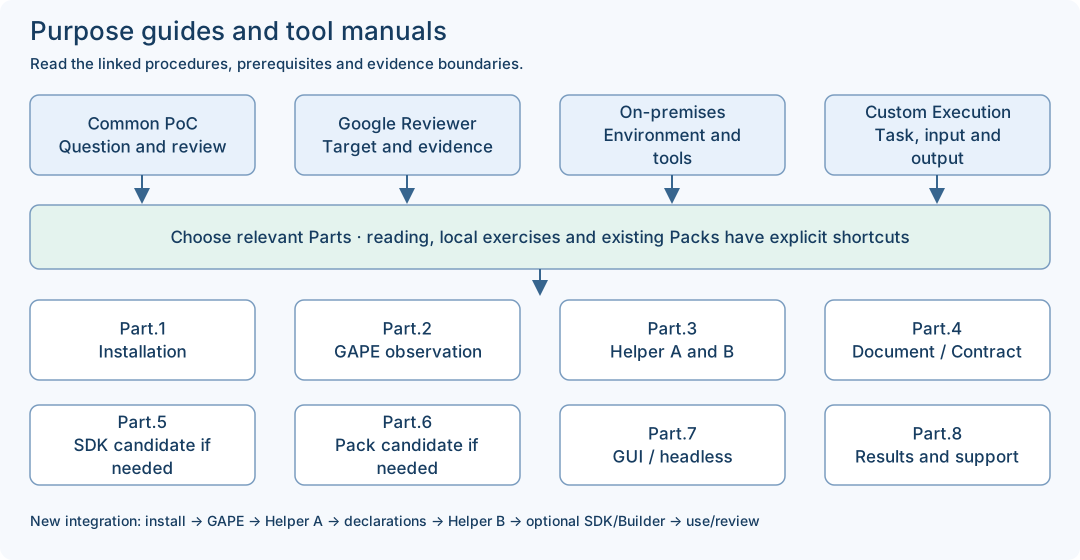
Choose a question, collect scoped observations and review the result. A retained-reading route needs no new installation.
Bind the exact review delivery and criterion evidence. Cloud access, document coverage and actual Google approval remain separate.
Prepare the exact OS, package, network choice and toolchain. Use the local SDK shortcut only after its prerequisites are supplied.
Choose a supported task. Keep source-document preparation, full SDK candidates and actual Work/report inspection as distinct routes.
Helper B checks the completed declarations before you decide whether implementation or a new Pack is needed. After an implementation or declaration change, repeat only the affected supported checks and finish the separate implementation/registration/Pack approval path before operation. A generated candidate grants no operating authority.
Select only the route needed for your goal. Retained PoC reading can begin without installation. A supplied local SDK exercise uses Part.1 → Part.5 and does not require a new GAPE scan or appliance account. An existing approved Pack can use Part.1 → Part.7 → Part.8 after its current prerequisites are checked. New integration/Pack authoring follows the full conditional sequence.
| Part | Role and expected boundary |
|---|---|
| Part.1 · Installation and first connection | OS preparation, supplied packages and first connection. Installation is not an executed Work. |
| Part.2 · GAPE observation, comparison and sharing | Revision-bound architecture observation. A worksheet is not the approved GAPE input manifest. |
| Part.3 · Integration Helper operation | A plans before the Document; B checks the completed full request. Each stage reads its typed status/reason. |
| Part.4 · Contract and Document authoring | Author the source Document and mappings; use the supplied target Contract/revision. JSON syntax alone does not establish semantic compatibility. |
| Part.5 · SDK Engine practice and candidates | Generate a local SDK implementation candidate. Reuse an implemented, registered, release-compatible integration when it already meets the need. |
| Part.6 · Builder and Additional Packs | Prepare a Pack candidate when a new Pack is needed. Reuse an existing approved Pack that meets the goal and installation scope. |
| Part.7 · PackrGUI and headless operation | Use the supplied GUI/headless route under its current authority and preconditions. Inspect the returned Work identity and result. |
| Part.8 · Operations, troubleshooting and support | Compare same-Work artifacts, receipt and closure; keep human acceptance pending until actually recorded. |
The status.read source-only example and the read_quality SDK exercise are different examples. Use a matching complete request; do not pass the status source file directly as the quality SDK request. Expected mapping values below are teaching expectations, not a newly captured run.
| File / role | Input | Output / check |
|---|---|---|
status-document.jsonSource-only CUSTOM_API declaration for status.read. Use it inside the complete supplied preparation request. | service: string | Declared service: string and healthy: boolean. This is a schema, not an observed service response. |
read-only-custom-api.json / custom-api-01.jsonThe complete maintained SDK base request; the guide copy is byte-equivalent JSON. | fixture.response.component = "fixture-component"; score = "97" (string) | STRING_TO_INTEGER maps score to expected integer quality_score 97. The documented SDK result is a local candidate. |
custom-api-02.jsonA complete second SDK request changing only the two fixture response values. | component = "my-test-component"; score = "88" (string) | Expected mapped component is "my-test-component" and quality_score is integer 88. Inspect actual manifest/stages; identical mapping source is possible. |
custom-api-score-number.jsonIntentional negative input, not a successful base example. | fixture.response.score = 88 (JSON number) against a declared string schema | Keep the actual typed failure result. Do not convert the example into a claimed successful candidate. |
Worksheet / SDK artifacts / Work reportsThree different artifact classes: human notes, local compiled candidate, actual Work/report/receipt records. | Use the matching tool and current target; never submit a worksheet or previous result as the next full request. | Bind outputs to the actual input, version, candidate or Work identity. File presence and exit 0 alone are insufficient. |
User-provided conceptual illustration. The n(n−1)/2 table is a theoretical upper bound for a simple undirected graph, not a measured integration count or benchmark. Listed components/features remain release-specific; this is not evidence of reviewer access or customer execution. The displayed edition is an English SVG with current documentation updates; the earlier raster original remains preserved.