01 · R11: actual local Work report displayed
The repaired local candidate demonstrated discovery, explicit selection and display of the retained Work’s revision 16 PDF on 4 October 2026. The original five-page report still records completed automation and human acceptance pending. This is a local demonstration, not customer r232 delivery or release authorization. The discovery capture is included below; the full report-body capture is retained for internal review because it contains internal identifiers and authority details.
Follow the official built-in Pack walkthrough to inspect Audit Review and Audit Evidence Format in the same Work.
02 · 1. Open Audit Report and find the exact revision
Observed in the R11 local candidate. Have the full Work ID and report revision from your Work result, access to the same installation and permission to read that Work. Open the global Audit Report control. It requests the local operator’s canonical Work report list without automatically choosing a report.
- At Select a Work report, compare the Work ID and revision in the list with your intended result.
- Select that exact row. A similarly named request or a newer revision is not a substitute for the requested revision.
- Check the selected Work ID, revision and final result above the document before interpreting the PDF.
If empty: No Audit Reports means no canonical Work reports were returned for this local operator; it does not establish that no Work exists elsewhere. Check installation and operator context with the installation operator. If loading fails, preserve the exact message and requested pair; do not submit another Work or silently choose another revision.
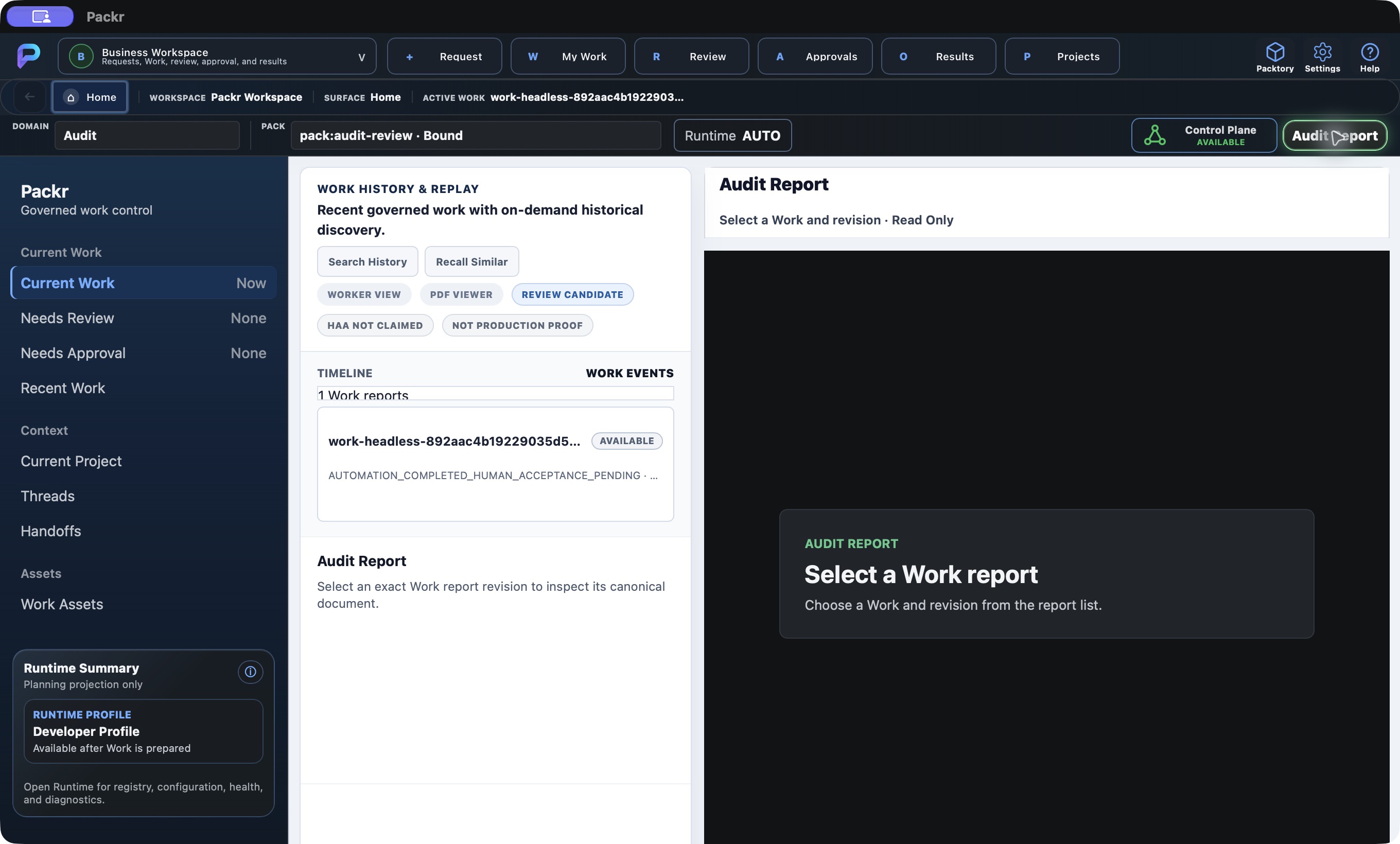
R11 local demo: discovery lists revision 16 without automatically selecting its PDF. Human acceptance remains pending. This is not customer delivery or production proof.
03 · 2. Read the PDF and name the remaining decision
The implemented viewer displays the selected canonical PDF with its Work ID, revision and final result. A populated title or successful load response alone is not proof that PDF pages rendered: wait for readable document content, then match the report’s identity with the selected row.
- Read Original intent and Origin to establish what operation the report covers.
- Read Execution count and execution disposition, then Validation. These describe recorded automation, not a reviewer’s acceptance.
- Read the final result verbatim. For the retained Work,
AUTOMATION_COMPLETED_HUMAN_ACCEPTANCE_PENDINGmeans automation completed and human acceptance remains pending. - Identify the responsible reviewer and remaining decision using your approved review process. Viewing the PDF does not record that decision.
The R9/R10 evidence below records one local audit execution with validation PASSED. R11 displayed that same revision 16 PDF. If document identity or result disagrees with the selected row, stop interpreting the copy and request reconciliation for that exact Work/revision.
Scroll within the PDF to the last page and read Closure: human_acceptance_required is true, human_acceptance is null, and disposition is AWAITING_HUMAN_ACCEPTANCE. These fields explain the remaining responsibility; an existing closure record is not a completed acceptance.
04 · 3. Optionally open a file, then return to the Work
- For the selected document, choose Open PDF in system viewer or Open JSON in system viewer only when an external view is needed. Each requests that exact Work and revision; the available viewer depends on your system’s file associations.
- Confirm a document actually opens, then match Work and revision again. A button click does not prove an external viewer opened.
- Keep file identity separate from acceptance: PDF and JSON have distinct file hashes; the canonical report digest is another value. Use the file-check procedure below when supplied with expected hashes.
- Return to PackrGUI, toggle Audit Report off and verify the Work context before continuing review. Record any pending human decision and its owner.
If opening fails, retain the visible error and ask the installation operator for the supported same-revision retrieval route. The retained Control Plane procedure below remains separate evidence. The final R11 local run opened the exact PDF in Preview and returned to Business Home with Work 1, Executions 1, Approvals 0 and Receipts 1. Open JSON was not executed. No report publication or human acceptance is performed by this flow.
05 · Start with the Work, then choose the right report
Retained R9/R10 observation — original R234 local candidate. The procedure and captures below describe that predecessor; The R11 route above has separate native display evidence.
Use this guide after the Business walkthrough. You need the returned Work ID, access to the same connected installation, and permission to view that Work. Keep its full ID available: the top bar shortens long identifiers.
Recorded on 4 October 2026 in the R234 local macOS candidate, using one GUI submission of create audit artifact. This is a bounded local audit operation without an AI provider call. It does not establish customer delivery of the frozen r232 GUI or a production acceptance result.
| Question | Open | What it provides |
|---|---|---|
| What happened to my selected Work? | Business → Results, or View Final Report | A read-only Final Report view of Work, execution, validation, receipt and acceptance. |
| Where are the Work's actual files? | Control Plane → matching Work and revision → Open PDF / Open JSON | The canonical report files for that exact Work revision. |
| Where are registered historical Audit Reports? | The global Audit Report button | A separate registry browser. An empty browser does not mean your Work PDF is missing. |
| Are operational audit records projected? | Operations → Audit | A separate operational record view. It is not the PDF download route. |
| How do the Work and governance records relate? | Engineering → Audit | A read-only correlation of the selected Work, admission, execution, validation, receipt and closure. It is not the report-file opener. |
| Can I search documents in the Reports tool? | Engineering → Reports | A separate tool requiring its runtime connection. Here it shows Enterprise Runtime is unavailable and disabled search; the same Work PDF remains available through Control Plane. |
In this run, the Work's PDF and JSON existed and the PDF opened successfully, while the separate Audit Report Browser had no available registry projection.
06 · Match identity before interpreting the result
- In Business, open My Work and confirm the Work returned by Submit.
- Open Results. The page heading becomes Final Report; this navigation creates no new Work.
- In Identity and report state, compare the full Work ID with your submitted Work. Read Work State, Report State and Freshness together.
- Keep the report revision when opening files. The run shown here has projection cursor 18 and a Work report at revision 16. These identify different records; do not require them to be equal.
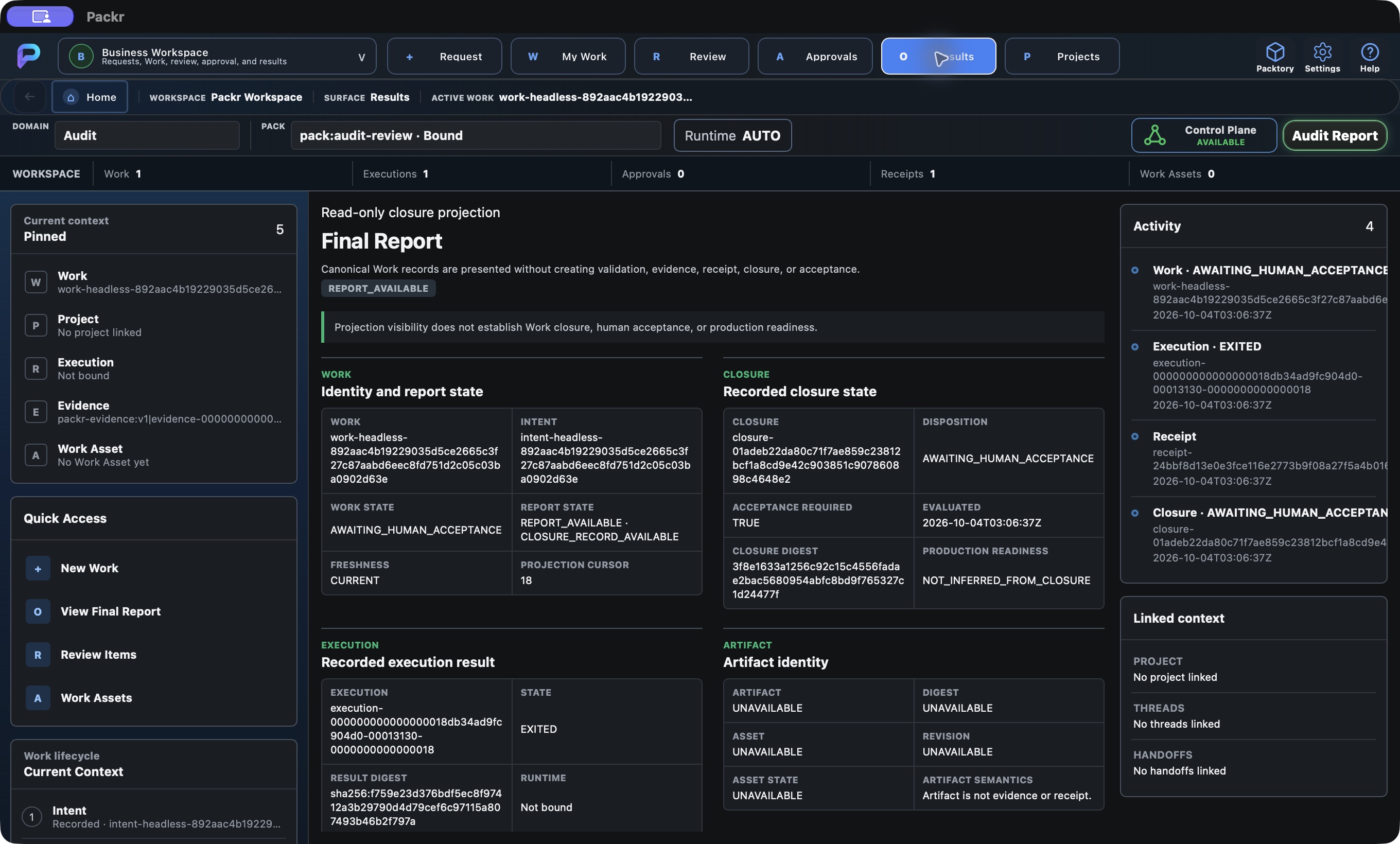
Results / Final Report: same Work, current projection, pending human acceptance, recorded closure and execution. Local R234 candidate, 4 October 2026; not customer r232 delivery.
Expected here: Work State AWAITING_HUMAN_ACCEPTANCE, Report State REPORT_AVAILABLE · CLOSURE_RECORD_AVAILABLE, Freshness CURRENT. A closure record can exist while closure still awaits acceptance.
If the Work ID differs, stop reading it as the result of your request. Return to the correct Work. If the projection is unavailable or stale, check the same installation and preserve its status; do not submit another Work to make the report appear.
07 · Read execution, validation and acceptance separately
Read in this order: Execution → Validation → Receipt → Human Review → Closure. Each answers a different question.
| Field | Observed value | Meaning and next check |
|---|---|---|
| Execution state | EXITED | The recorded execution ended. Compare its execution ID with Validation and Receipt. |
| Exit code | UNAVAILABLE | No process exit code is recorded for this in-process operation. Do not rewrite this as exit 0. |
| Provider call | NOT_PERFORMED | This local operation made no provider call. AUTO in the toolbar is not evidence of an AI execution. |
| Validation disposition | PASSED | The recorded validation passed. It does not record human acceptance. |
| Artifact / Work Asset | UNAVAILABLE / no asset | This operation did not require a product asset. This field does not describe the existence of the report PDF. |
| Receipt validation | PASSED | Compare its Work and execution references. A Receipt is a record of the outcome, not a reviewer signature. |
| Human acceptance | REQUIRED_NOT_RECORDED | The required decision is still missing. Hand the result to the assigned reviewer through the approved process. |
| Closure disposition | AWAITING_HUMAN_ACCEPTANCE | Do not label this Work accepted or finally closed. |
| Governance judgment | ALLOW | Admission was allowed. This is separate from final human acceptance. |
| Report authority / Export | PROJECTION_ONLY / FINAL_REPORT_EXPORT_DEFERRED | This screen presents records. Use the Work-specific Control Plane buttons for the available files. |
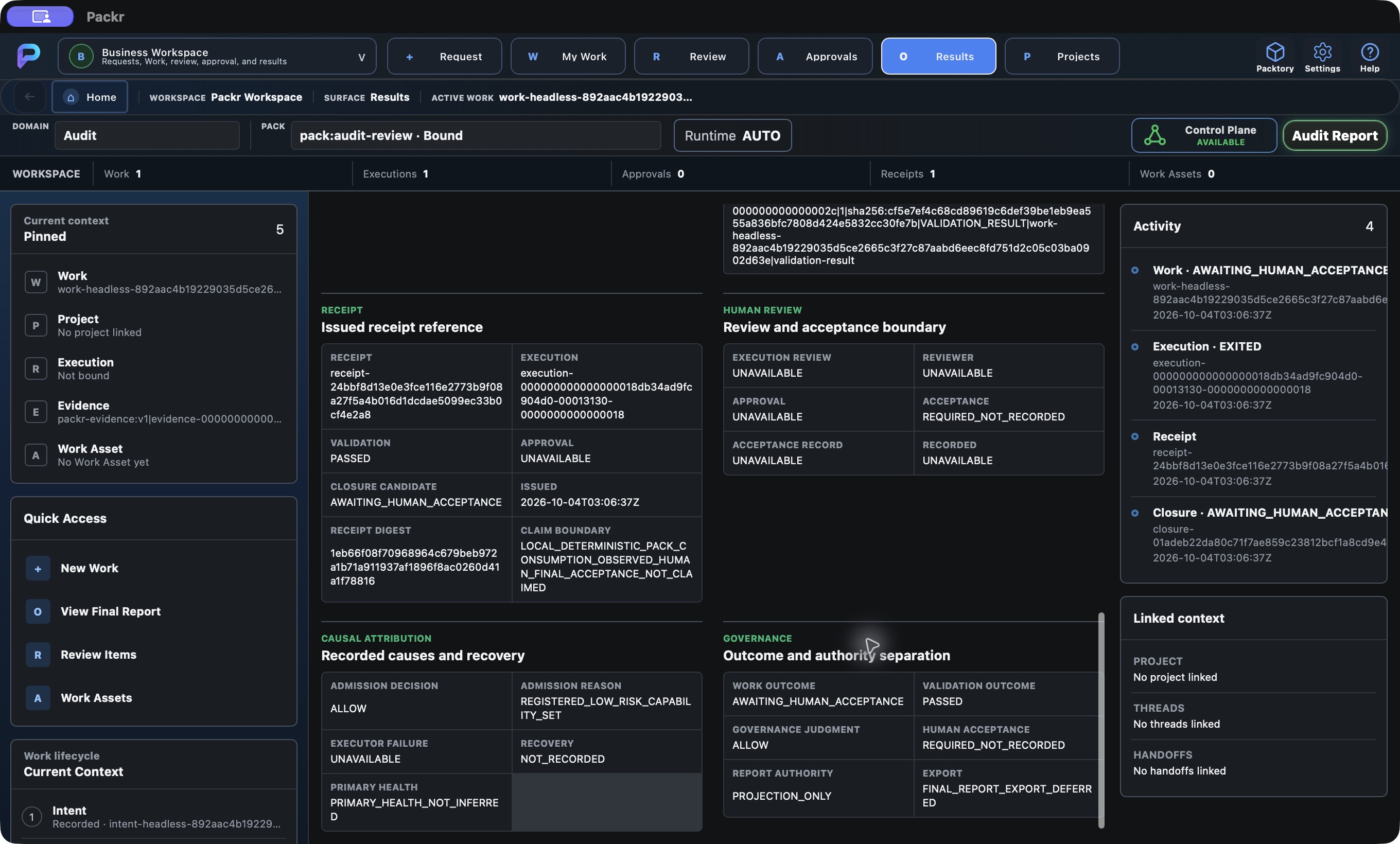
Final Report receipt, required-but-unrecorded human acceptance, governance and deferred export. Local R234 candidate, 4 October 2026; not customer r232 delivery.
How to describe this result: “The local audit operation executed once and passed validation. Its report and receipt are available. Final human acceptance is still required.”
08 · Open the exact PDF and JSON
- Open Control Plane in the top bar. Confirm Available.
- Under Your Work reports, match the full Work ID and revision. Here the row is revision 16 and
AUTOMATION_COMPLETED_HUMAN_ACCEPTANCE_PENDING. - Choose Open PDF once. Wait for the system PDF viewer and confirm the document is actually visible.
- Read the first page: Work, Original intent, Origin, Execution count, Validation and final result. In the recorded run, the native viewer displayed a five-page report with
Origin: PACKR_GUI, intentcreate audit artifact, execution count 1 and validation PASSED. - For structured inspection, use the same row's Open JSON. It requests the system viewer for that file; the application depends on your file association. The Open JSON control and actual JSON bytes were checked in this run; launching a JSON viewer was not exercised.
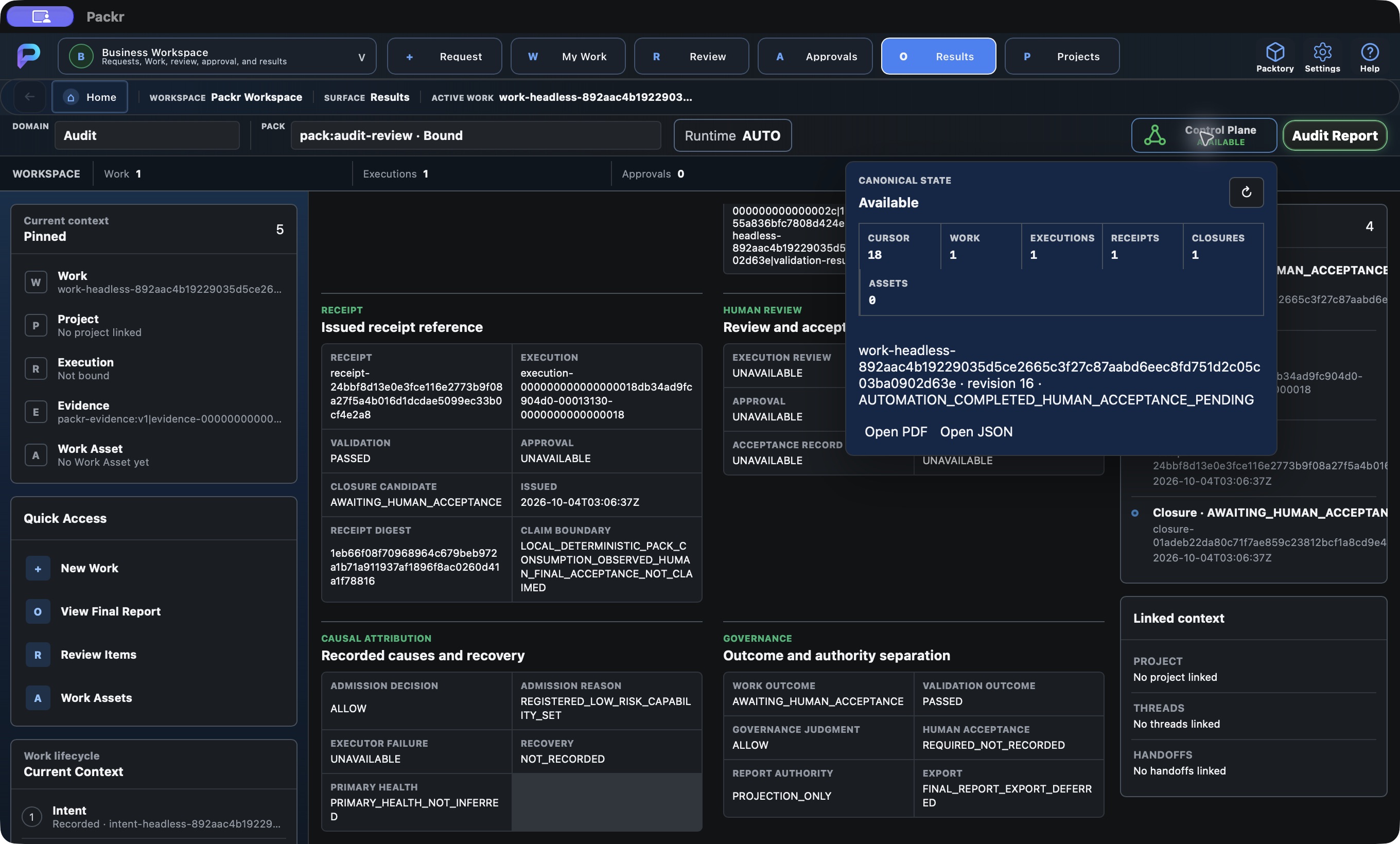
Canonical Control Plane: same Work report revision 16, automation completed with human acceptance pending; Open PDF and Open JSON. Local R234 candidate, 4 October 2026; not customer r232 delivery.
A filename alone is insufficient: two different Works can both have a file named final-report.pdf. Match the Work and revision inside the report or its file location. Opening a report does not approve the Work.
If no viewer appears, preserve the Work ID, revision, time and exact visible message. Ask the installation operator to check the supplied file-opening route or retrieve that same revision through the supported report procedure. Do not create a replacement Work. See Headless report reference if your operator uses the supplied command-line client.
09 · Read the five-page report with a reviewer
The page map below describes this recorded PDF. Pagination may differ for another Work. Follow section headings when pages move.
| In this PDF | Read | Reviewer question |
|---|---|---|
| Page 1 | Summary, authority/admission, scope and resources | Is this my Work and original request? What was permitted? Which runtime and Pack are recorded? |
| Page 2 | Execution summary | Which execution ran, how was it consumed, and what result digest identifies its output? |
| Pages 3–4 | Mutations, evidence references and Receipt | What change is recorded? Do Work and execution references agree? What validation and claim limit does the Receipt carry? |
| Pages 4–5 | Closure, recovery and product revision | Is acceptance required and recorded? What remains pending? Which installed runtime revision produced this report? |
Long identifiers can wrap across lines in a PDF. Use the JSON for exact copying and machine comparison. A null or unavailable value is not a successful result; interpret the specific field. Here first_divergence is null, but human_acceptance is also null and acceptance is required.
Keep the full report inside the installation's approved review and retention process. Reports can contain principal, installation, resource and internal record references. Share only the minimum approved extract with the intended recipient. Public documentation shows selected interface captures rather than distributing this full report.
10 · Verify file identity without confusing the digests
When the approved report handoff includes a projection manifest, compare the file hashes with that manifest for the same Work revision. Obtain the manifest through the supplied operator procedure; there is no manifest-download button in the captured GUI.
| Value | Identifies | Compare with |
|---|---|---|
| json_file_sha256 | Exact final-report.json file bytes | SHA-256 of the JSON file |
| pdf_sha256 | Exact final-report.pdf file bytes | SHA-256 of the PDF file, allowing the manifest's sha256: prefix |
| report_sha256 / Report digest | The report's canonical content digest under its declared hashing scheme | The corresponding canonical report digest; it is not the ordinary JSON or PDF file hash |
| Result digest | The operation's execution result | The same execution's result reference; it is not the report-file hash |
| Receipt / Closure digest | The associated canonical record | The corresponding record, not the PDF |
From the directory containing the supplied files, macOS can calculate their byte hashes with:
shasum -a 256 final-report.json final-report.pdfLinux equivalent:
sha256sum final-report.json final-report.pdfWindows PowerShell equivalent:
Get-FileHash -Algorithm SHA256 -LiteralPath './final-report.json', './final-report.pdf'Both file hashes matched the retained projection manifest in this run. These checks establish file identity, not a signature, final acceptance, or permission to distribute the files. If a file hash differs, preserve both files and their metadata, stop using the disputed copy and ask for reconciliation of the same Work revision.
11 · Handle missing or apparently conflicting fields
| What you see | What this run establishes | Next action |
|---|---|---|
| Runtime says Not bound; the report names a local runtime | The GUI's actual-runtime binding field is unpopulated, while the execution/consumer records identify the local deterministic runtime. | Keep both observations. Use the same Work's recorded execution for this operation; do not infer provider readiness. |
| Engineering Runtime shows PORTABLE_BINDING_STORE_INVALID | This separate runtime selection projection is unavailable. Its root cause was not adjudicated in this walkthrough. | Record the code and route; request operator diagnosis before relying on that runtime-selection path. Do not change trust or preferences to hide the error. |
| Artifact unavailable but PDF opens | The product asset field and report files are different records. | Read the report through Control Plane. Do not claim a missing output asset was generated. |
| Approvals empty but acceptance required | No approval record is projected; the closure still requires acceptance. | Hand off to the responsible reviewer; an empty list is not acceptance. |
| Audit Report Browser unavailable | The separate Audit Registry projection is not materialized in this installation. | Use the matching Work's PDF/JSON route. Do not populate a registry or export a candidate just to complete this tutorial. |
| Different Work, revision, digest or disposition | The disputed records have not been reconciled. | Preserve identifiers and visible messages; stop any final-completion claim and reconcile the same Work through support. |
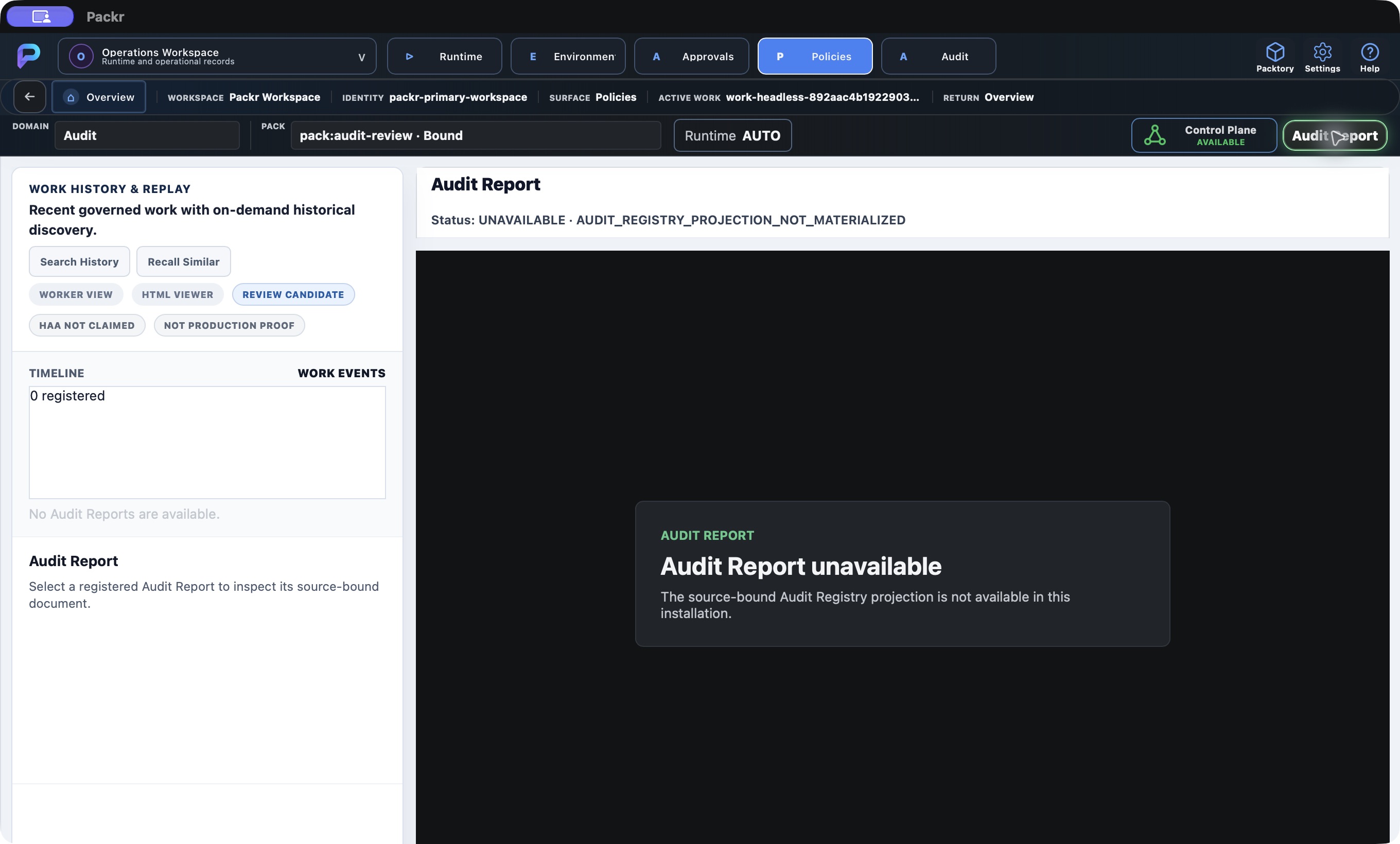
Separate Audit Report Browser: zero registered reports and registry projection not materialized; canonical Work PDF remains a different route. Local R234 candidate, 4 October 2026; not customer r232 delivery.
The disabled or empty states shown here are part of the observed workflow. They are not silently converted into success, and they do not erase the separately recorded local execution.
12 · Finish with a precise review handoff
Before handing the report to your reviewer, record:
- The exact Work ID, report revision and original intent.
- Execution disposition, validation disposition and whether a provider was called.
- The Receipt and Closure references, plus whether human acceptance is required and recorded.
- Which PDF/JSON files were actually opened or checked, and their file hashes when supplied.
- Any missing fields or conflicting displays, stated without guessing a cause.
- The remaining decision, its responsible person and the approved review channel.
Finish line: you can identify the same Work across its request, result and files, explain its observed outcome, and name the remaining acceptance step. This walkthrough ends with human acceptance pending; it contains no product acceptance action.
Return to PackrGUI overview, inspect the Engineering record, or follow the Operations checks.