01 · Choose an operational question and retain its context
These menu observations and captures are retained from R9/R10. The R11 change concerns the global Audit Report surface; its implemented route and observed local native display are described in the final report guide. It does not establish new outcomes for these workspace tools.
Obtain the intended installation, authorized read account, Work ID and the question to answer from the operations owner. Use Overview for record availability, Runtime for a Work’s actual-runtime field, Environments for projected runtime candidates, Approvals for recorded decisions, Policies for policy identity and Audit for operational audit identity.
- Confirm the workspace and Active Work before opening a route.
- Read status, reason, identity and observation time together. Preserve missing fields instead of substituting another screen’s value.
- Compare with the same Work’s final report when the question concerns execution or acceptance.
- Give the responsible owner the exact unresolved field and required next check. A clear unavailable observation can finish this inspection; it does not finish the underlying operational prerequisite.
These six routes inspect records. They do not configure environments, issue approval, edit policies or launch an audit. A new operational change needs its own supported procedure and authority.
02 · Read the operational overview
Purpose: inspect operational records without changing service configuration or approval state. Retain the original Work ID, choose Operations Workspace, and open Overview. Check Active Work and the READ_ONLY mode.
The actual overview showed Work 1, Execution 1, Approval 0 and Receipt 1. These are counts in this projection, not total customer inventory and not proof of human acceptance. A receipt count is not an audit-report list. Continue to the individual views to understand what each count represents.
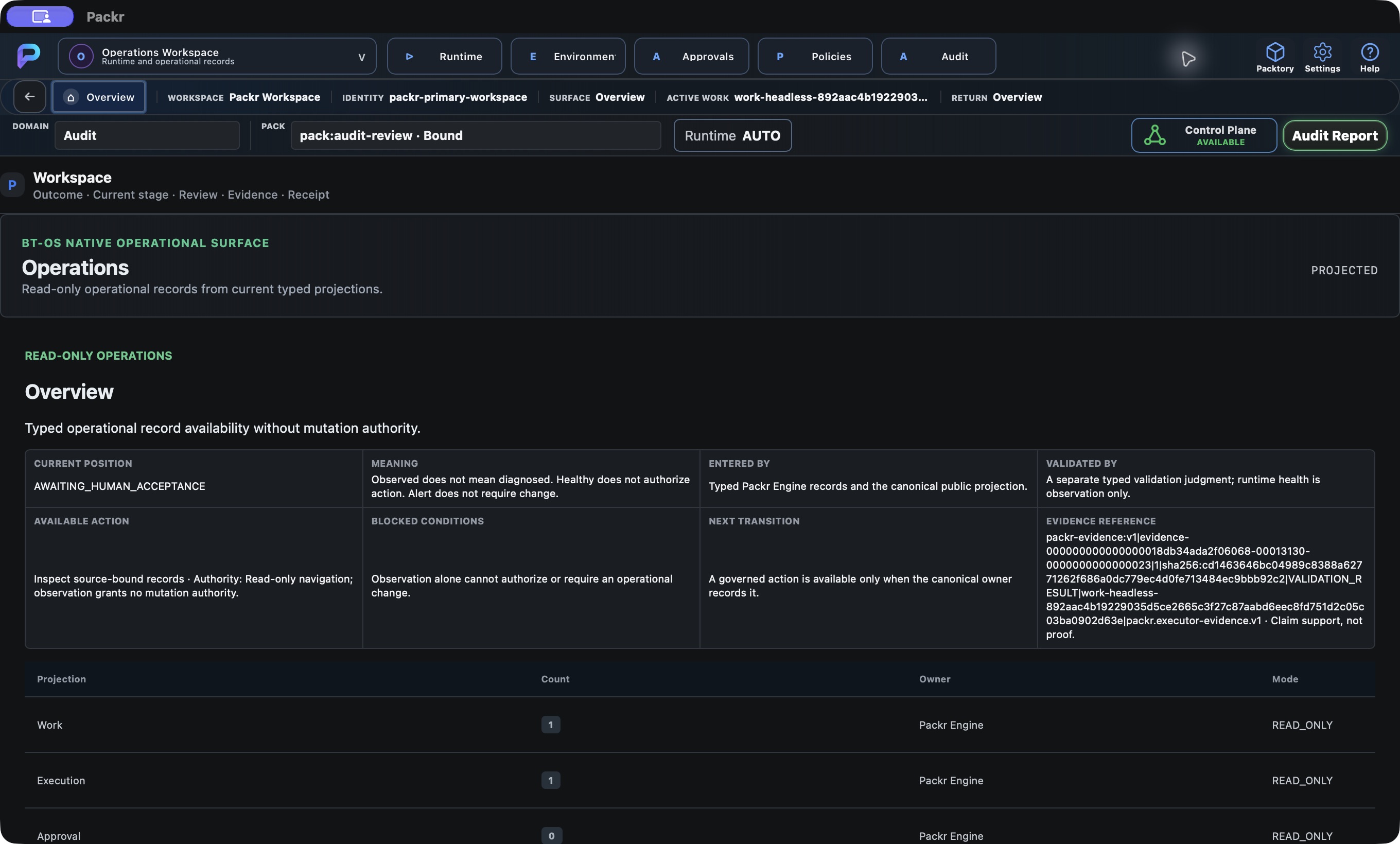
Operations Overview preserves the same Work and shows read-only counts for Work, execution, approval and receipt. Local R234 candidate, 4 October 2026; not customer r232 delivery.
Read each count as a count of the named typed records in the current projection. If you expected an existing Work but it is absent, verify the same installation/account and original Work ID before asking the operator to reconcile. Do not generate a test Work to change the count. Continue to the route matching your question rather than inferring all operational health from Overview.
03 · Compare the Work runtime row
Choose Runtime. Locate the exact Work row and read State, Actual runtime and Updated together. In this capture, the row remained AWAITING_HUMAN_ACCEPTANCE and Actual runtime said Not bound.
Preserve that observation alongside the Work execution/report records; do not replace it with the AUTO preference or guess a binding. If you need the actual binding reconciled, give the runtime operator the Work ID, observation time and displayed state. This read-only view is not a runtime provisioning or repair control.
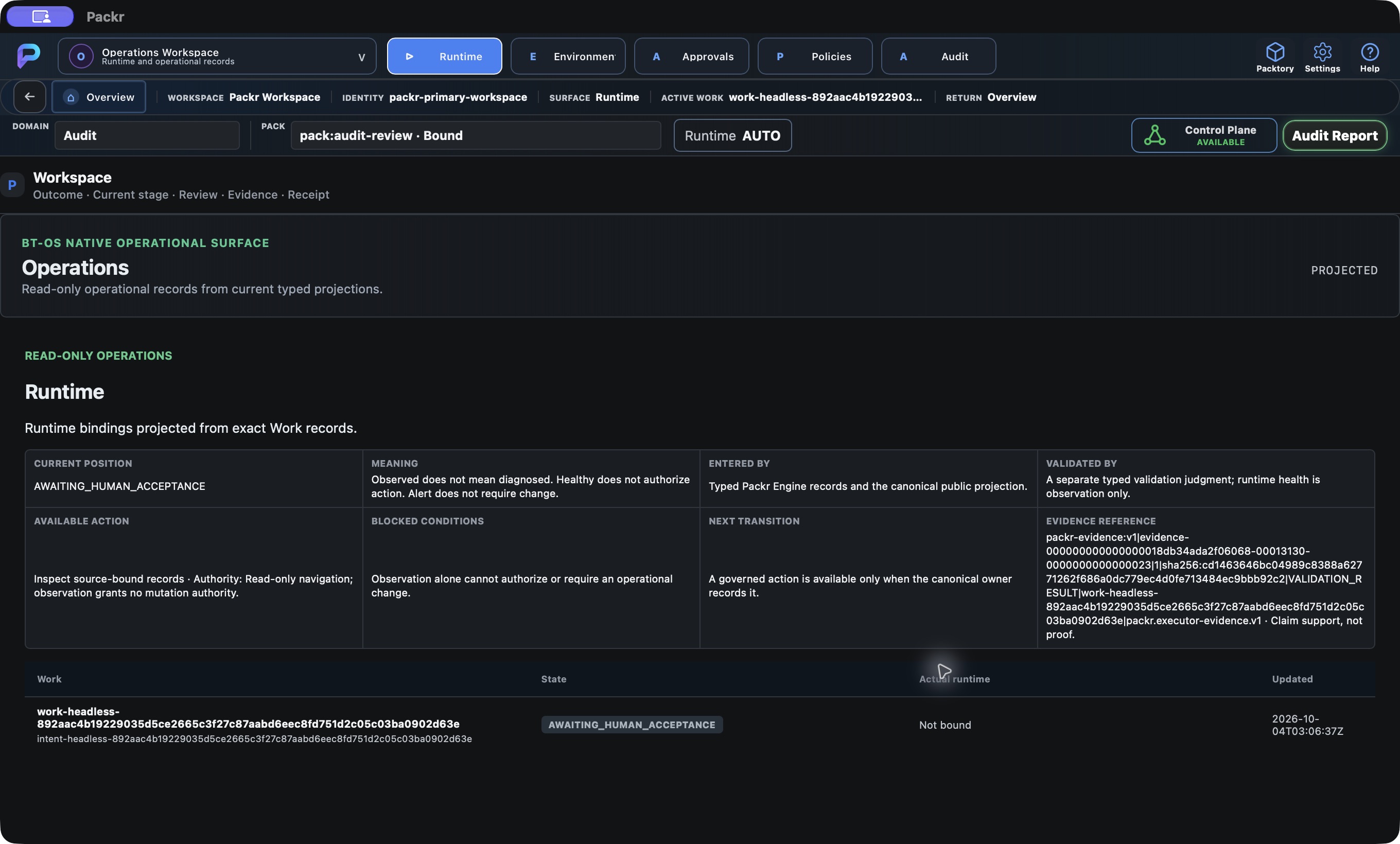
Operations Runtime reads the same Work; actual-runtime field Not bound is preserved rather than converted to readiness. Local R234 candidate, 4 October 2026; not customer r232 delivery.
04 · Environments: inspect projected runtime candidates
Open Environments when the operations question is which governed runtime candidates are visible. The active renderer defines Runtime, Availability, Class and Freshness columns. Read the candidate identity and selection reference together; a familiar display name is not enough to identify the intended target.
- Match the expected candidate with the identity supplied by its owner.
- Read Availability alongside Class and Freshness. UNKNOWN or NOT_RECORDED remains unresolved.
- If the view reports No governed runtime environment available, keep the exact reason/state and ask the runtime operator for the missing candidate projection.
- Return to Runtime to compare the specific Work’s binding. Candidate availability does not prove that this Work selected or executed that candidate.
The R10 read-only observation showed VALID_EMPTY_STATE and “No governed runtime environment available”, with NONE and Class/Freshness Not recorded. No environment provisioning or selection change is demonstrated. Finish with the exact candidate observation or the missing item and owner.
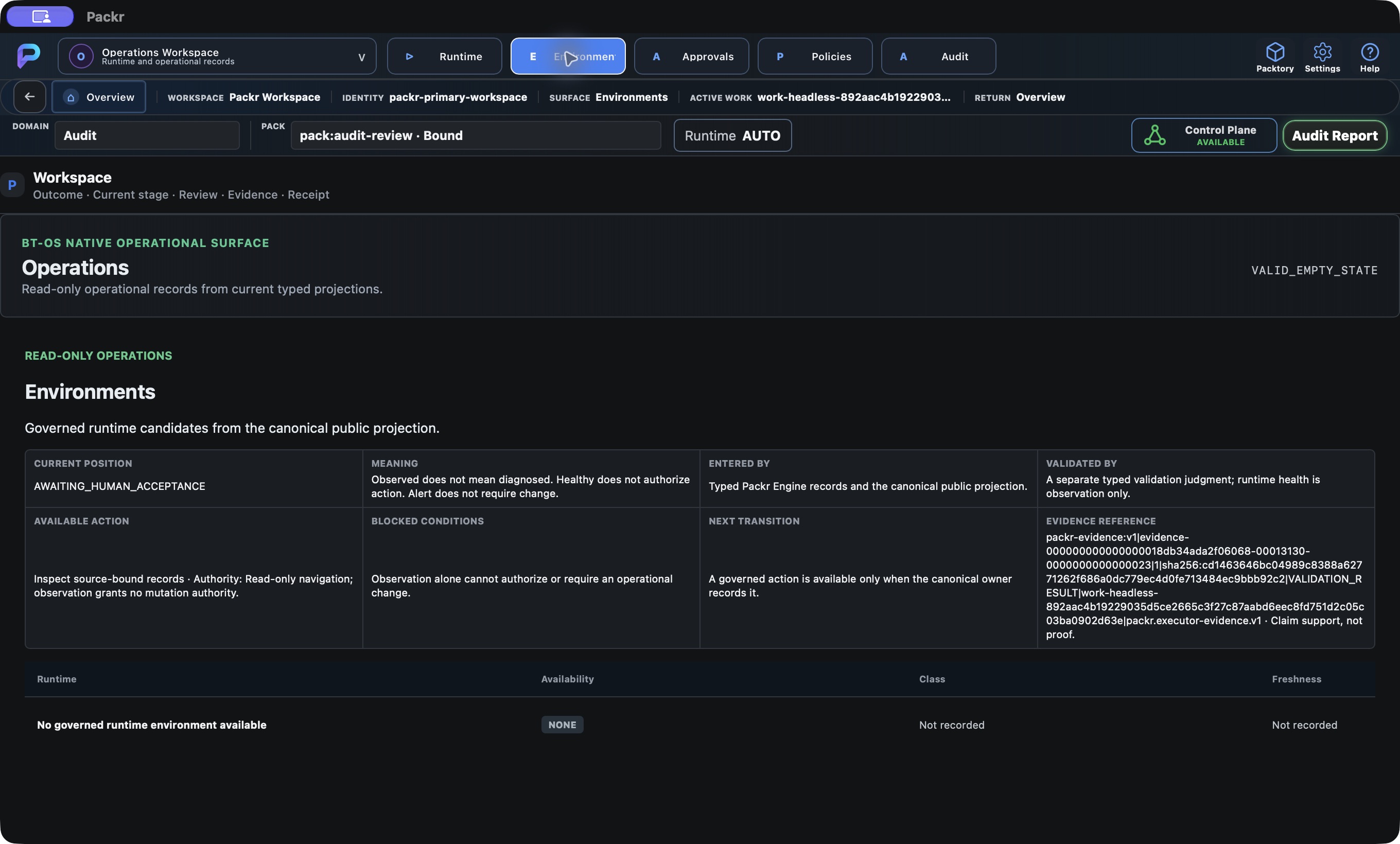
Operations Environments shows no recorded candidates in the current read-only projection. Local R234 candidate, 4 October 2026; no new Work submitted.
05 · Read an empty approval projection correctly
Open Approvals. The captured view showed VALID_EMPTY_STATE and No source-bound approval record. Compare the Work’s pending acceptance separately in the final report.
No approval row does not mean that acceptance is unnecessary or already complete. This surface displays records; it does not grant administrative approval authority. Ask the named reviewer or administrator for the required supported decision route if a decision is outstanding. Do not turn navigation into an approval claim.
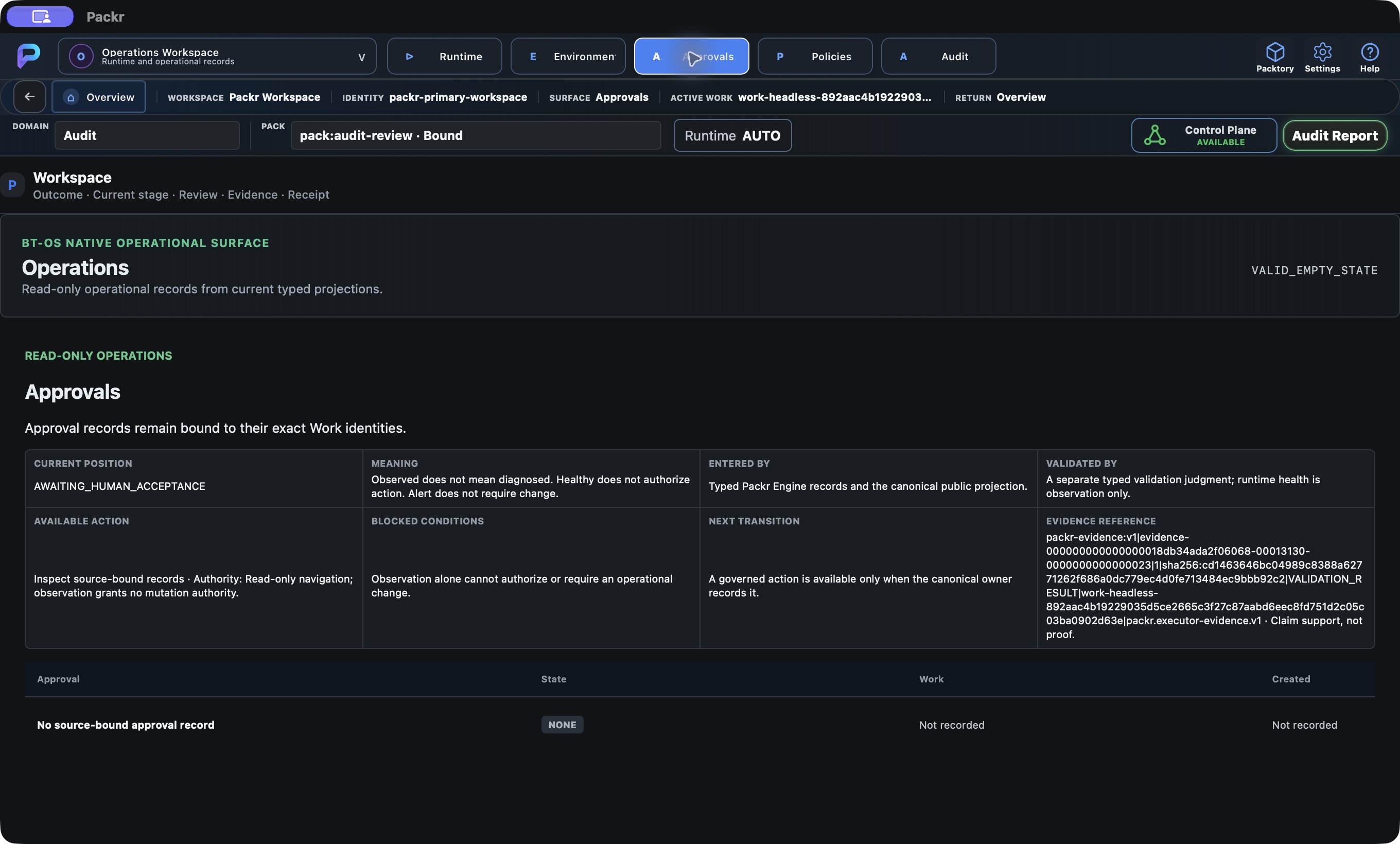
Operations Approvals: no approval decision projected for this Work; zero approval is not an approval grant. Local R234 candidate, 4 October 2026; not customer r232 delivery.
When a row is present, compare Approval identity, State, Work and Created. A decision for another Work cannot resolve this one’s pending acceptance. If no row is present, use the report’s acceptance requirement to determine the handoff; do not infer that the reviewer has nothing to do.
06 · Distinguish Audit from receipts and reports
Choose Audit. The actual table displayed No source-bound audit projection, with NONE and Not recorded values. It did not display a receipt list. The evidence reference elsewhere on the page does not manufacture an audit identity.
For the completed Work’s report, follow the dedicated final report route below. If an operational audit record is required, ask the operations owner for its exact supported projection and identity. Preserve this empty observation; it is not evidence that no audit capability exists anywhere.
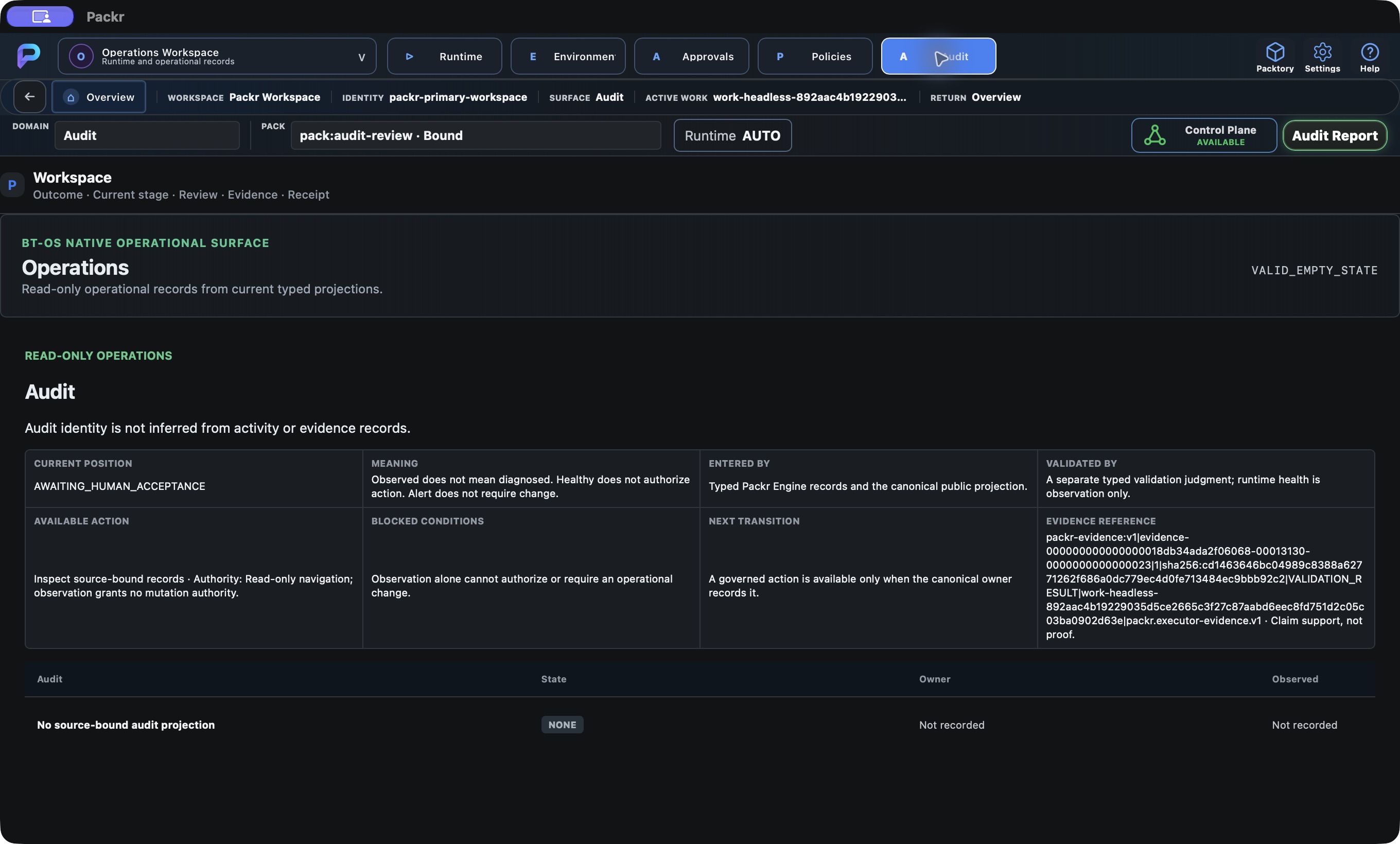
Operations Audit: no source-bound audit projection. The same Work remains selected; receipt existence does not create an Audit record. Local R234 candidate, 4 October 2026; not customer r232 delivery.
The Audit row model is Audit, State, Owner and Observed. Ask for an exact audit identity when one is required. Do not substitute an evidence reference, receipt or document filename for it. A return to Results opens a different question: the selected Work’s report.
07 · Finish with an explicit observation handoff
Open Policies when policy identity is the review question. The R10 view showed VALID_EMPTY_STATE and No source-bound policy projection, with NONE and Owner/Observed Not recorded. This does not establish that policy enforcement is absent or that policy can be edited here.
Complete this inspection by recording the target Work, views inspected, literal missing projections and their responsible owners. Use Overview or the workspace selector to return. Administrative changes require their own supported procedure and authority.
Read Policy, State, Owner and Observed if a supported populated projection is available. In this renderer, the policy identity is not supplied. Give the policy owner the intended installation and the specific policy question; do not request a broad permission change to fill an empty display.
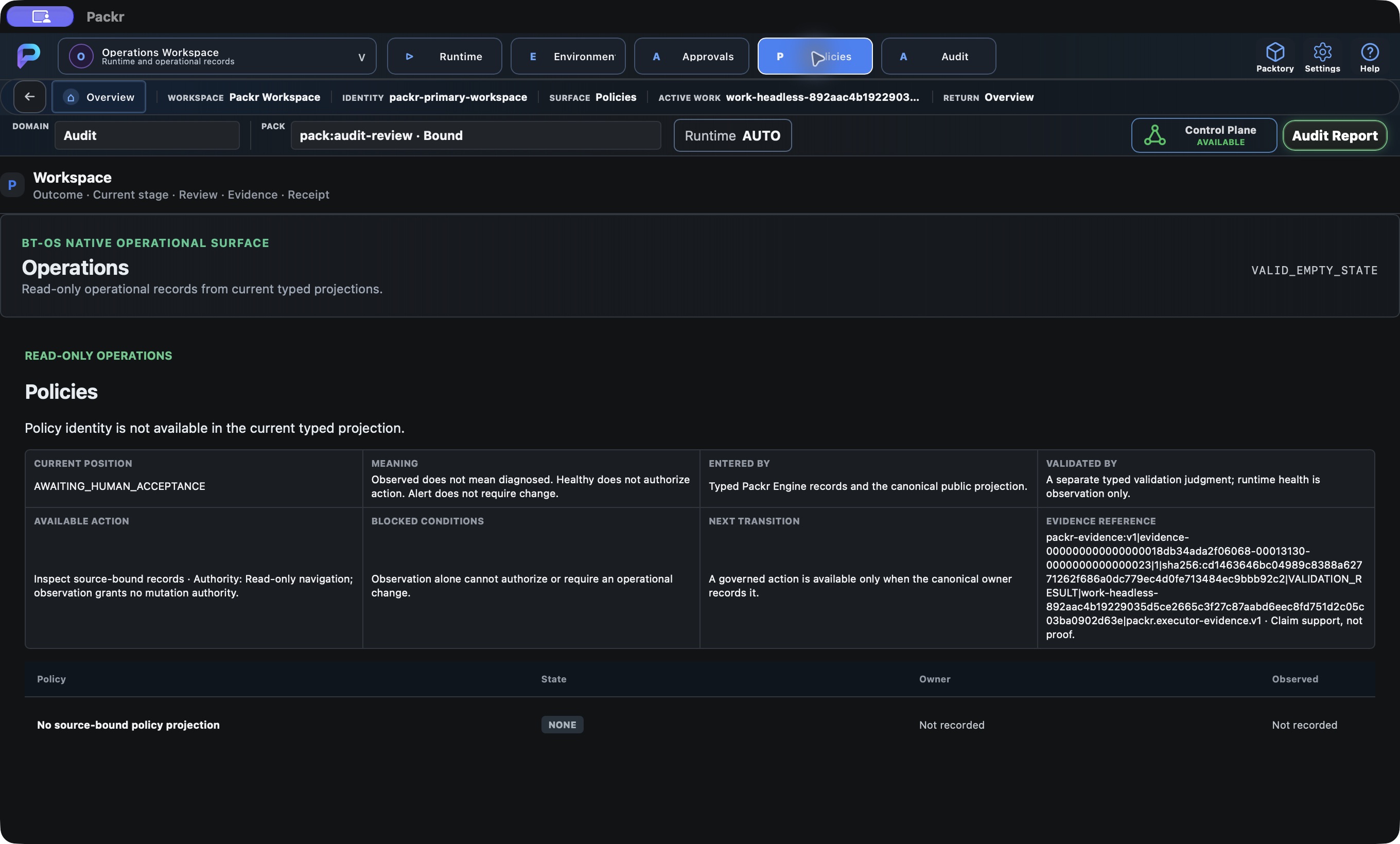
Operations Policies shows no recorded policy on this read-only surface. Local R234 candidate, 4 October 2026; no new Work submitted.
08 · Continue with the same Work
Continue to the final report walkthrough for outcome, receipt, human acceptance and PDF/JSON opening. Return to the PackrGUI overview to choose another surface. Retain the original Work identity through every transition; do not submit a replacement to repair a missing view.